Email Alerting
Email alerts in OpenSearch automatically detect problems in data. When a problem is identified, alerts are sent to the relevant email IDs.
Email Alert Types
-
1FA Failure If a user fails to log in using One-Factor Authentication from the HySecure Client, a log regarding the 1FA failure will be generated. This log will be sent to the ARS, tagged as "1FA_Failure." The Alerting system will then retrieve data associated with the 1FA_Failure tag and generate an alert based on the specified time frame.
-
Multi-Factor Authentication Failure If a user fails to log in using Multi-Factor Authentication from the HySecure Client, a log regarding the MFA failure will be created. This log will be sent to the ARS and tagged as "MFA_Failure." The Alerting system will fetch data related to the MFA_Failure tag and generate an alert according to the designated time frame.
-
High Memory Usage on HySecure If a HySecure machine exceeds 80% memory usage, an alert will be generated regarding high memory usage.
-
High Memory Usage on HyWorks If a HyWorks machine exceeds 80% memory usage, an alert will be generated regarding high memory usage.
-
High Disk Usage on HyWorks If a HyWorks machine exceeds 90% disk usage, an alert will be generated regarding high disk usage.
-
High Disk Usage on HySecure If a HySecure machine exceeds 90% disk usage, an alert will be generated regarding high disk usage.
-
High CPU Usage on HyWorks If a HyWorks machine exceeds 80% CPU usage, an alert will be generated regarding high CPU usage.
-
High CPU Usage on HySecure If a HySecure machine exceeds 80% CPU usage, an alert will be generated regarding high CPU usage.
Configuring Email Alert
Step 1
-
Log in to the ARS.
-
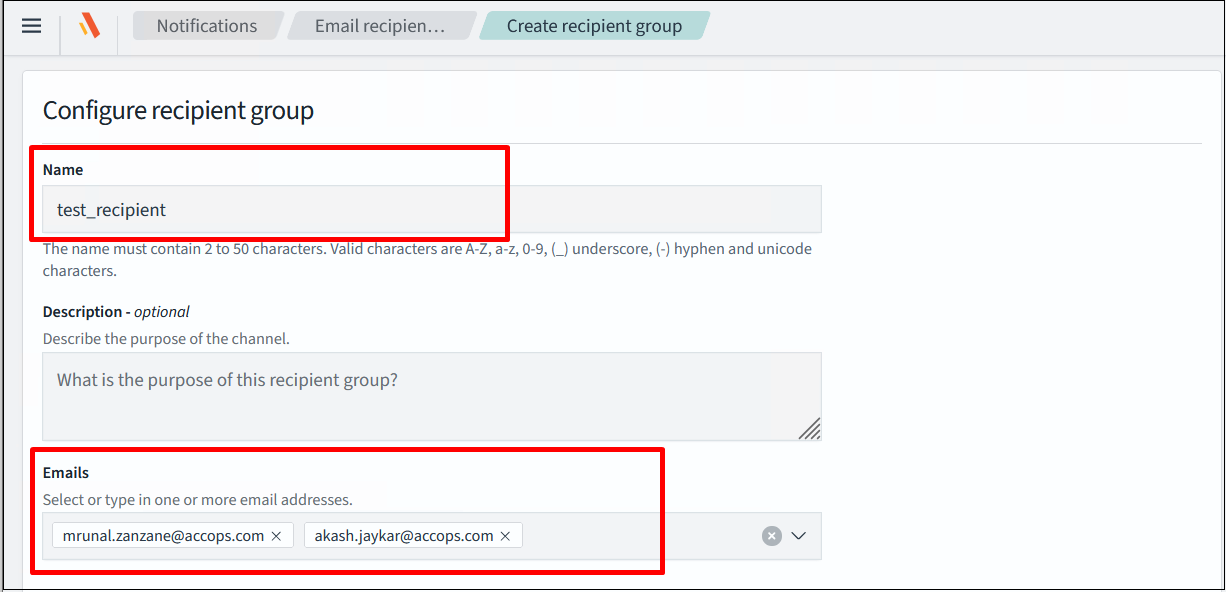
Create an Email recipient group. Navigate to Notification > Email recipient groups > Create recipient group.
-
Enter the name for the group and the recipient’s email address, and create a group.
-
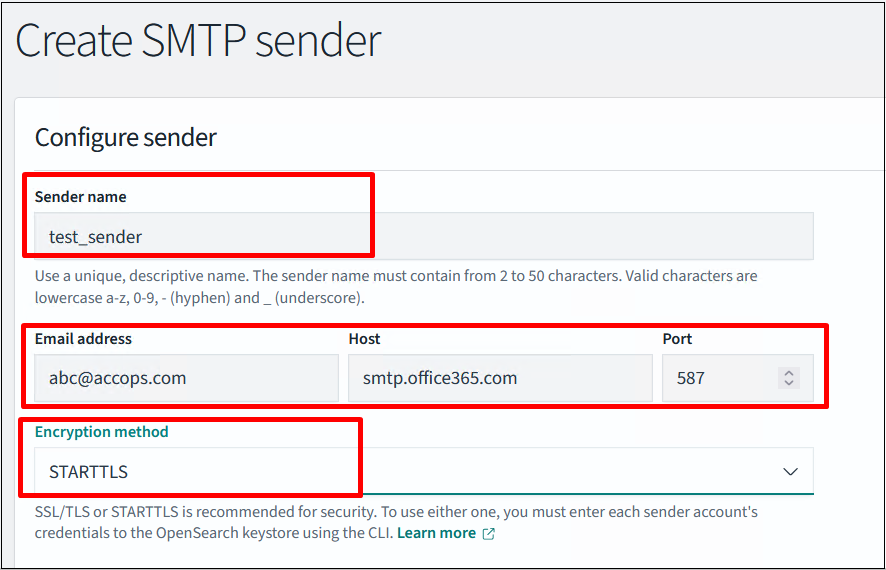
Navigate to the following location to create Email Sender: Notification Tab > Email Senders > Create SMTP Sender > Enter Sender name, Email ID (of sender), Host, Port, Encryption Method.
-
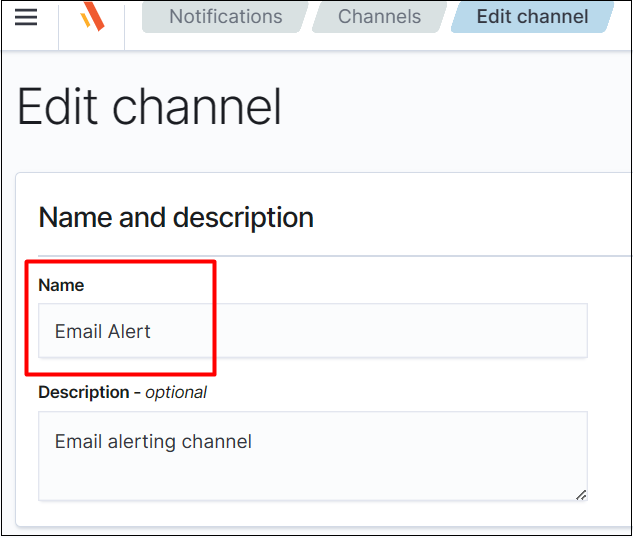
Navigate to the following location to create a Channel: Notification Tab > Channel > Create Channel. Enter Channel Name.
-
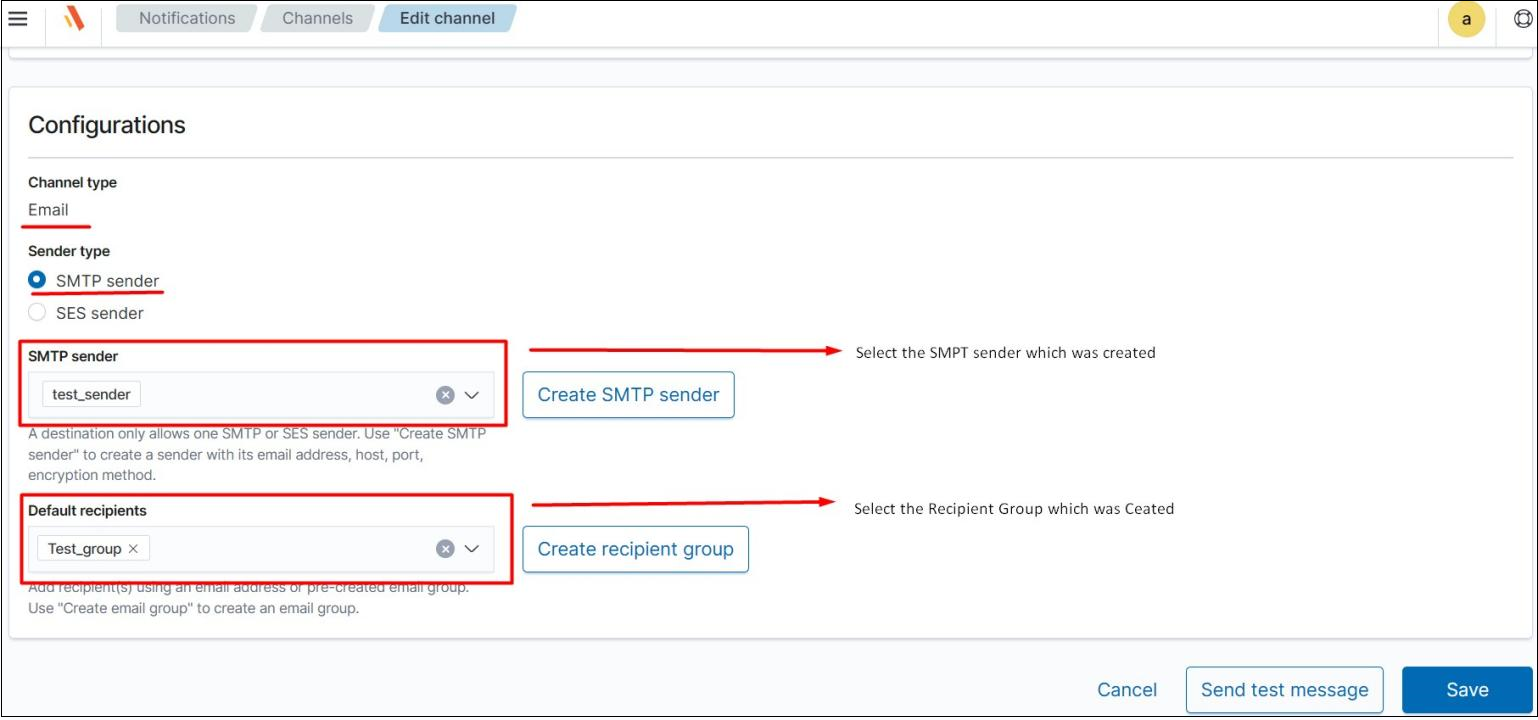
Select Channel type as Email.
-
Select SMTP Sender and Recipient from the drop-down button. Save the Channel.
Step 2
-
Go to the Backend (Putty access).
cd /usr/share/opensearch/bin ./opensearch-keystore create . /opensearch-keystore add plugins.alerting.destination.email. (sender name).username -
Enter the sender’s email ID.
. /opensearch-keystore add plugins.alerting.destination.email. (sender name).password -
Enter sender SMTP password.
Note
Enter the sender name that was provided during the sender configuration in Step 1.

-
Go to the following directory and change the permissions and owner of opensearch.keystore
cd /etc/opensearch
chown opensearch.opensearch opensearch.keystore
chmod +rwx opensearch.keystore
Step 3
-
Go to frontend > open Dev Tools.
-
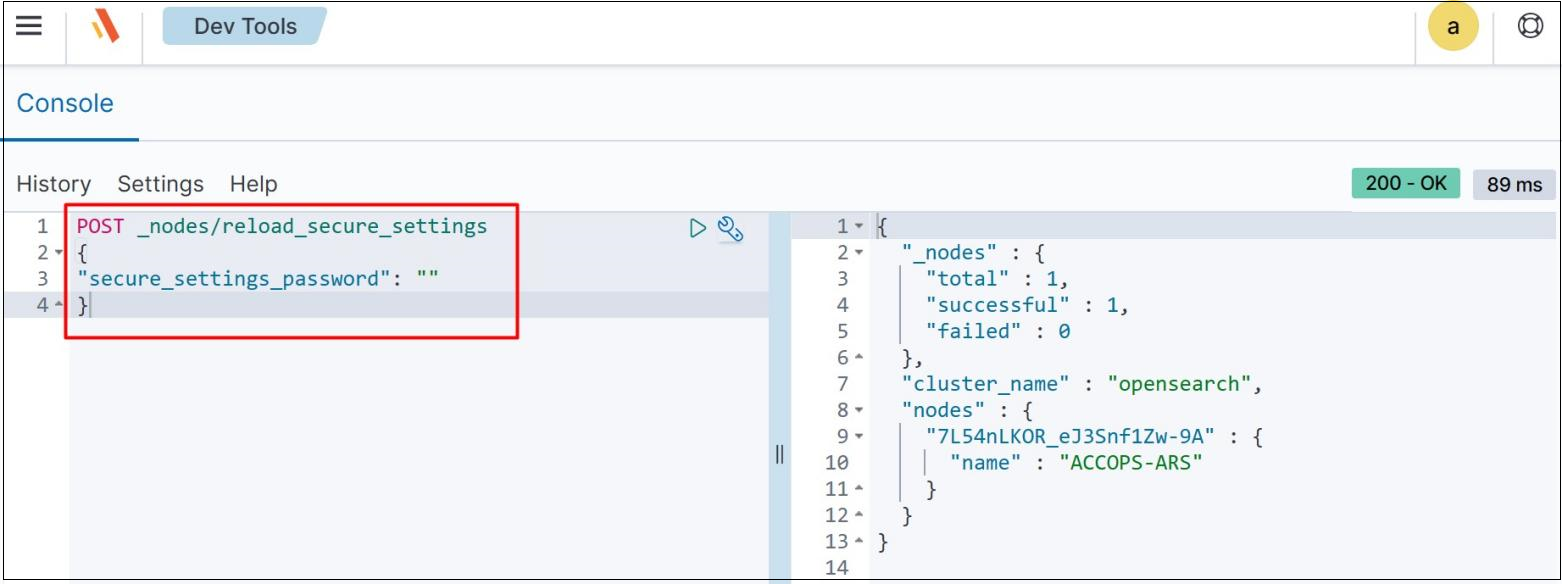
Using Dev tools on Dashboard - call the reload API to automatically update those credentials.
POST _nodes/reload_secure_settings
{
"secure_settings_password": ""
}
-
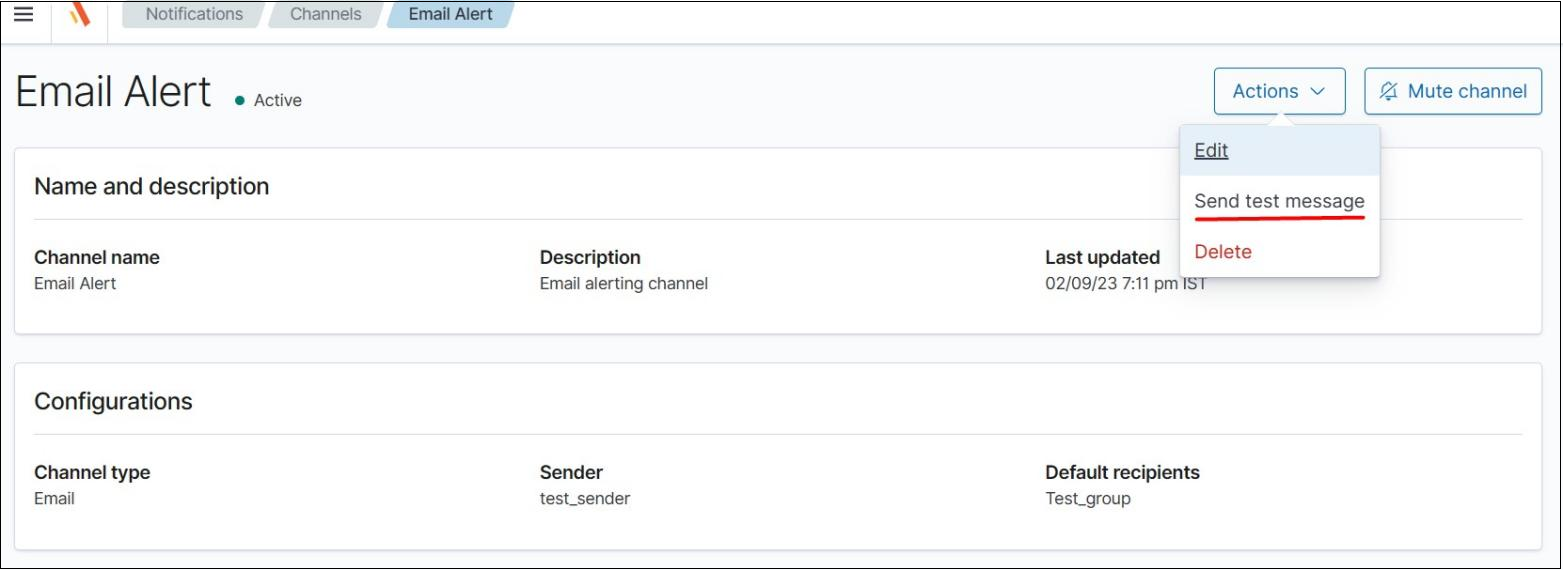
Now test with the test Email whether the Email is sent or not.
-
Navigate to Notification > Channels > Select Channel (Email Alerts) > Actions > Send test message.
Step 4
Setting Alerts
-
Go to the front end and set the alert.
-
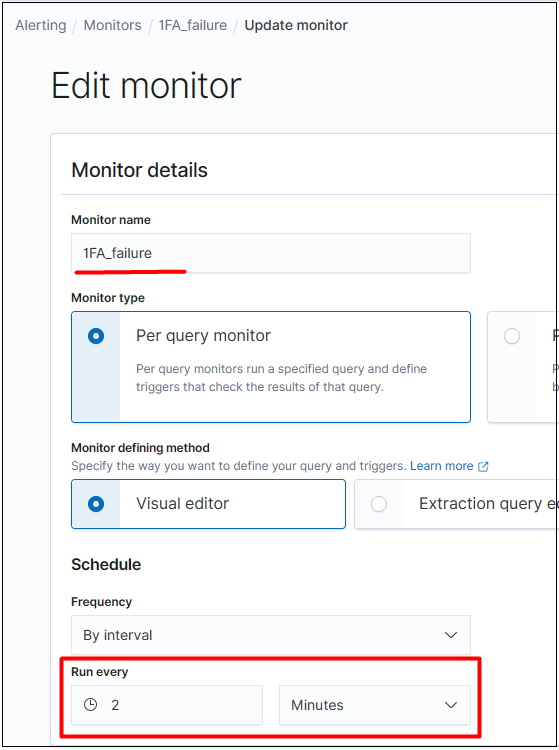
Navigate to Alerting > Monitor > 1FA_Failure (Select the alert to Configure) > Edit.
-
In the Schedule Section, select the run time, i.e the time frequency you want to run the Alert. Here it’s 2 minutes, which means the monitor will run for every 2 minutes.
-
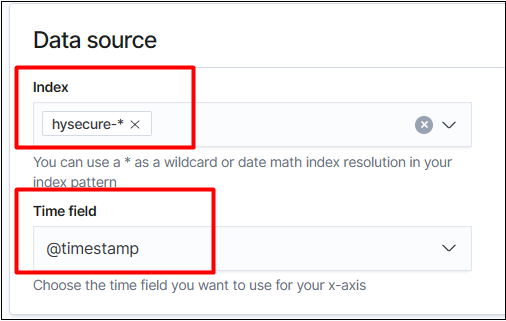
After that, select the Data source from which Index (hysecure-, metricbeat- ) you want to get data for get Alert.
-
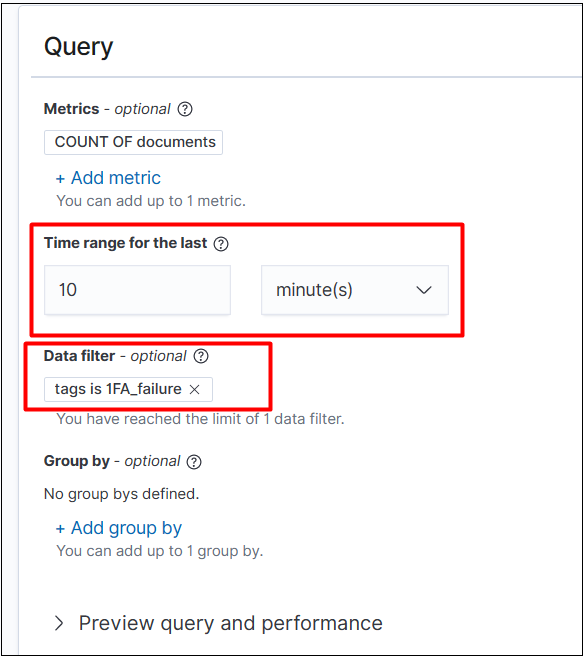
After that, select the time range to trigger that query from the past time limit, I.e capture data from the last 10 minutes, & Select the data filter to filter out the data that you want to see.
-
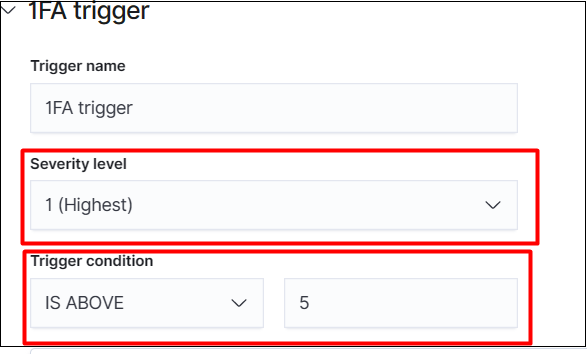
Now Select the Trigger. that select the Severity Level (Highest, High, Low, Lowest) & select Trigger Condition, which can trigger the data filter, which can be above or Exact the trigger value.
-
In given case Trigger condition is '5' means if we get the data of 1FA_failure more that 5 times then it will process to trigger.
-
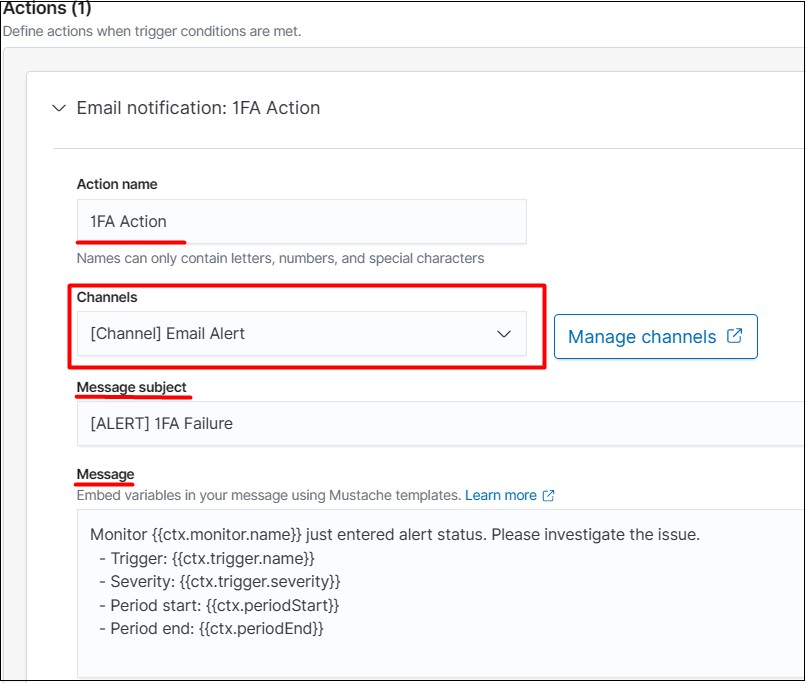
Now Set the Action. Enter the Action Name, Channel name(which was created previously) from drop down. Enter Message subject and Message.
Action Configuration
Action throttling to limit the number of notifications you receive within a given span of time.
For example, if a monitor checks a trigger condition every 2 minute, you could receive one notification per 2 minute. If you set action throttling to 60 minutes, you receive no more than one notification per hour, even if the trigger condition is met dozens of times in that hour.

Click on Update/Create button, then Alert will be created.
-
For Metricbeat Alert
-
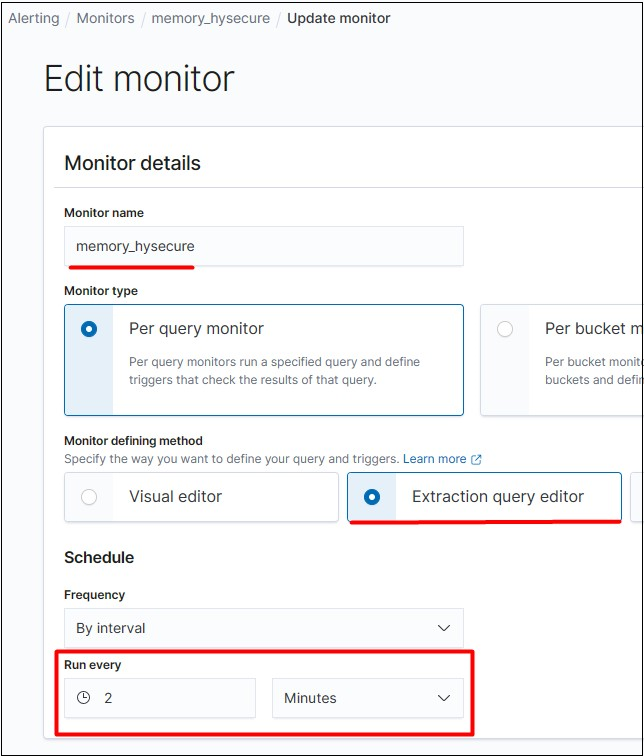
Go to front end and set the alert: Navigate to Alerting > Monitor > memory_hysecure (Select the alert to Configure) > Edit.
-
In Schedule Section Select the run time i.e the time frequency you want to run the Alert. Here its 2 min means the monitor will run for every 2 minutes.
-
Select Data Source which must be metricbeat-* for metric alert.

-
Now get the query. "System.memory.actual.used.pct" is a field that fetches memory used. Which is set within the frame of 80% to 100%, which means if the memory usage of the HySecure machine reaches beyond 80%, it will trigger.
-
"@timestamp" filed tells the time, which fetch data till the current time. "tag" tells the data from which machine its coming according to given tag by user.

-
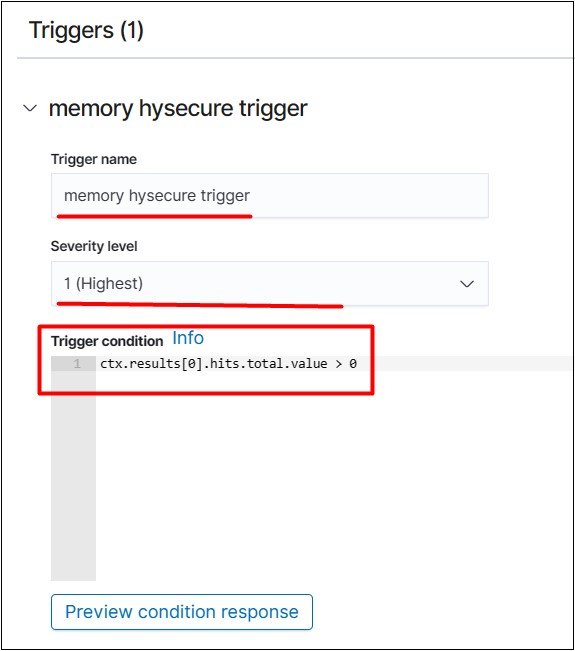
Trigger settings
-
Enter a name for Trigger.
-
Select the severity level and trigger condition as "ctx.results[0].hits.total.value > 0" > Evaluates to true if the query returns any documents.
-
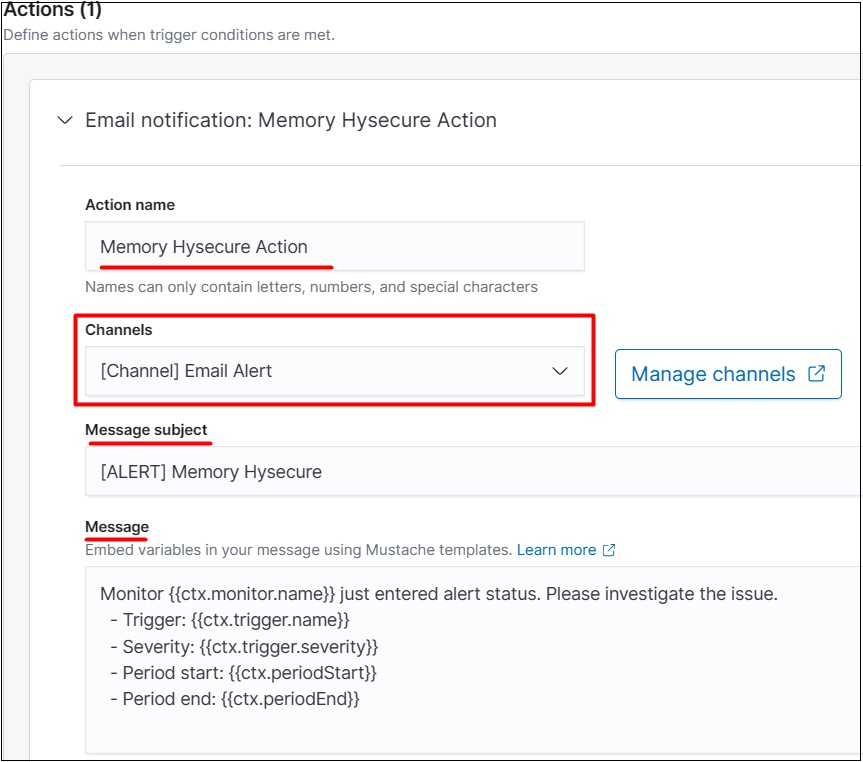
Set the Action. Enter the Action Name, Channel name (which was created previously) from the drop-down. Enter the Message subject and Message.
-
Click Update/Create button, to confirm the Alert creation.