Logshippers Installation
Logshippers Installation
Once the server is set up and configured, log shipping agents need to be installed in the respective HySecure/HyWorks instances. Ensure that the Log Shippers.zip file is present and its contents are unzipped to the local desktop.
Filebeat Installation
Filebeat is a lightweight log shipper designed to collect and forward log data from various sources; in our case, it is Logstash, which is further pushed to OpenSearch. It is particularly useful for monitoring log files from Hysecure, making log data easily searchable and analyzable in the Opensearch Stack.
Metricbeat Installation
Metricbeat is a lightweight shipper for collecting and shipping system and service metrics. It periodically collects metrics from the operating system and services running on a server, transforming the data into a structured format(JSON), and then ships it to Opensearch. Metricbeat is valuable for monitoring system performance and resource utilisation.
Important
- We exclusively install Filebeat on HySecure Servers. In contrast, Metricbeat has a broader installation scope and can be deployed on both HyWorks and HySecure servers, as well as on VDIs and SHDs.
- After setting up and configuring the server, log shipping agents should be installed in the respective HySecure/HyWorks instances. Ensure you have the correct folder/file, and if the contents are in zip format, unzip them on your server.
Filebeat Installation
Linux
Filebeat Installation
-
Copy the Logshipper folder to the HySecure server at /root.
-
Unzip the folder.

-
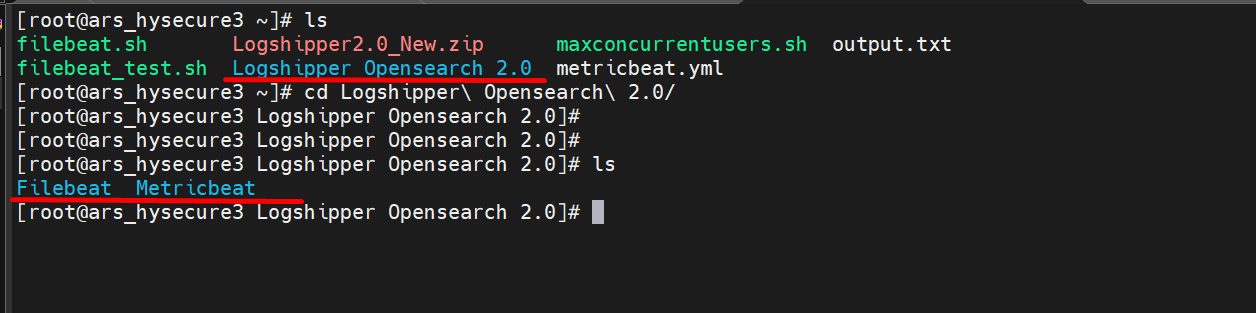
Navigate to the Logshippers folder > cd Logshippers/. The following two folders are present inside:
- Filebeat
- Metricbeat
-
For the Filebeat installation, navigate to the Filebeat folder.
-
Run the Filebeat rpm > rpm -ivh filebeat.rpm
rpm -ivh filebeat.rpm

-
Next, open the filebeat.yml file and make the following changes:

-
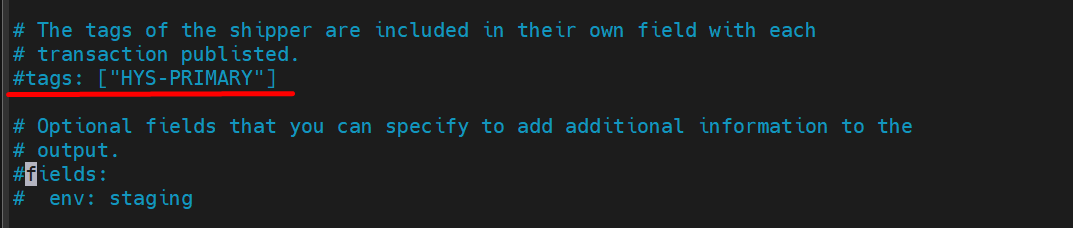
Uncomment the HySecure server tags and add the Hostname.

-
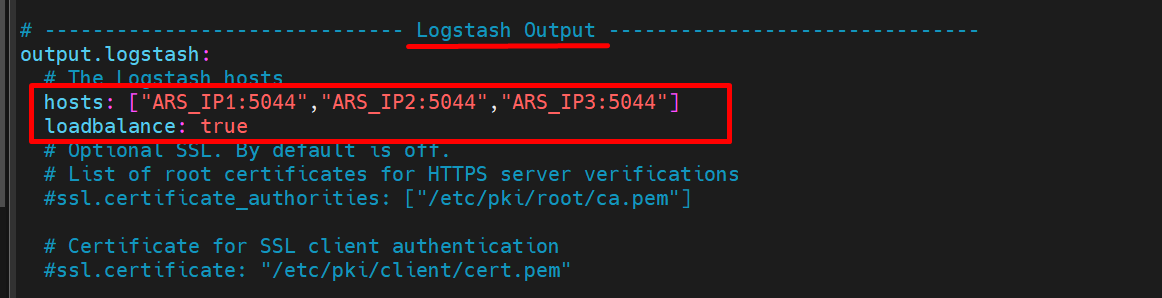
Add ARS_IP in Logstash Output.
For Single Node

For 3 Nodes
Add ARS IP of 3 nodes and set the loadbalance value as true.
For 5 Nodes
Add ARS IP of 3 master nodes of a 5-node cluster and set the loadbalance value as true.

-
Replace the filebeat.yml file at the location /etc/filebeat
cp filebeat.yml /etc/filebeat
-
Test the configuration and the output
-
filebeat test config
-
filebeat test output

-
-
Start and enable Filebeat and check on the Opensearch-dashboard HySecure index.
-
systemctl start filebeat
-
systemctl enable metricbeat

-
Metricbeat Installation
Linux
Metricbeat Installation
-
Navigate to the Metricbeat folder. The following two folders are present inside:
- LINUX
- Windows
-
In the LINUX folder, run rpm for metricbeat
rpm -ivh metricbeat.rpm

-
Open metricbeat.yml file and make the required changes.
-
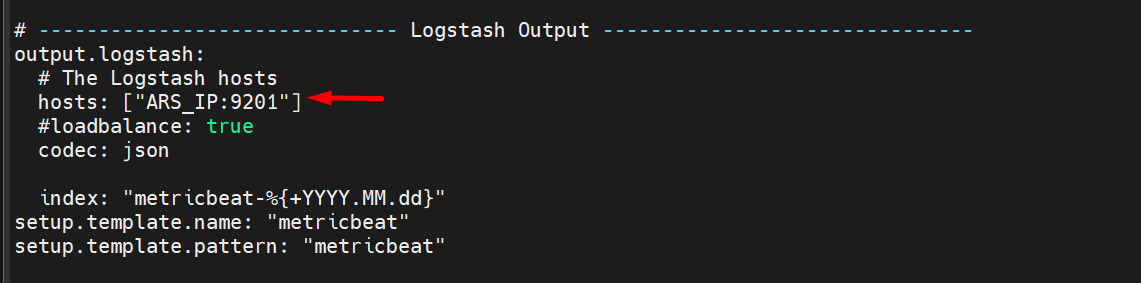
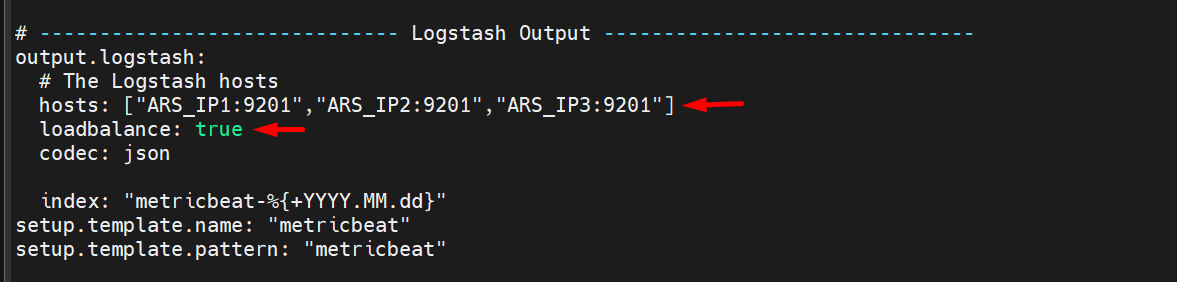
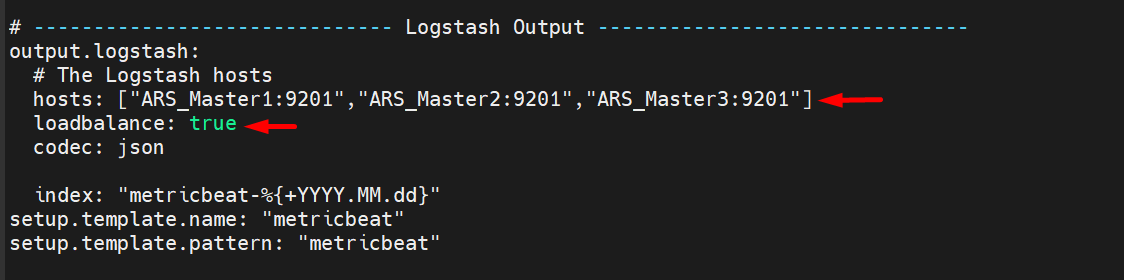
Uncomment and add tags as per the server and ARS IP as shown below.
For Single Node
For 3 Nodes
For 5 Nodes
-
Save the file and copy the metricbeat.yml file to the location /etc/metricbeat/
-
Copy system.yml file to location /etc/metricbeat/modules.d/
-
cp metricbeat.yml /etc/metricbeat/
-
cp system.yml /etc/metricbeat/modules.d/

-
-
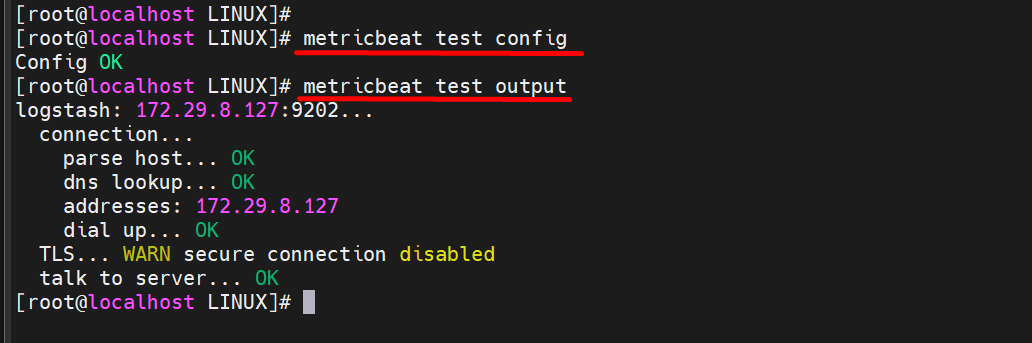
Verify the configuration and the output.
-
metricbeat test config
-
metricbeat test output
-
-
If all the configurations are correct, then start and enable Metricbeat.
-
systemctl start metricbeat
-
systemctl enable metricbeat
-
-
Check the Logs on the ARS dashboard under metricbeat index.
Windows
Metricbeat Installation
-
In the Logshipper, navigate to the Metricbeat folder and unzip the Metricbeat 2.0 folder. The following two folders are present inside:
- LINUX
- Windows
-
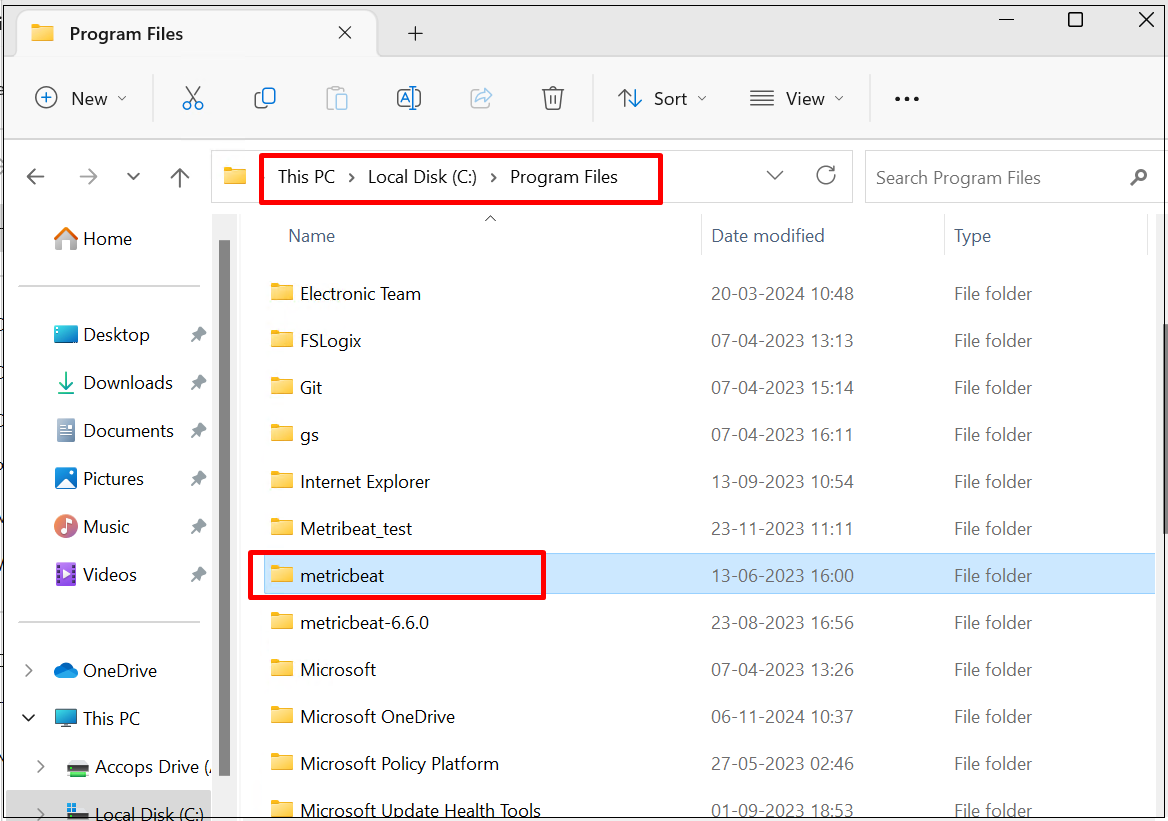
Navigate to the Windows folder and copy the metricbeat folder.
-
Paste this folder in the location C:/Program Files/
-
Open PowerShell in administrator mode.
-
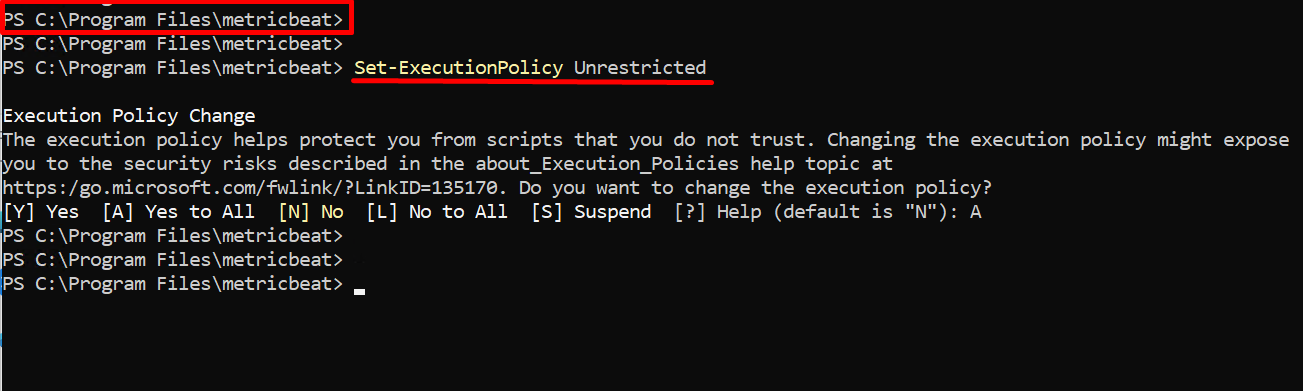
Navigate to C:\Program Files\metricbeat
-
Set-ExecutionPolicy Unrestricted
-
-
Install Metricbeat
-
.\install-service-metricbeat.ps1

-
-
Navigate to C:/Program Files/metricbeat
-
Open the metricbeat.yml file and perform the required changes.
-
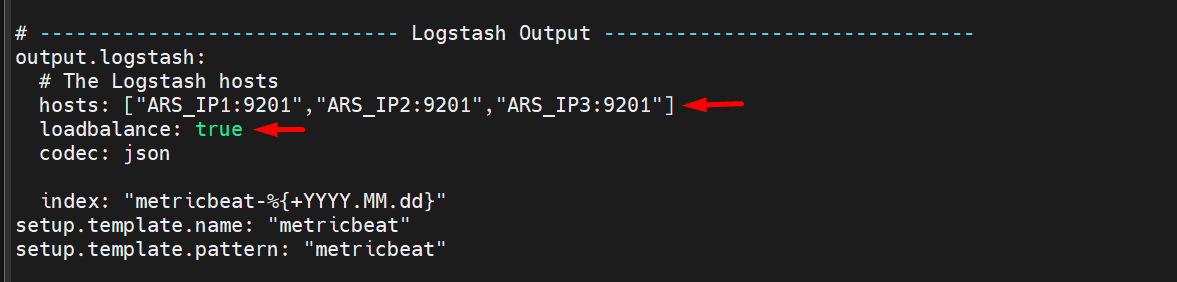
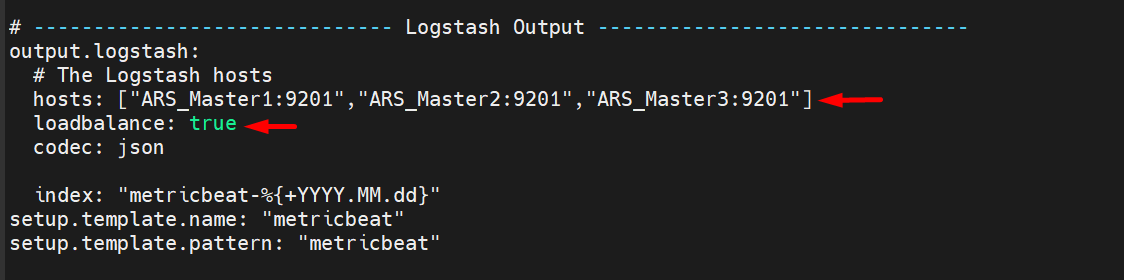
Uncomment and add tags and ARS IP.

For Single Node

For 3 Nodes
For 5 Nodes
-
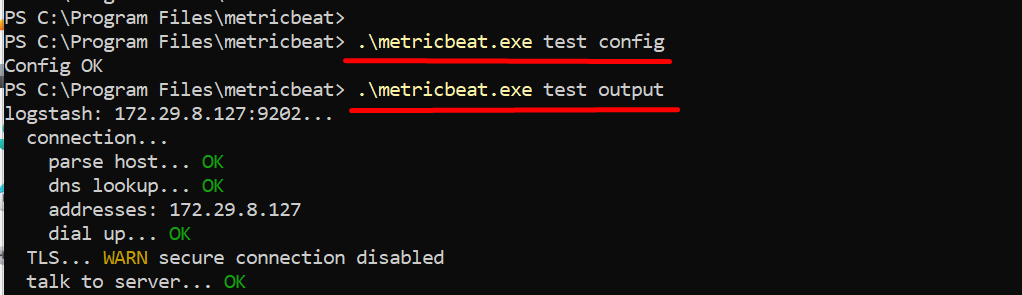
Save the file and verify the configuration.
-
.\metricbeat.exe test config
-
.\metricbeat.exe test output
-
-
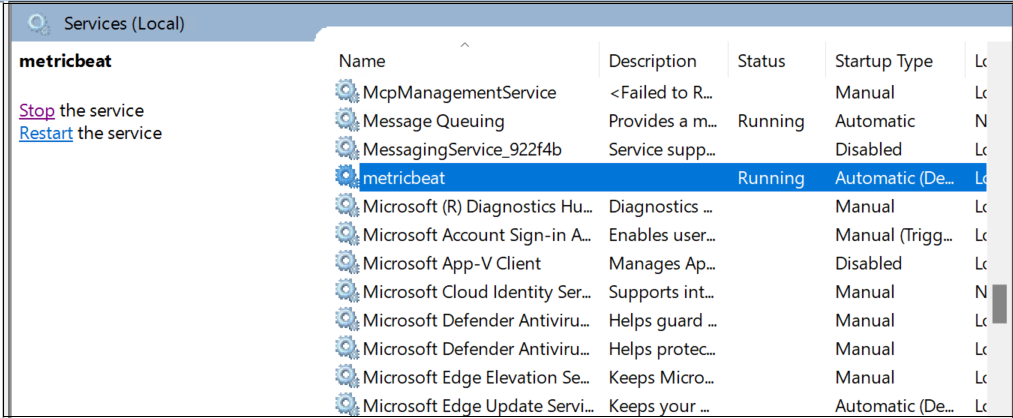
Now go to Services and start the metricbeat service.
-
Check the logs under the metricbeat index on the ARS dashboard.