Appendix A
Logstash Tags Overview
Logstash works by parsing existing logs and breaking them down to useful, actionable fields. We can set up the addition of tags to the logs when they are relayed to OpenSearch based on certain criteria.
Listed below are the internal tags along with their appropriate use case:
HySecure
Tags
-
logged_in_hysecure: To identify successful logins to the HySecure gateway.
-
logged_out_hysecure: To identify successful logouts from HySecure.
-
login_failure_hysecure: To identify instances of failed logins.
-
application_access_failure_hysecure: To determine instances of failed attempts to access HySecure applications.
Fields
-
User_ID: Identifies the username for the applicable event from HySecure logs.
-
Application_Group: Identifies the name of the application the user attempts to access using the gateway.
-
Login_Status_Code/Login_Sub_Status_Code/Login_Flag: Used to identify login events (currently reported but not used).
-
User_Hostname: Used to identify the hostname of the device used to log in to the gateway.
-
Domain_Name: To identify the name of the HySecure domain the user is part of.
-
Local_Domain_Name: To identify the local domain name of the user.
-
Authentication_Domain: To identify the name of the HySecure Authentication Domain the user is part of.
-
Local_Domain_Name: To identify the local domain name of the user.
-
App_Group: Used to identify the list of membership groups in Active Directory that the user is part of.
-
Client_MAC_Address: To identify and report the MAC address of the user’s machine. Reports FF:FF:FF:FF:FF:FF in case of logins using HyLite.
-
Client_IP_Address: Identifies the local client IP address allotted to the client’s machine. This could be a public or private IP address.
-
Token_Type: To identify the type of token used for logging in. Possible options are Mobile/Email/SMS Token.
-
Client_Type: To identify if the client has logged in using the native HySecure client or Hylite. Possible options are Native Client and Hylite.
-
WAN_IP_Address: Used to identify the public WAN IP address of the user. Reports the private IP address in this field if the login was performed via the intranet.
-
Profile_Name: Reports the name of the ACL the user is part of.
-
Concurrent_Users: Integer value reports the currently active concurrent users on the HySecure gateway.
-
Login_Time: Reports the time when the user logs into the gateway.
-
Session_Time: Denotes the total session time (in hours) for any given user. The timestamp associated with the Session_Time also denotes the logout time for the user.
HyWorks
Tags
-
logged_in_hyworks: To determine successful login events by Assistants, In charge, and Participants.
-
logged_out_hyworks: To determine instances of successful logouts.
-
admin_login_hyworks: To determine instances of successful login by Administrator.
-
login_failure_hyworks: To determine instances of unsuccessful logins to HyWorks.
-
power_off_operation_hyworks: To determine instances of VM power off operations.
-
power_on_operation_hyworks: To determine instances of VM power-on operations.
-
shutdown_operation_hyworks: To capture VM shutdown operations.
Fields
-
HyWorks_Identifier: Represents the value entered under the ‘Identify’ field in the Syslog Config section part of the HyWorks/RMS Management Console setting.
-
LogType: Identifies the type of logs. Possible values are INFO, WARNING, and ERROR.
-
total_licenses_hw: Reports the total available licenses on the HyWorks/RMS system.
-
license_used_hw: Reports the total used licenses available on the HyWorks/RMS system.
-
total_logged_in_users_hw: Reports the total logged-in users on the HyWorks/RMS system.
-
logged_in_active_users_hw: Reports the count of logged-in active users on the HyWorks/RMS system. This is equivalent to concurrent users on the system.
-
idle_users_hw: Reports the count of currently idle users on the HyWorks/RMS system.
-
logged_in_disconnected_hw: Reports the count of logged-in disconnected users on the HyWorks/RMS system.
-
total_application_sessions_hw: Reports the count of total application sessions currently operational on the HyWorks/RMS system.
-
application_connected_sessions_hw: Reports the count of total application sessions that are currently connected on the HyWorks/RMS system.
-
application_disconnected_sessions_hw: Reports the count of total application sessions that are currently disconnected on the HyWorks/RMS system.
-
total_shared_desktop_sessions_hw: Reports the count of total shared desktop sessions on the HyWorks/RMS system.
-
shared_desktop_connected_sessions_hw: Reports the count of total shared desktop sessions that are connected on the HyWorks/RMS system.
-
shared_desktop_disconnected_sessions_hw: Reports the count of total disconnected shared desktop sessions on the HyWorks/RMS system.
-
total_dedicated_desktop_sessions_hw: Reports the count of total dedicated desktop sessions on the HyWorks/RMS system.
-
username: Depicts the name of the user logging into HyWorks/RMS.
-
Login_Time: Denotes the timestamp for the corresponding user’s login event.
-
Session_Time: Denotes the total session time for the given user (in hours). The corresponding timestamp for this event denotes the logout time for the session.
-
Message: Logs the entire raw log of messages received.
DVM Logs
Fields
-
mname: machine name/hostname
-
uname: name of the user
-
tctime: total connect time of the user
-
tstime: total session time of the user
-
tdtime: total disconnect time of the user
-
tdcount: total disconnect count of the user
-
sstate: session state of the user
-
pname: process name
-
starttime: start time of process
-
stoptime: stop time of the user
Default Log Location
-
Opensearch: /var/log/opensearch/opensearch.log
-
Logstash: /var/log/logstash/logstash-plain.log
-
Opensearch-dashboards: /var/log/opensearch-dashboards/opensearch-dashboards.log
-
Metricbeat: /var/log/metricbeat/metricbeat
-
Filebeat: /var/log/filebeat/filebeat
Saved Searches
Saved searches in the ARS web UI are pre-built templates used to query certain types of information from the underlying database. This could be used to generate a report (for the applicable timeframe) and extract it in CSV format as required.
This can be accessed from the Open menu on the top right of the Discover tab.
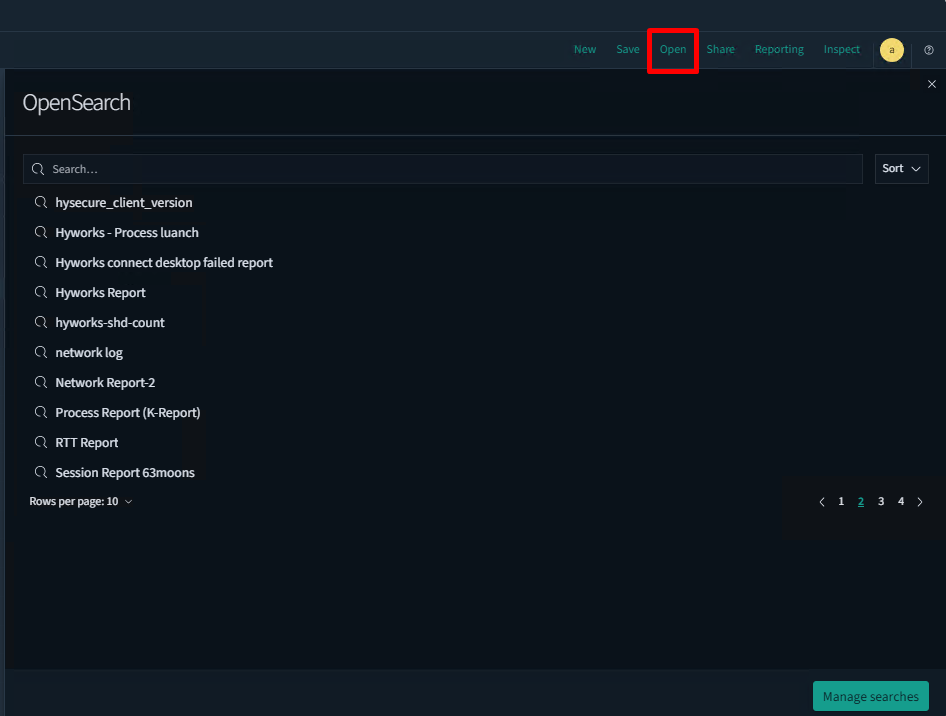
Reports that have been opened can be downloaded in CSV format using the Reporting tab.