Enhancements
UI Support for Screenshot Block Interval Configuration
Overview
In this release, UI support is added so administrators can configure the minimum and maximum intervals for applying the screenshot block policies directly from the HySecure Management Console.
Minimum Blackout Interval Time: This specifies the earliest point (in seconds) after user login when the screenshot blocking policy can take effect. The policy will not be enforced before this minimum duration has elapsed.
Maximum Blackout Interval Time: This specifies the latest point (in seconds) after user login by which the screenshot blocking policy must be applied. The policy will be enforced at some time between the configured minimum and maximum interval.
Business Value:
- No more backend tweaks—configure screenshot blocking policies through UI.
- Set precise time windows for when screenshot protections apply after user login.
- Eliminates the need for support tickets to adjust blocking intervals.
- Make changes instantly without waiting for technical intervention.
Key Features:
- Minimum Interval Configuration: Define how soon after login the screenshot block policy takes effect.
- Maximum Interval Configuration: Set the upper limit for policy application timing.
- Direct Console Access: Configure everything from the HySecure Management Console.
- Real-Time Updates: Changes apply immediately to your security posture.
Configuration Path
To configure these settings, navigate to: Policies > Client Profile > DEFAULT CONFIGURATION > Client Configuration > Basic Configuration > Minimum Blackout Interval Time & Maximum Blackout Interval Time.

Support for Enforcing US Keyboard Layout on HyLite Portal
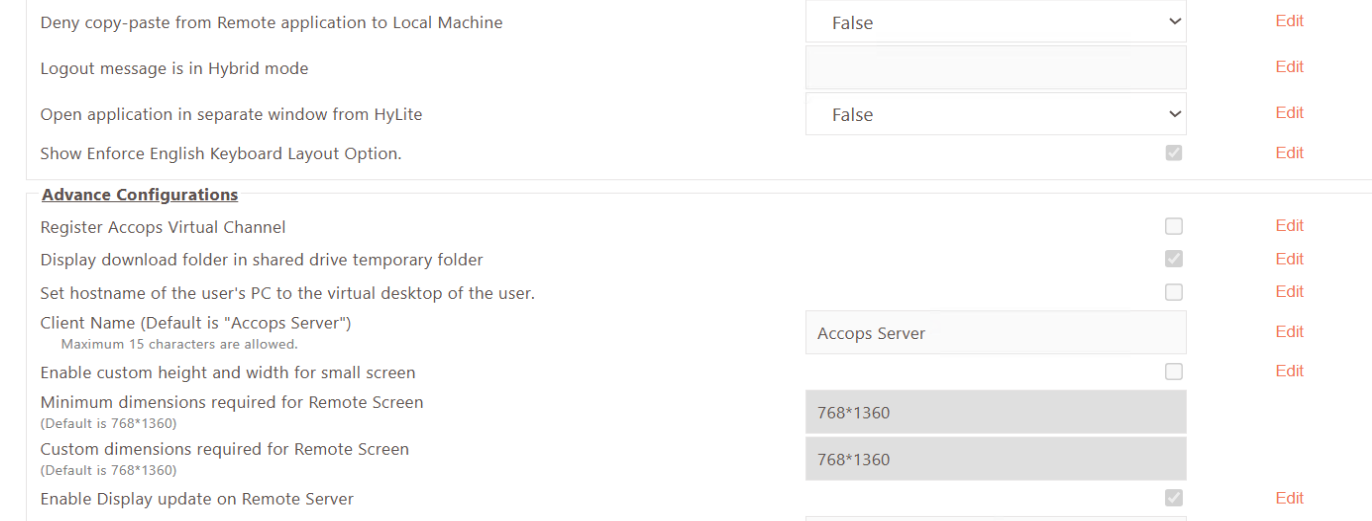
This release introduces support for enforcing the US (English) keyboard layout on the HyLite Launchpad. Users will see a dedicated button on the application launch pad to enable the US keyboard after login, ensuring consistency across global deployments.
Business Value
- Maintain consistent keyboard layouts across international teams.
- Prevent confusion from unexpected keyboard mappings in critical applications.
- Meet requirements for standardized input methods in regulated environments.
- Fewer keyboard-related helpdesk tickets from users in different locales.
Key Features
- One-Click Activation: Users can enable the US keyboard layout with a single button on the HyLite Launchpad.
- Policy-Driven Enforcement: Control whether the option is available to users.
- Session-Specific: Applies to HyLite sessions without affecting base OS settings.
- Visual Indicator: The presence of a clear button ensures users know the option is available.
Configuration Path
-
Navigate to Policies > Client Profile > DEFAULT CONFIGURATION.
-
Go to the HyLite Configurations section.
-
Enable Show Enforce English Keyboard Layout Option.
-
Click SAVE CONFIGURATIONS.
HyLite Menu Icon Names Now Localized for Japanese OS
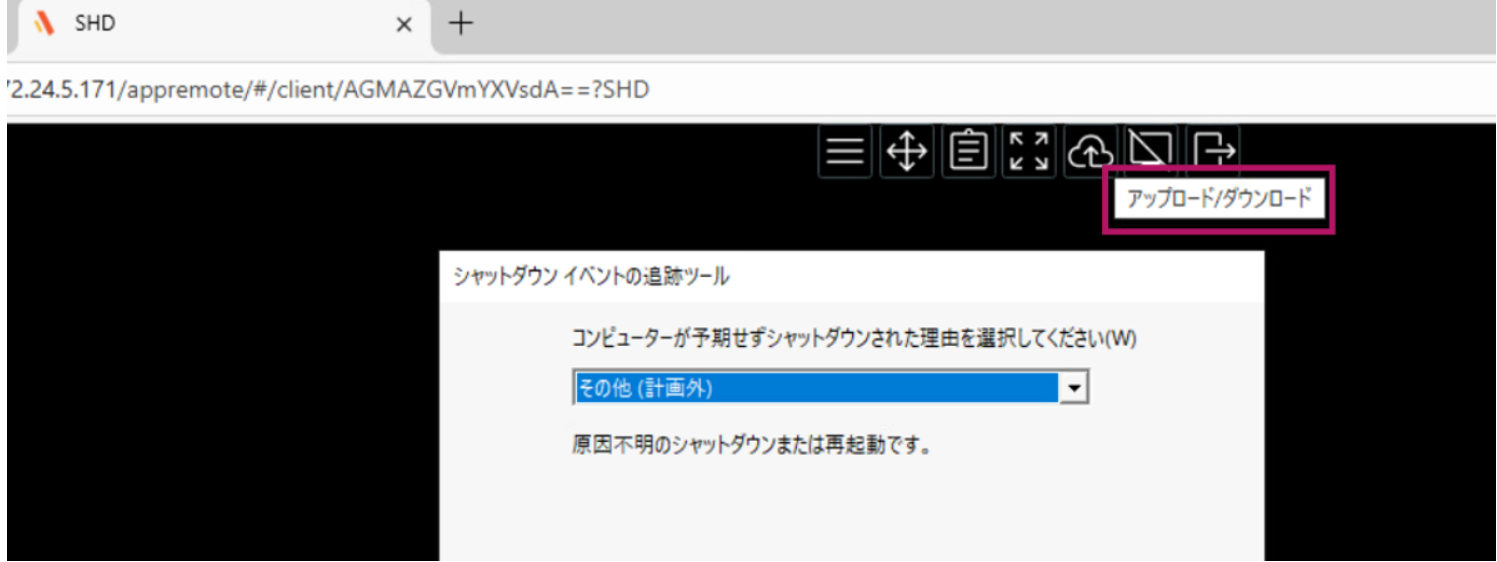
In this release, the HyLite menu icons now display Japanese names on hover when the base operating system language is set to Japanese. Previously, only English names appeared regardless of language settings. This enhancement provides a more localized experience for Japanese-speaking administrators and users.
Business Value
- Japanese users see menu items in their native language.
- Eliminates language barriers in day-to-day operations.
- Localized interfaces increase user comfort and productivity.
- Makes HyLite more accessible for international teams.
Key Features
- Automatic Language Detection: Icons display Japanese names based on the base OS language settings.
- Hover-Activated: Tooltip names appear in Japanese when hovering over menu icons.
- Native Integration: Seamlessly matches the user's preferred operating system language.
- Zero Configuration: Works automatically—no admin setup required.
Platform Support
This enhancement is automatically activated when the base OS is configured for Japanese.