Admin Users
Overview
The Admin Users have the ability to grant access to the management console for Active Directory users. The Security Officer or Administrator can easily assign one of the following roles to any Active Directory user to provide them with access to the management console:
-
Security Officer
-
Administrator
-
L1 Support User
-
Monitor
Note
- Only Security Officers and Administrators have the authority to grant access to the management console.
- Also, it is important to note that an Administrator cannot assign the Security Officer role to any user since the Security Officer role comes with higher privileges than an Administrator.
- Policy creation, modification, and monitoring can be performed from any HySecure node. Use the node's direct IP address (not cluster virtual IP) when performing:
- Any activity that requires HySecure Gateway state changes (Configuration ↔ Run mode)
- Cluster configuration or management tasks
The HySecure management console is now accessible from any device that supports HTML5 browsers. Previously, it could only be accessed via the HySecure client or Workspace client on Windows-based devices. Active Directory users will now have access to the management console, although low-security applications will not be visible or accessible during Configuration State.
Important
Enable Multi-Factor Authentication (MFA) for all Active Directory users accessing the HySecure management console.
View Admin Users
-
Log on to the Management Console.
-
Navigate to Users > Admin Users.
All the admin users created so far will be visible here in a tabular form with the following information:
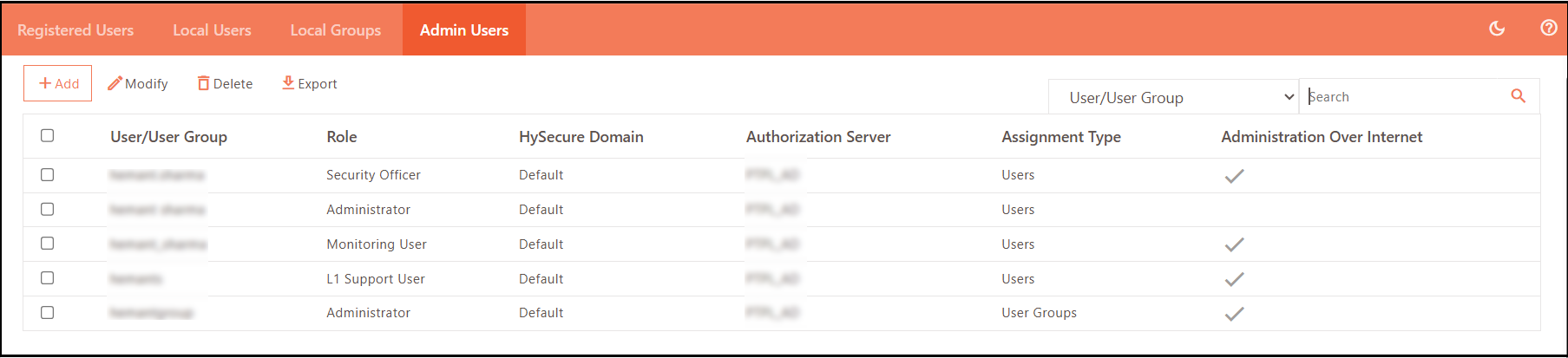
| Field | Description |
|---|---|
| User/User Group | Displays the user ID /User Group who has the Admin role assigned in HySecure. |
| Role | Displays the role assigned to the user, such as Security Officer, Administrator, L1 Support User or Monitoring User. |
| HySecure Domain | Displays the HySecure Domain to which the user belongs. |
| Authorization Server | Displays the Authorization server as the configured Active Directory to which the user belongs. |
| Assignment Type | Displays whether the role was assigned to a user or a user group |
| Administration Over Internet | Displays whether a particular user/user is allowed to access the management console when logged into HySecure over the Internet. |
Search for an Admin User
In case there is a large number of admin users, a filter or search for a particular user based on any one of the following fields can be applied:
-
User/User Group
-
Role
-
HySecure Domain
-
Authorization Server
-
Assignment Type
-
Administration Over Internet
Add/Create an Admin User
-
Log on to the Management Console.
-
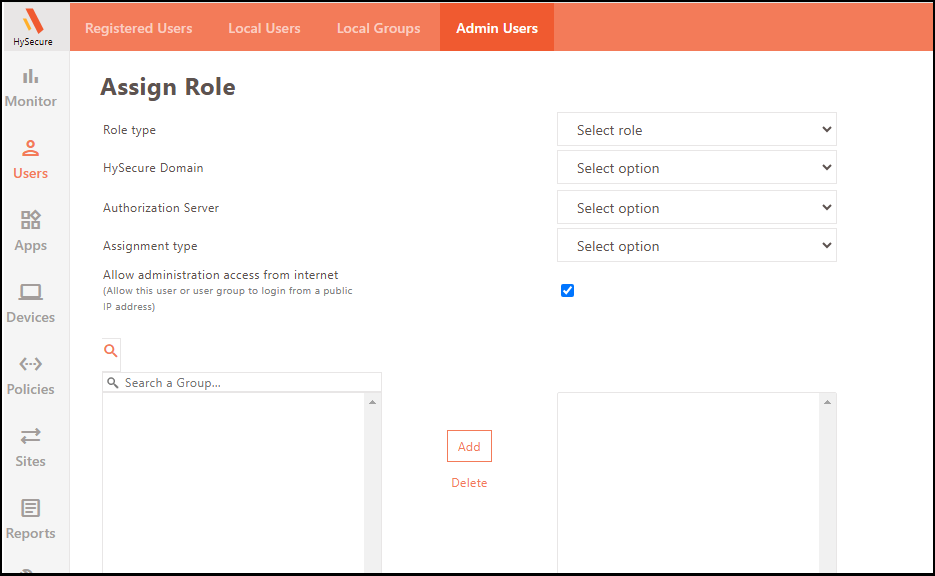
Navigate to Users > Admin Users and click Add.
-
Select any one of the following roles from the Role type drop-down: Security Officer, Administrator, Monitoring User or L1 Support User.
-
Select the HySecure Domain and Authorization server as the configured Active Directory to which the user belongs.
-
Allow or restrict the administration access from the internet. Check this box to allow the user or user group to allow management console access when logged in over the internet from a public IP address.
-
Search for the user/user group and select the users/user groups to be added.
-
Click Add after selecting the desired users.
-
Click Submit to create the admin user successfully.
Modify Admin User Details
To change an admin user's information, select Admin User and click Modify. Make the required adjustments and click Submit.
Delete an Admin User
On the Admin Users page, select the Admin User to be deleted and click Delete. Upon confirmation, the user would be deleted.
Export Admin Users List
Navigate to Users > Admin Users and click Export. The list of admin users will be exported and downloaded in a CSV file. Format.