Upgrade HySecure Access Server Node
-
Connect to the HySecure Access Server Node as a Security Officer.
Note
Do not connect using a Virtual IP address; use the actual IP address of the Access Server node.
-
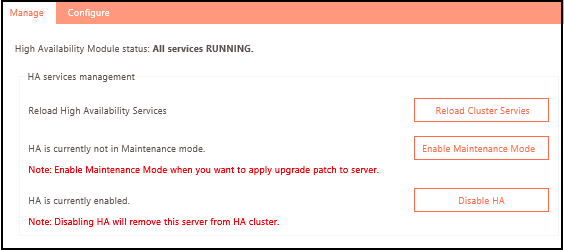
Navigate to Settings > Cluster > Manage and click Enable Maintenance Mode. Once the Maintenance mode is enabled, the gateway node will no longer be part of the cluster and will not display any cluster-related status.
Note
Ensure that the High Availability Module Status is set to HA and it is in maintenance mode. All syncing services have stopped properly. Maintenance or upgrade activities can now be performed.
-
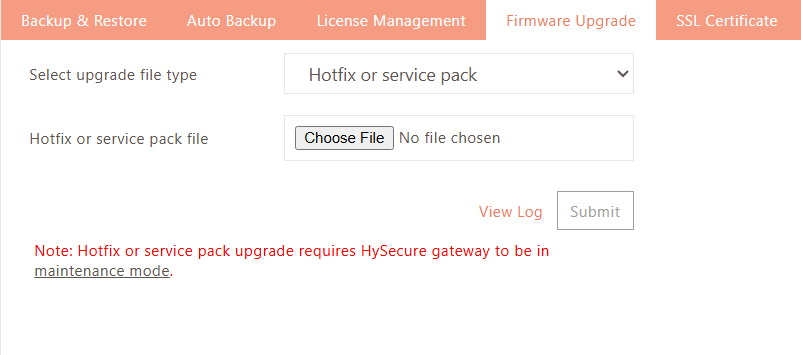
Navigate to Settings > General Settings > Firmware Upgrade. Select the appropriate option based on the upgrade file type:
-
Hotfix or Service Pack: For applying a hotfix or service pack file with the .hpat extension.
-
Firmware Upgrade: For applying the upgrade patch file with the .pat extension.
Note
For Firmware Upgrade, put the HySecure gateway in Configuration State. Navigate to Settings > Service Config > Gateway State and change the HySecure gateway state to Configuration State. Once the mode is changed, all the active user connections to this gateway node will be disconnected.
-
-
Once the upgrade file is uploaded and the upgrade is started, a message indicating this will be displayed on the management console.
-
After the upgrade file is successfully applied, a confirmation message will be displayed on the management console.
-
Navigate to Settings > General Settings > Firmware Upgrade and click on the View Log button to check the upgrade logs.