Cleanup Policies
The Cleanup Policy enables administrators and security officers to manage user devices more easily. This feature allows for the automatic removal of access devices that have not been used for a specified number of days. The system tracks the last login date for each device. If a device has not been used within the designated timeframe, it will be automatically removed. This process helps eliminate old or unused devices, simplifying device management for the Administrator. Additionally, it enhances security by ensuring that only active devices remain registered.
Note
The last login time for each device will initially be set to when this service pack is first applied. After that, it will update when the user logs in with the device.
Steps to configure the Inactive Access Devices Cleanup in HySecure Gateway
-
Log on to the Management console.
-
Navigate to Diagnose > Maintenance > Cleanup Policies.
-
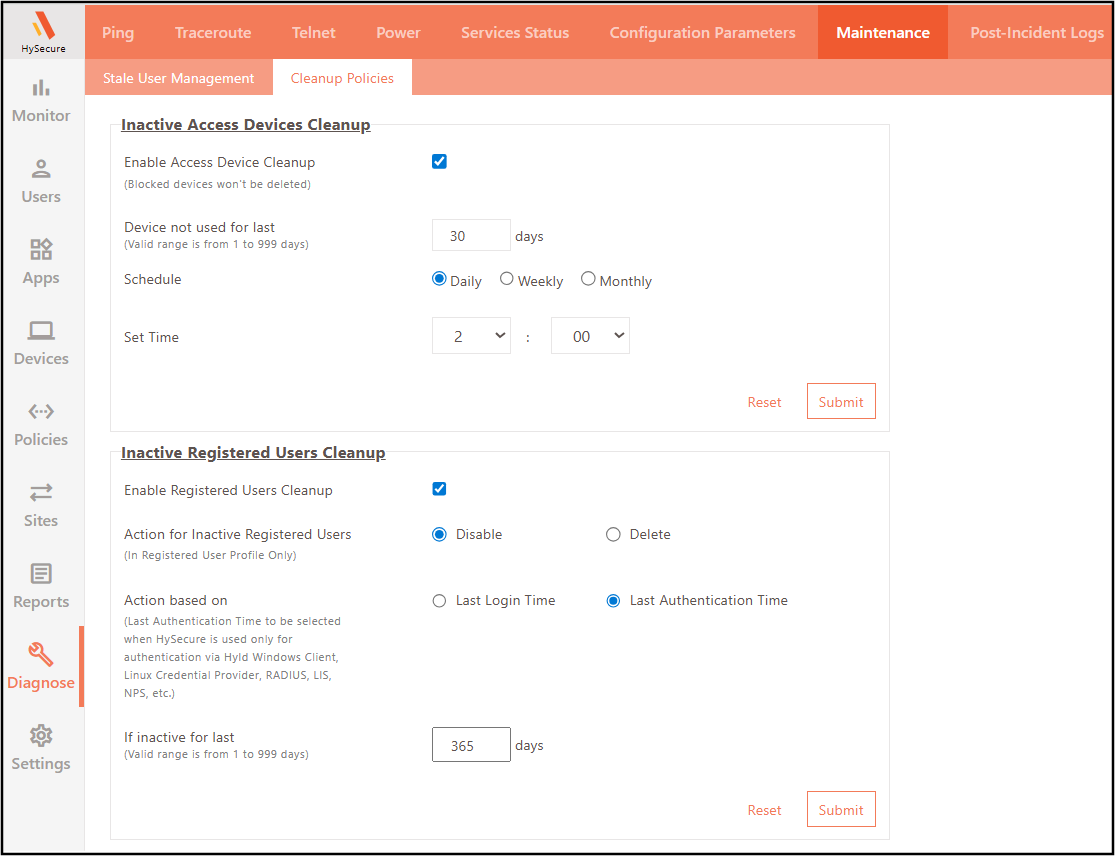
Select the checkbox to Enable Access Device Cleanup.
-
Set a value for the Device not used for last option to define the number of days after which an unused device will be automatically deleted during the scheduled cleanup, if the user hasn’t logged in from it.
-
Select Schedule as per requirement:
-
Daily: Select this option to schedule daily Access Devices cleanup. For example, in the image below, the cleanup is scheduled to run every day at 02:00 AM.

-
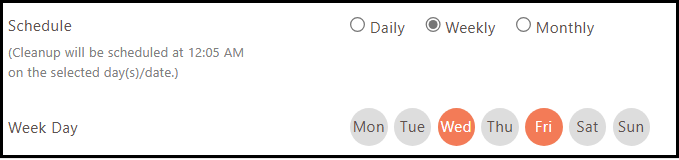
Weekly: Select this option to schedule the Access Devices cleanup weekly. For example, in the image below, the cleanup is scheduled to run every Wednesday and Friday at 12:05 AM.
-
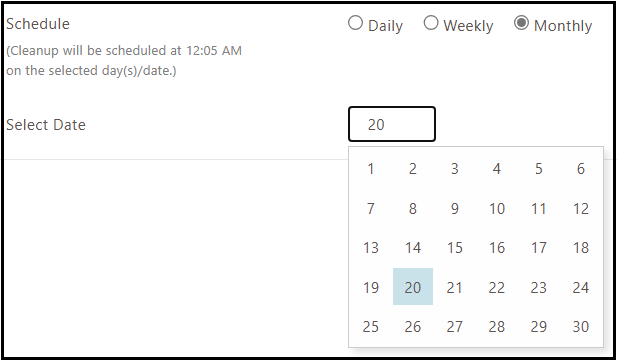
Monthly: Select this option to schedule Access Devices cleanup on a specific date each month. For example, in the image below, the cleanup is set to run on the 20th of every month.
-
-
Click Submit and confirm the configurations.
Note
Blocked devices will remain unaffected.
Configure Inactive Registered Users Cleanup in HySecure Gateway
Steps to disable/delete registered users based on their last login time or last authentication time:
-
Log in to the HySecure management console as a Security Officer/Administrator.
-
Navigate to Diagnose > Cleanup Policies and enable the checkbox for Enable Registered Users Cleanup.
-
Under Action for Inactive Registered Users, choose:
-
Disable to retain the user profile but disable access.
-
Delete to remove the user profile completely.
-
-
Configure the Action Based on parameter:
-
Last Login Time: Applies to users who log in to the HySecure gateway to access enterprise applications.
-
Last Authentication Time: Applies to users logging in through HyID Windows client, Linux Credential Provider, NPS, RADIUS, or third-party applications where HySecure is used as the MFA provider.
-
-
Set the Inactive for Last (days) value to specify the number of inactive days after which the user profile will be disabled or deleted, based on the selected criteria (Last Login Time or Last Authentication Time).
-
Click Submit and confirm the configurations.