Stale User Management
The Stale User Management feature empowers the Administrator/Security officer to automatically revoke policies and registered profiles of users who have been deleted from Active Directory/LDAP Server.
Download last scan report
-
Log on to the Management Console.
-
Navigate to Diagnose > Maintenance.
-
Click Download last scan report. The previous scan report will be downloaded in .CSV format.
Steps to manage the Stale Users
-
Log on to the Management console.
-
Navigate to Diagnose > Maintenance.
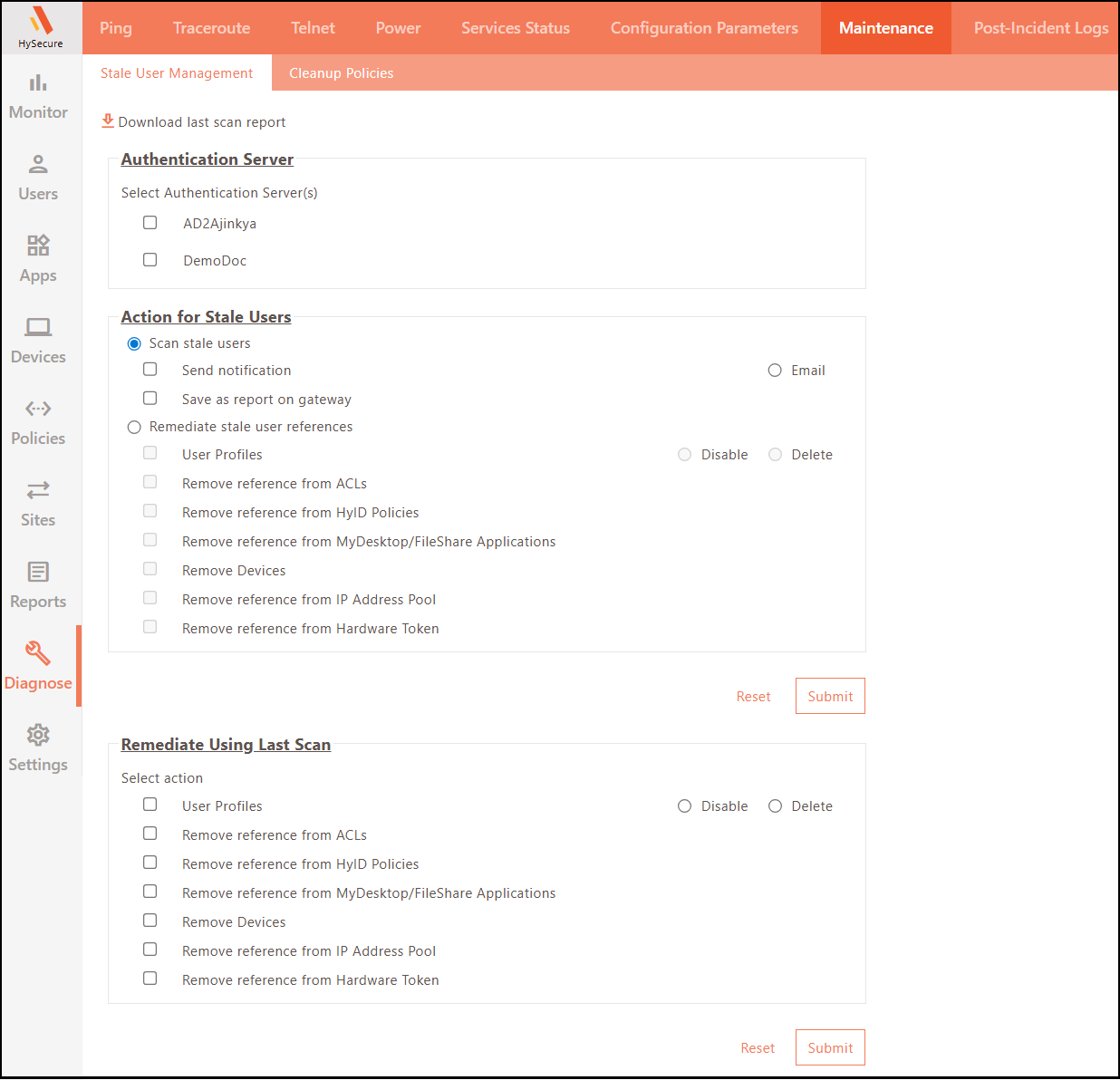
Scanning stale users
-
Log on to the Management Console.
-
Navigate to Diagnose > Maintenance.
-
Select one or more Authentication Server(s).
-
Under Action for Stale Users:
-
Select Scan stale Users.
-
To send the scanned report over mail to the Security Officers and Administrators, select Send Notification and enable Email.
-
To save the scan report on the HySecure Gateway for later download, select Save as report on gateway.
-
Set remediation actions for stale users
-
Log on to the Management Console.
-
Navigate to Diagnose > Maintenance.
-
Select one or more Authentication Server(s).
-
Under Action for Stale Users
-
Choose Remediate stale user references.
-
To delete or disable stale user profiles, select User Profiles and select Disable or Delete.
-
To remove stale user references from ACLs in the HySecure gateway, select Remove Reference from ACLs.
-
To remove stale user references from HyID policies of HySecure Gateway, select Remove Reference from HyID Policies.
-
Select My Desktop/File Share applications to remove stale user references from the My Desktop or File Share applications.
-
Select Remove Devices to remove devices assigned to the stale user profiles.
-
To remove stale user references from the pool of IP addresses, select Remove reference from IP Address Pool.
-
To remove stale user references from the hardware token, select Remove reference from Hardware Token.
-
-
Click Submit.
Setting remediation action based on the scan report
-
Log on to the Management Console.
-
Navigate to Diagnose > Maintenance.
-
Choose an action to be taken on the stale user account based on the previous scan report:
-
To delete or disable a stale user profile, select User Profiles under the Remediate Using Last Scan section, then select delete or disable.
-
To remove stale user references from ACLs, select Remove Reference from ACLs under the section Remediate using last scan.
-
To remove stale user references from HyID policies, select Remove Reference from HyID Policies under the section Remediate using last scan.
-
To remove stale user references from My Desktop or File Share applications, select My Desktop/File Share applications under the section Remediate using last scan.
-
To remove devices assigned to the stale user profiles, select Remove Devices under the section Remediate using last scan.
-
To remove stale user references from the pool of IP addresses, select Remove reference from IP Address Pool under the section Remediate using last scan.
-
To remove stale user references from the hardware token, select Remove reference from Hardware Token under the section Remediate using last scan.
-
-
Click Submit.
Note
Stale user references will have to be removed manually from the following:
- App Tunnel and Turbo Tunnel Pool
- Access Devices
- Hardware tokens