Enhancements in Accops Workspace Linux Client version 7.1.1.1019
Bypass App Tunnel Traffic from full turbo tunnel
Bypassing app tunnel traffic from a full turbo tunnel involves configuring the HySecure Gateway to exclude specific application traffic from being routed through the full turbo tunnel. This allows designated app traffic to bypass the tunnel for scenarios where direct network access or different routing is required. It enhances flexibility in network traffic management by selectively excluding certain applications from the tunnel while maintaining secure access for other traffic via the turbo tunnel.
Remember me support
The current Workspace Client application exhibits inconsistent behavior when dealing with the saving of usernames and passwords, especially when different combinations of gateway-side configurations are applied.
Remember me support has been added to the Client launchpad. Additionally, user preference is given to save credentials on the client launchpad.
Gateway Configuration
-
Log in to the client with the SO user and access the management console.
-
On Settings > Global > Client > uncheck the options Do not allow user to remember password on local device and Do not allow user to remember username on local device.
Client Login
-
Install the Accops Workspace client 7.1.1.1019 on the user’s system.
-
Launch the client, enter the server address, and fetch the realm.
-
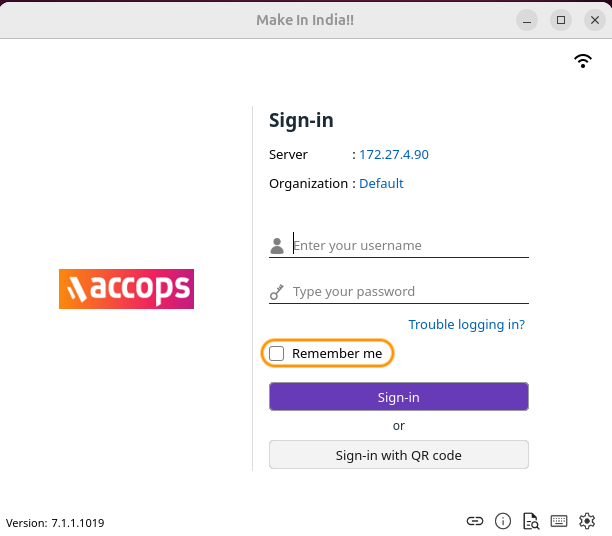
User will get Remember me check box on the login page, check that and log in to the client.
-
Log out of the client.
-
User’s login credentials will be saved on the login page during the next login.
-
If the user unchecks the Remember me option, then the entered login credentials will not be saved.
Limitation
This is applicable only for scenarios that are configured through the gateway.
UI enhancement
In the latest Workspace Client, the server URL is now shown on the login screen, enhancing user clarity during the sign-in process.
Additionally, the Linux Workspace Client features a refreshed application icon, which is updated across the installer, desktop shortcut, and Linux dock for a consistent appearance.
User Idle Timeout
The user idle timeout should be enforced using the global settings configured on the HySecure Gateway management console, taking effect after the user logs into the client, without requiring the client to fetch the realm.
If the USER IDLE TIMEOUT option is enabled, actively monitor the user’s activity for idleness. If it is disabled, do not monitor for idleness.
Preferences- Login Automatically (if Auto login is Enabled)
-
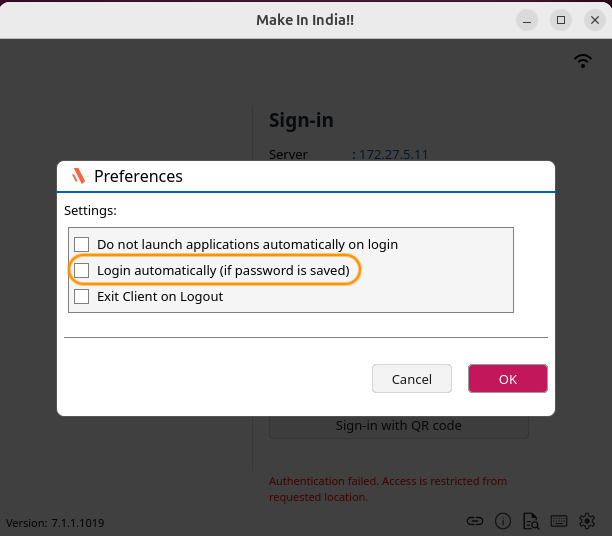
A new preference setting has been added to manage automatic login behavior when Auto Login is enabled from the HySecure Gateway.
-
By default, this setting is unchecked when Auto Login is disabled on the gateway, ensuring the standard manual login flow.
-
When Auto Login is enabled on the HySecure Gateway, the Login Automatically option appears as checked by default in the Workspace Linux Client preferences.
-
Users have the flexibility to skip automatic login by manually unchecking the Login Automatically option before proceeding.
-
This feature gives users more control over their login experience.
Limitations
- When the Login Automatically option is unchecked, users will not be able to log in using a different user account.
- Additionally, users should not attempt to register with another HySecure Gateway or Controller and log in using a different user profile.
- To enable login with alternate credentials or to allow registration across multiple gateways or controllers, it is advisable to disable auto-login within the HySecure Gateway settings.
Renamed the label: Forgot password to Trouble logging in? on Client Login Console
-
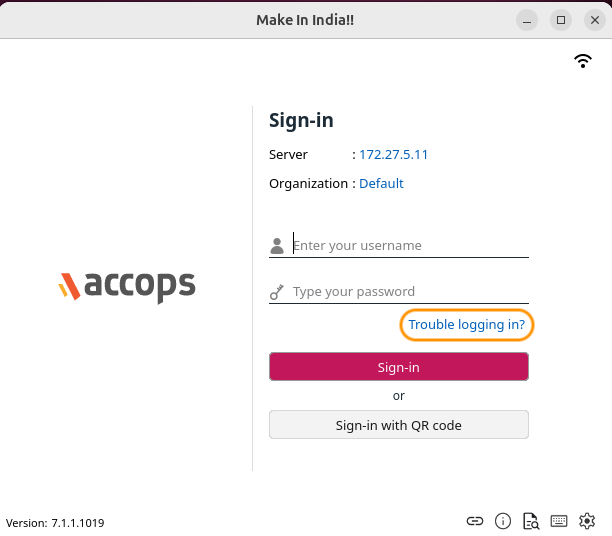
The Forgot Password link on the Workspace Linux Client login console has been renamed to Trouble logging in? to provide a more inclusive and user-friendly message.
-
This updated label better represents the range of issues users may face during login, such as forgotten credentials, account lockouts etc.
-
By selecting Trouble logging in?, users are redirected to the configured Self-Service Portal (SSP) or support page where they can reset their password, unlock their account,
Enhanced Log viewer
The Logviewer module in the Workspace Client for Linux has been enhanced to improve usability, performance, and stability. Key improvements include advanced search options, UI fixes, and optimized handling of multiple tabs and search filters for a better user experience.
Use Cases
Users often analyze large log files through the Log viewer interface in the Workspace Client. Previously, the lack of efficient filtering options, search refinement, and UI responsiveness made log navigation difficult and error-prone.
These enhancements now allow users to:
-
Search and filter logs more efficiently.
-
Perform forward and backward searches.
-
Highlight all, match case, or match whole words in the search.
-
Avoid multiple tabs opening the same file.
-
Rely on a responsive Refresh button for updated data.
-
Clear search inputs quickly.
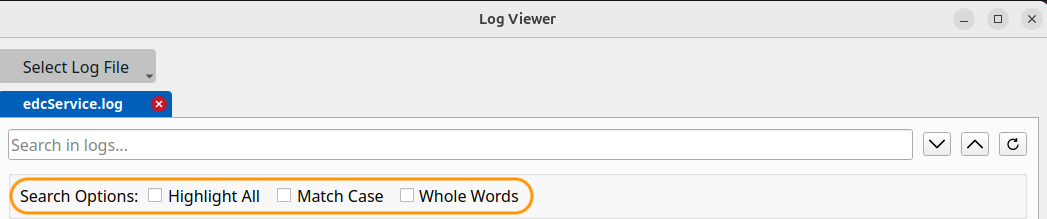
To improve the log viewing interface by allowing search and filter functionalities with these options, making log analysis faster and more efficient.
-
Highlight All: Enable this option to automatically emphasize all relevant log entries.
-
Match Case: Incorporate this feature to filter logs based on case sensitivity for precise search results.
-
Whole Words: Include a Whole Words search capability to locate exact word matches within logs.