New Features in Accops Workspace Ubuntu Client version 7.0.1.1050
Support for login without the HyWorks Controller
Users can now log in to HySecure Gateway even if HyWorks Controller applications are not assigned.
In earlier versions of the Workspace client, users needed to be assigned HyWorks Controller applications to connect through the HySecure Gateway. This feature is supported in the client modes listed below and is compatible with the HySecure Gateway version 5.4 SP6 and 7.0 and above.
| Supported Client modes on Linux OS | HySecure 5299 | HySecure 5.3 | HySecure 5.4 -SP2/5.4 SP5 | HySecure 5.4 SP6 | HySecure 7.0 |
|---|---|---|---|---|---|
| Client Modes: Admin/Standard Users | No | No | Yes | Yes | Yes |
HySecure Gateway Configuration
Kindly reach out to the Accops support team for assistance with the Gateway Configuration.
Passwordless Sign-in support (Sign-in with QR code)
Passwordless authentication allows users to log in using a registered authentication device instead of the legacy username and password. An Auth device is a device on which the Accops HyID app is installed, and the user is registered for a mobile token.
However, to access Hosted Apps and Desktops, the SSO application user must enter the password explicitly after scanning the QR code for passwordless, in the Domain password prompt, or during application access.
This feature is supported on client modes listed below and with HySecure Gateway version 5.4 SP6 and HySecure Gateway versions 7.0 and above.
| Supported Client modes on Linux OS | HySecure 5299 | HySecure 5.3 | HySecure 5.4 -SP2/5.4 SP5 | HySecure 5.4 SP6 | HySecure 7.0 |
|---|---|---|---|---|---|
| Client Modes: Admin/Standard Users | No | No | No | Yes (With Limitations) | Yes |
HySecure Gateway configurationThe
-
Configure a passwordless login on the HySecure Gateway.
-
HyID policy must be enabled for the HySecure Gateway user to register the mobile token.
-
Passwordless login should be enabled from the The HySecure Gateway.
-
The HyID app should be installed on Android/iOS devices.
Client Login
-
The user’s mobile token must be registered. Enter the HySecure Gateway address and select the domain.
-
The user will see a Sign-in with QR Code button on the login page.
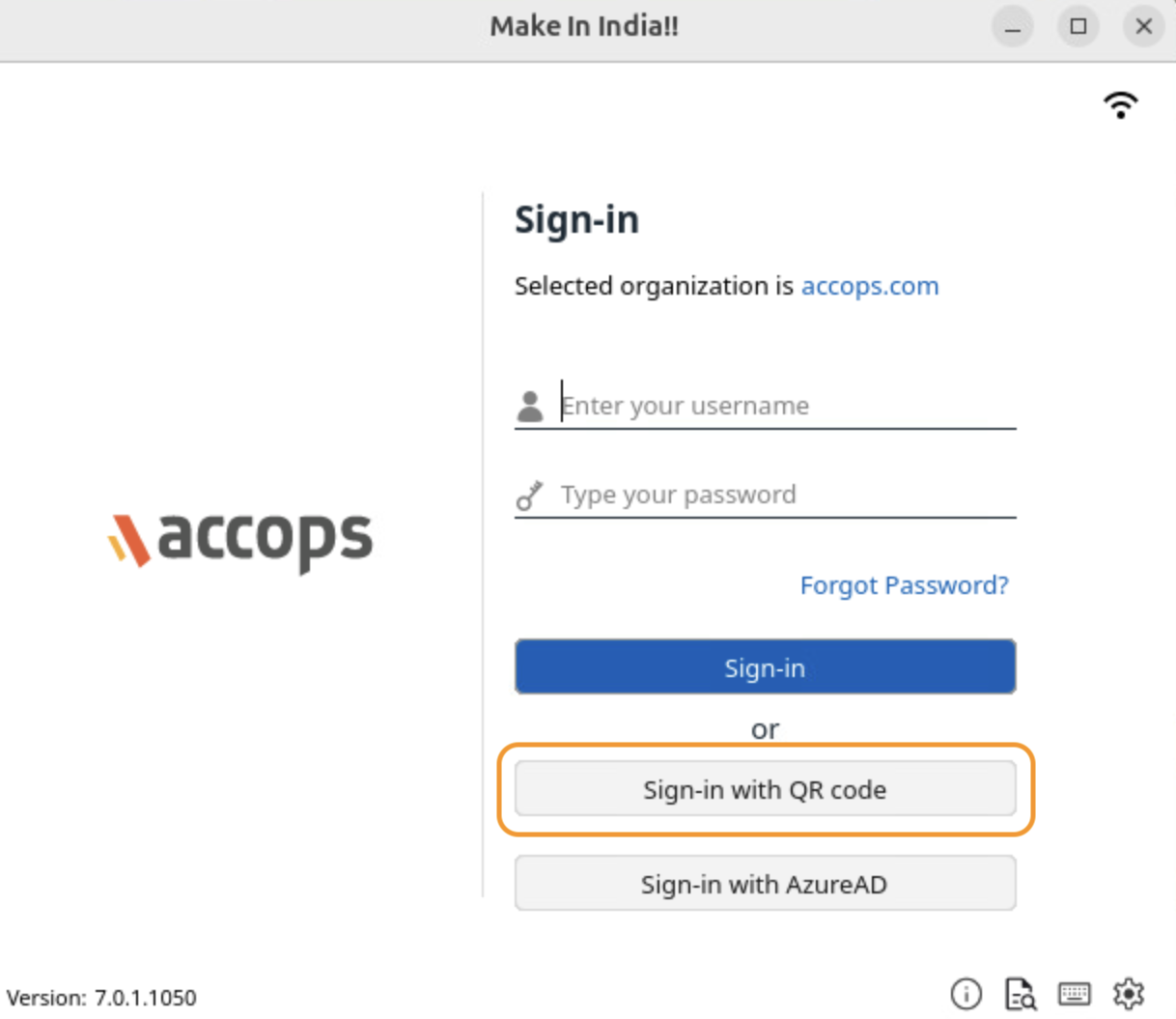
-
Click on the Sign-in with QR Code and scan the QR code.
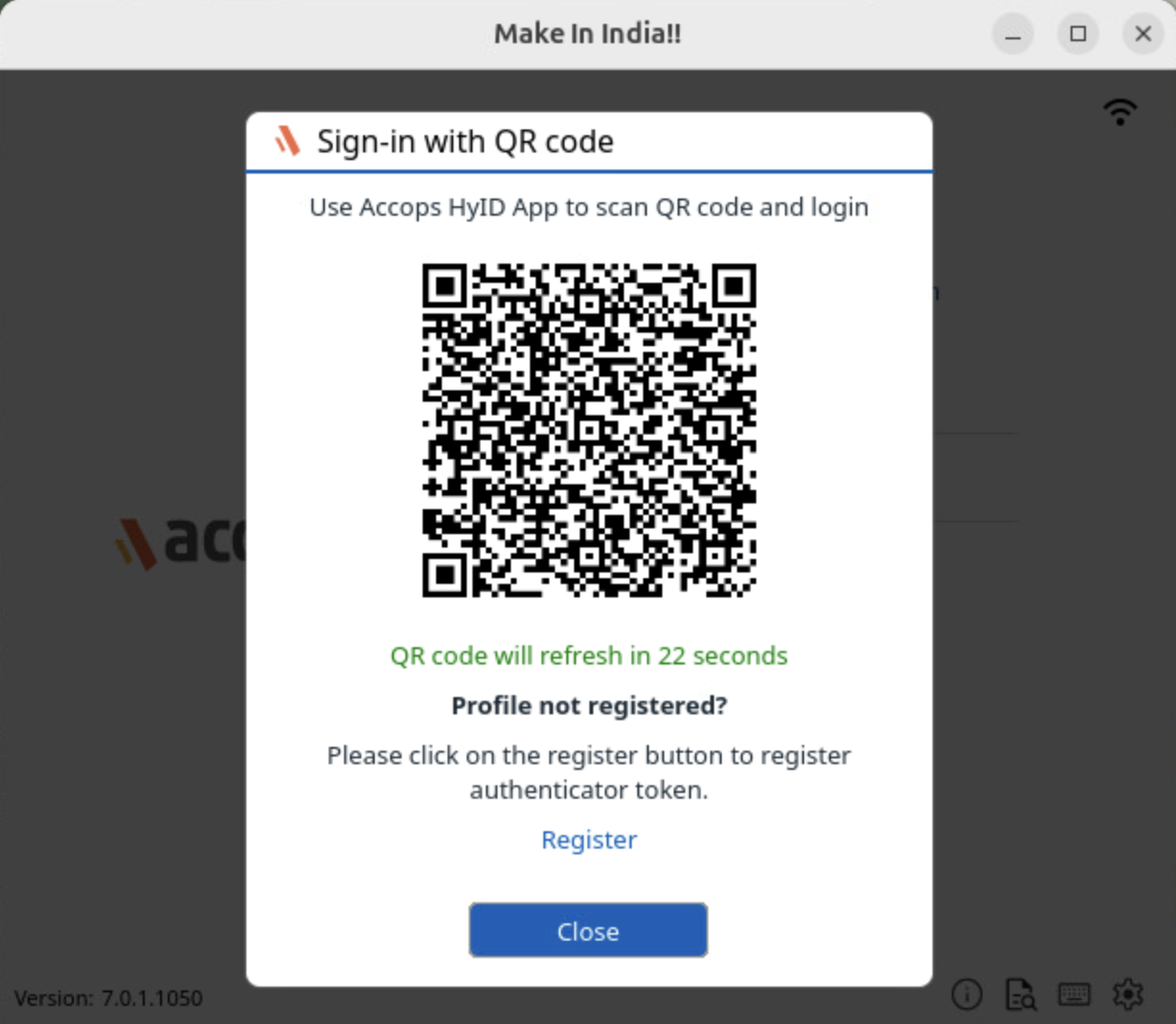
-
The user will be logged in after scanning the QR code.
-
Post-login, the user will be prompted to enter a domain password if the SSO-based or HyWorks app is assigned to the user to access the SSO applications. Once the password is entered, the user can access the SSO applications.
New Shell APP Behaviour
Multiple applications are now launched within a single shell rather than opening in separate windows, to improve resource management, minimize window clutter, and provide a more streamlined user experience.
This approach offers:
-
Simplified Task Management: With fewer windows, users can easily switch between applications.
-
Improved Performance: By consolidating applications, the system’s memory and processing load are reduced, resulting in faster overall performance.
-
Organized Workspace: A tidier, more organized desktop environment helps users stay focused and productive, free from the distraction of multiple open windows.
This approach boosts usability and efficiency, mainly when multiple applications are frequently launched.
Mobile Token Registration with Passwordless and Push Notification
Previously, registering a Mobile Token was only available as a 2FA option, and there was no support for using it with Passwordless login or Push Notification. From this version, users can now register their mobile token for both Passwordless login and Push Notifications, to ease the login process for users who have not yet registered their mobile token.
This feature is supported from HySecure Gateway version 7.0 (Build:500) onwards. Mobile Token registration for Push Notifications does not require any specific version of the HySecure Gateway.
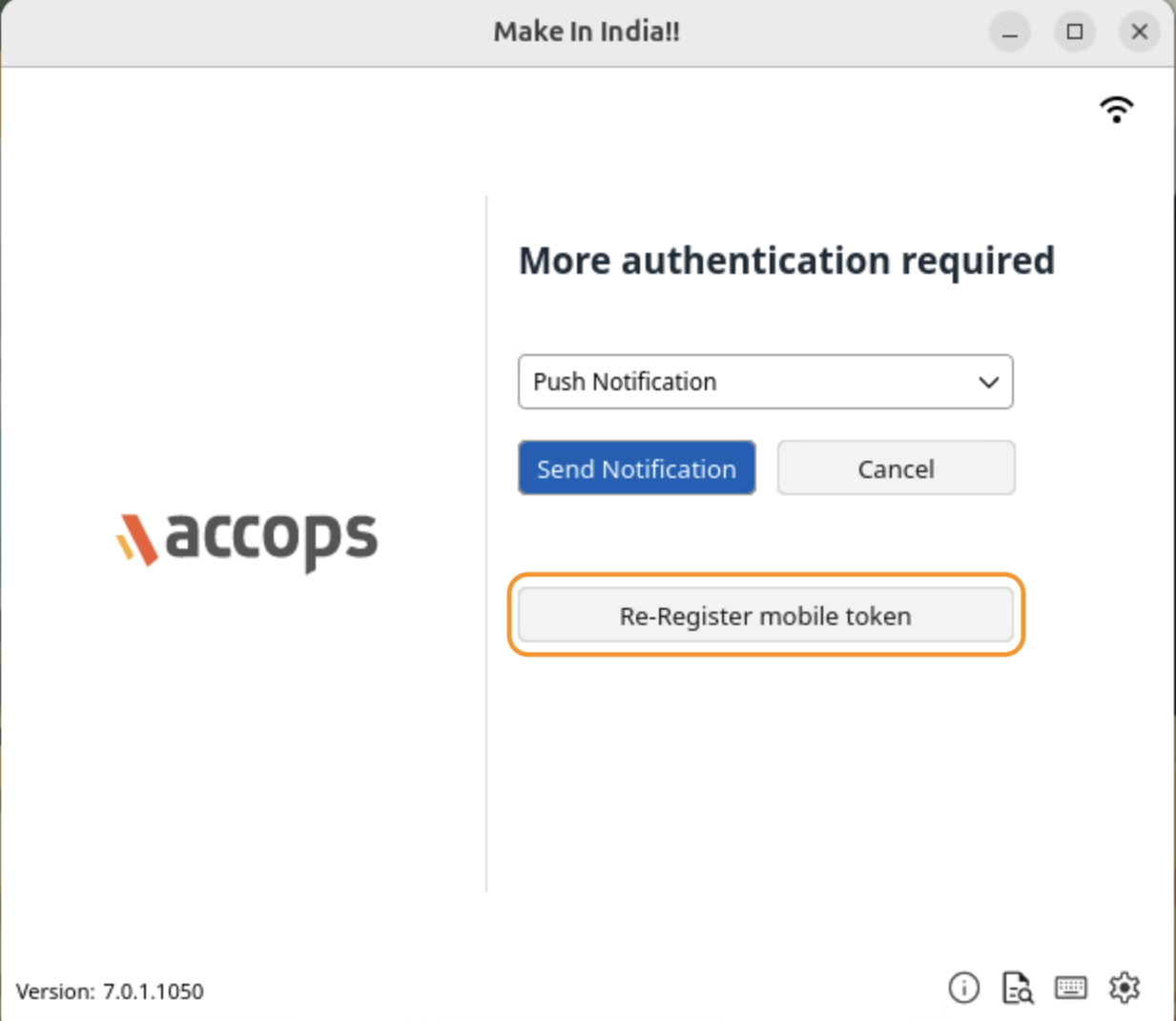
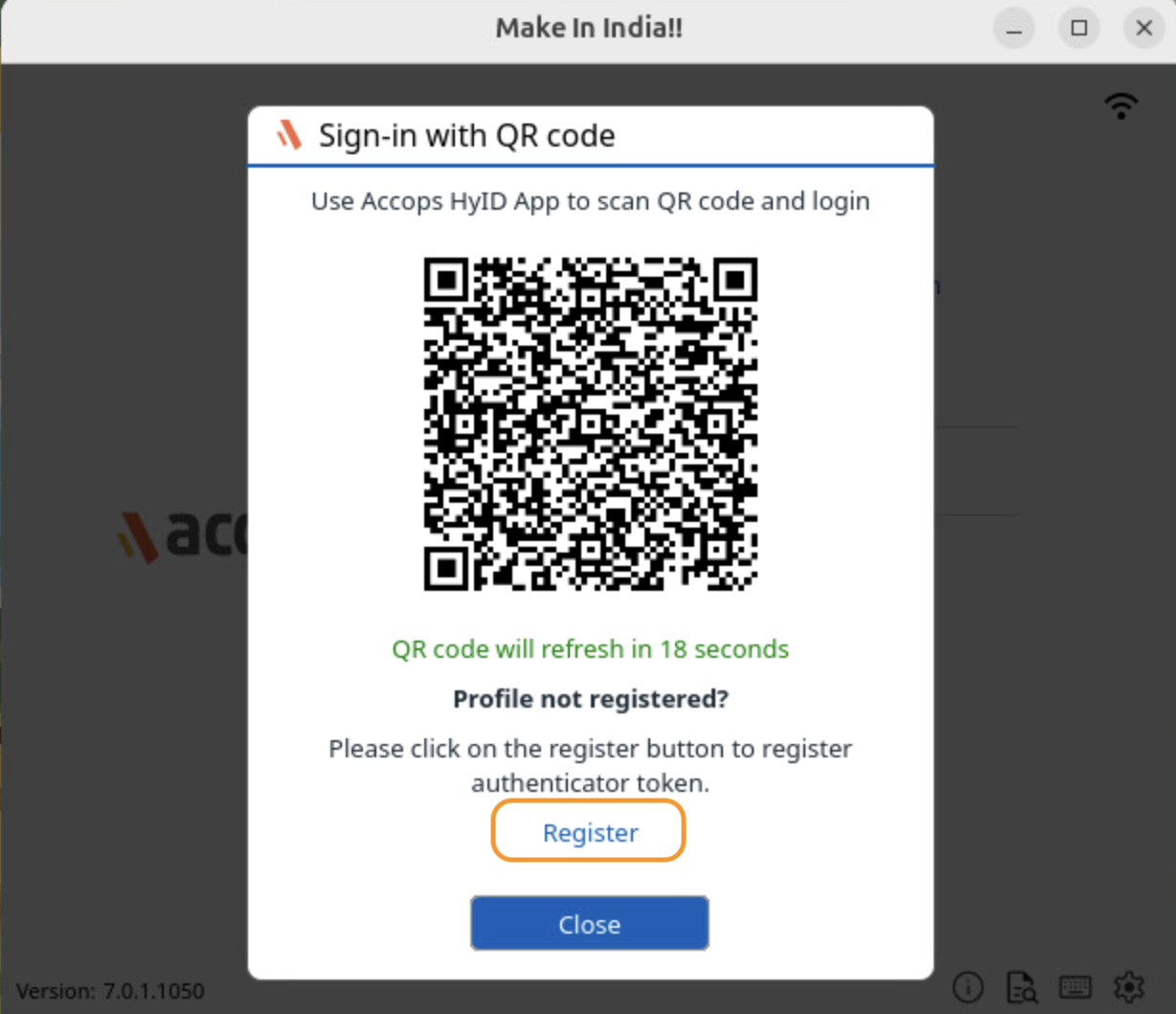
Supported Client Platforms and Gateway Compatibility
| Supported Client modes and OS | HySecure 5299 | HySecure 5.3 | HySecure 5.4 -SP2/5.4 SP5 | HySecure5.4 SP6 | HySecure 7.0 |
|---|---|---|---|---|---|
| Client Modes: Admin/Standard Users HyLite | No | No | No | Yes (with temporary gateway changes) | Yes |
HySecure Gateway Configuration
-
Log in to the HySecure Management Console.
-
Navigate to Policies > HyID Policies. Create a HyID policy, if not already created, and apply the settings listed below to get the above option to be visible on the client launchpad.
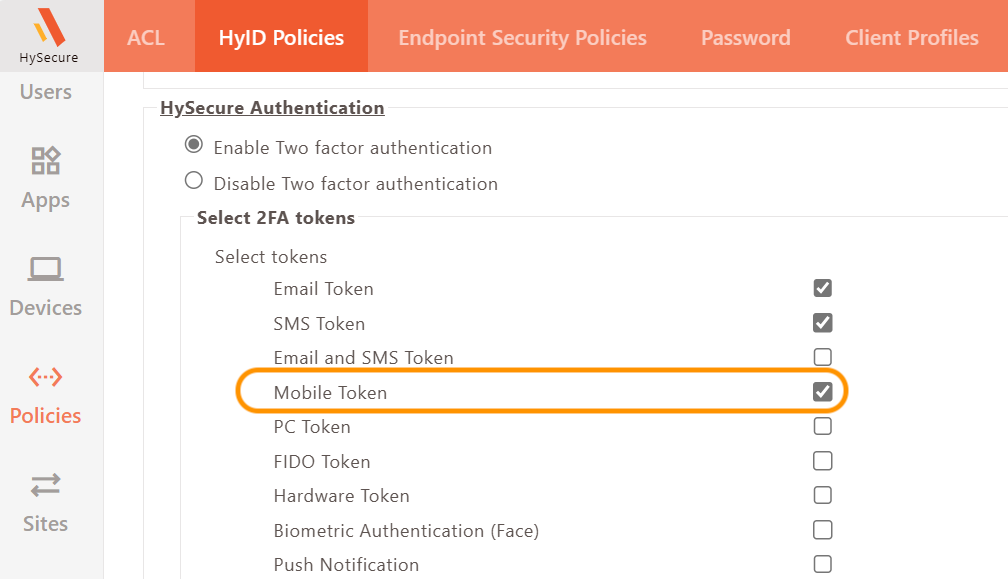
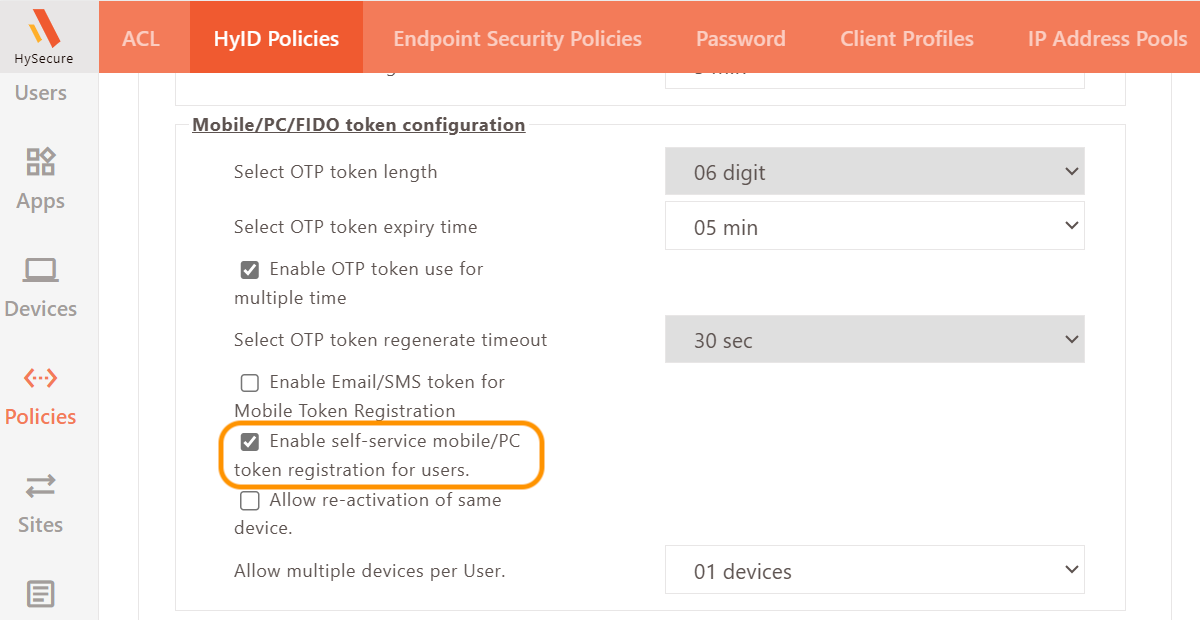
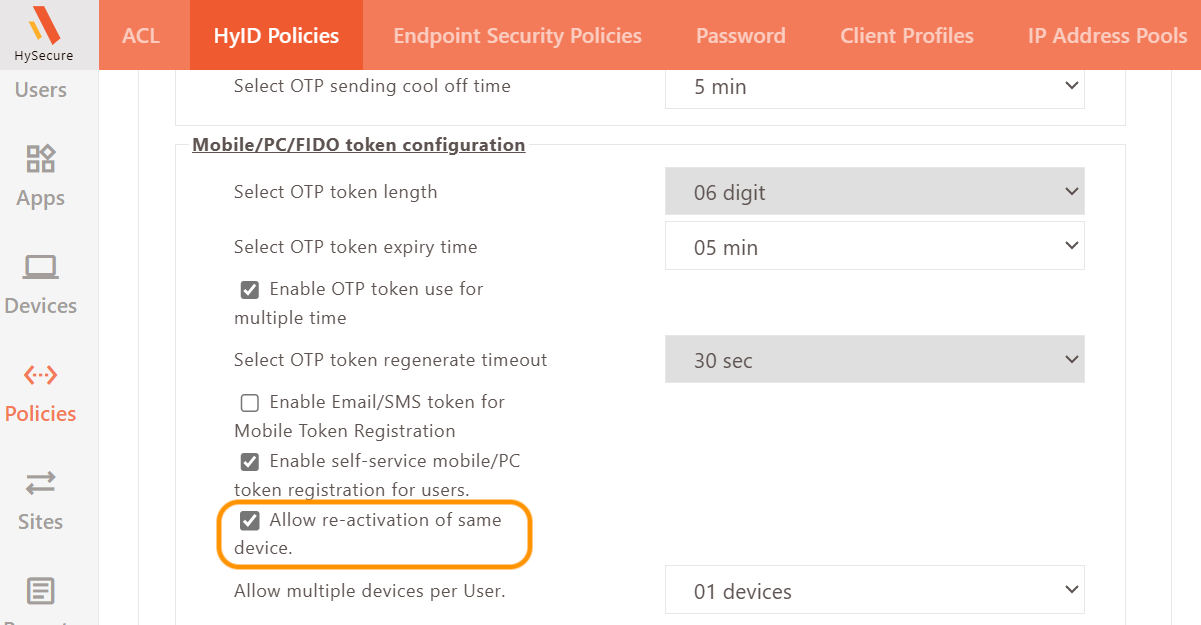
For the Re-registration option, enable the Allow reactivation of the same device option.
For Mobile, token registration through a Passwordless QR code:
For older HySecure Gateways, contact Accops Support to add a tag to the Gateway.