New Features in Accops Workspace Linux Client version 7.1.1.1019
Upgrade
The Workspace Client can be manually upgraded from the linux_release_64bit.7z setup.
Upgrade from HySecure Gateway (Old to Latest Workspace client)
Gateway Configuration (HySecure Gateway versions 7.2 and above)
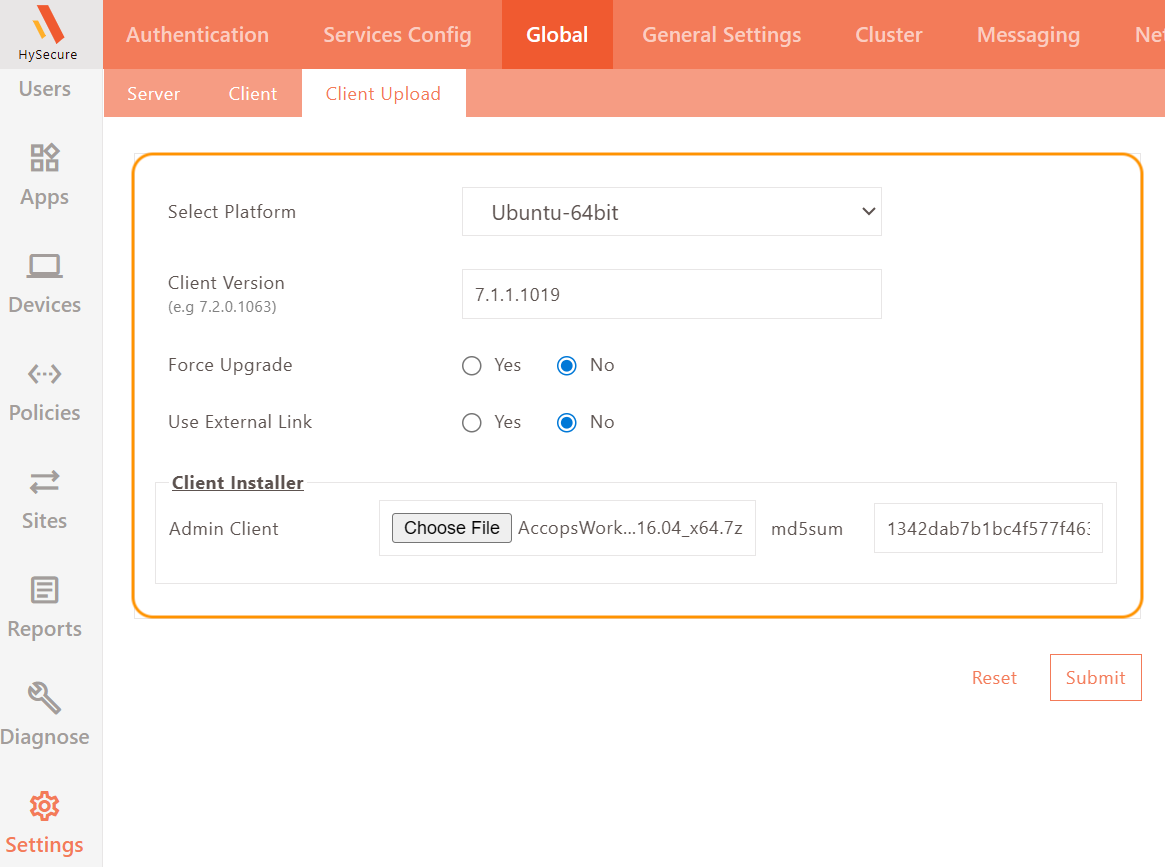
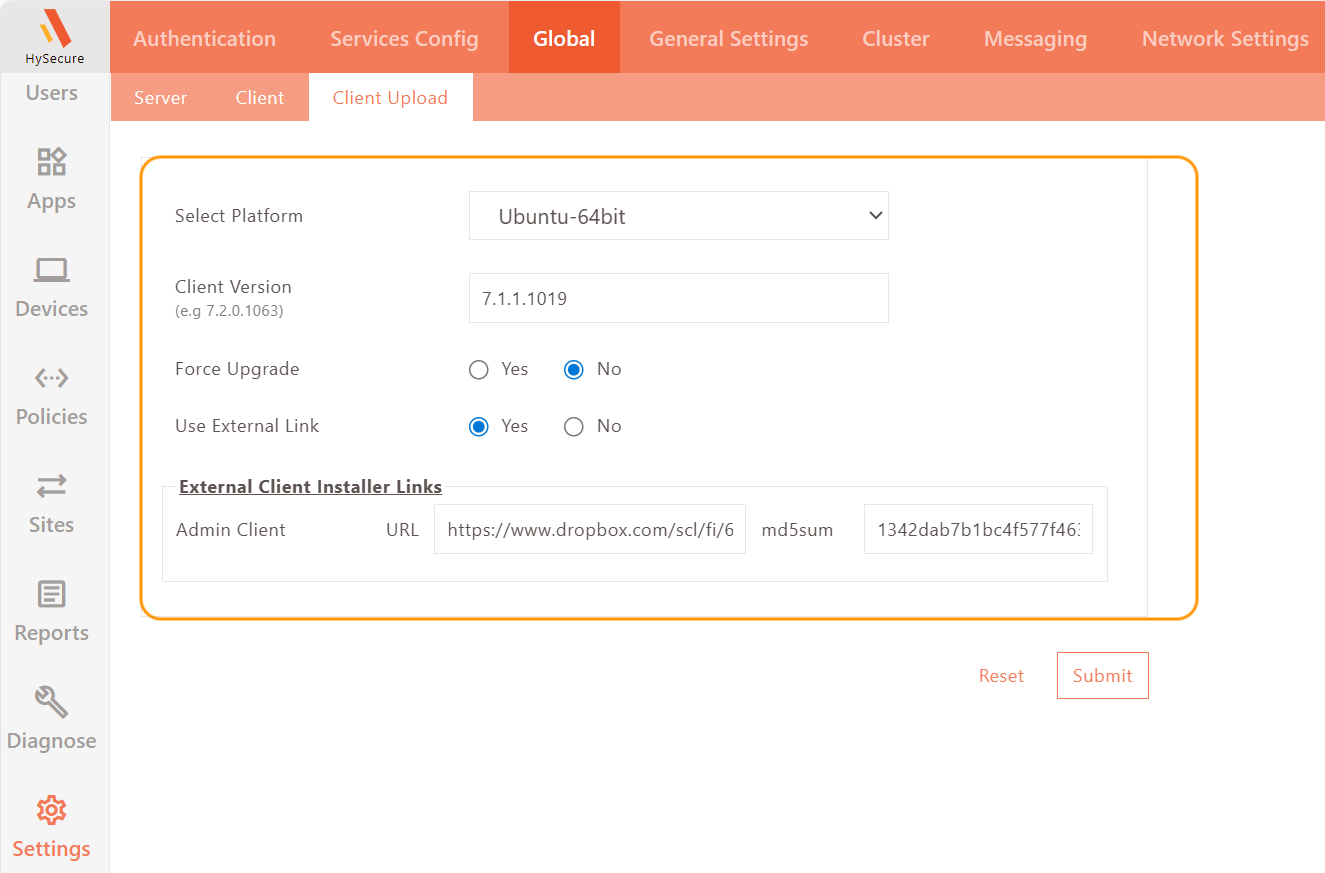
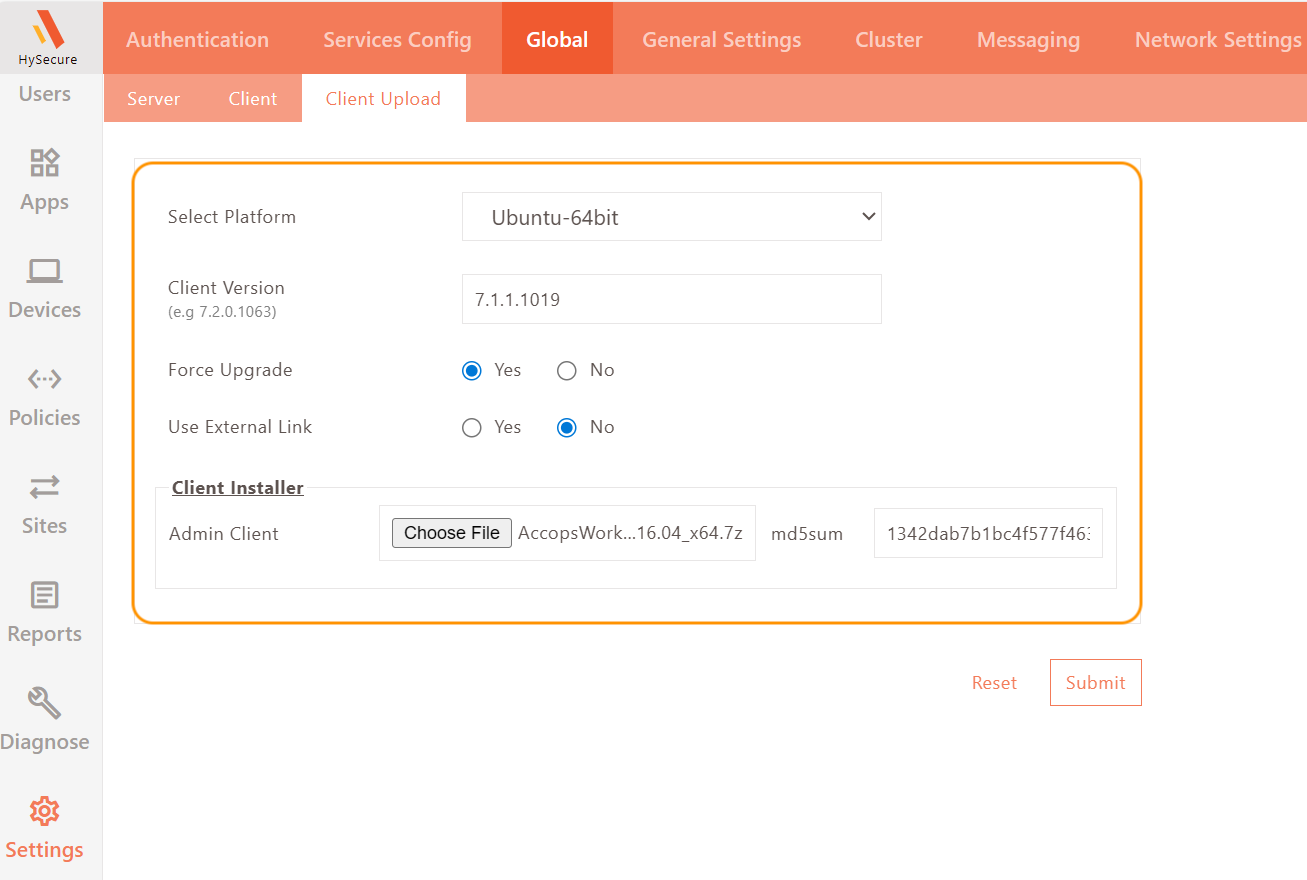
Starting with version 7.2 GA, HySecure Gateway allows administrators to configure client upgrades directly through the management console, eliminating the need to upload client installers via the Gateway's backend manually.
-
Configuration for Workspace Client upload and upgrade requires user consent.
-
Configuration for Workspace Client upgrade initiated via URL.
-
Configuration for Workspace Client upload with enforced (mandatory) upgrade.
Gateway Configuration (HySecure Gateway versions below 7.2 and above 5.4 SP6)
Client upgrades can be done using 3 methods:
-
Client upgrade through the HySecure Gateway.
-
Client upgrade through URL.
-
Client downloads through the HyLite portal.
Method 1: Client upgrade through HySecure Gateway
-
Upload the installer file named linux_release_64bit.7z to the Gateway at the publicly accessible location.
-
In the globalsetting.js file, add or change the available Linux client version to the version number string.
LINUX_UPGRADE_ENABLED_64=true LINUX_FORCE_ENABLED_64=false LINUX_CLIENT_VERSION_64=7111019 LINUX_UPGRADE_FROM_GATEWAY_64=true LINUX_UPGRADE_FROM_WEBLINK_64=false LINUX_UPGRADE_WEBLINK_64= LINUX_CLIENT_MD5_64=1342dab7b1bc4f577f4637443adabf56 LINUX_CLIENT_INSTALLER_NAME_64=linux_release_64bit.7z -
Set the Upgrade mode as ask the user or enforce.
-
In the HySecure gateway, navigate to Client Settings > Enable HySecure Client Upgrade Notification to Users.
-
Specify the client version in the .js file.
Steps to Download Client and Upgrade Consent in Accops Workspace
-
Launch the Workspace Client.
-
Connect to the HySecure Gateway and select the appropriate realm.
-
A client download notification consent pop-up will appear.
-
User consent is required for the download. Click Start Download to proceed.
-
The client will be downloaded to the AccopsUpdater folder at:
/home/Users/AccopsUpdater.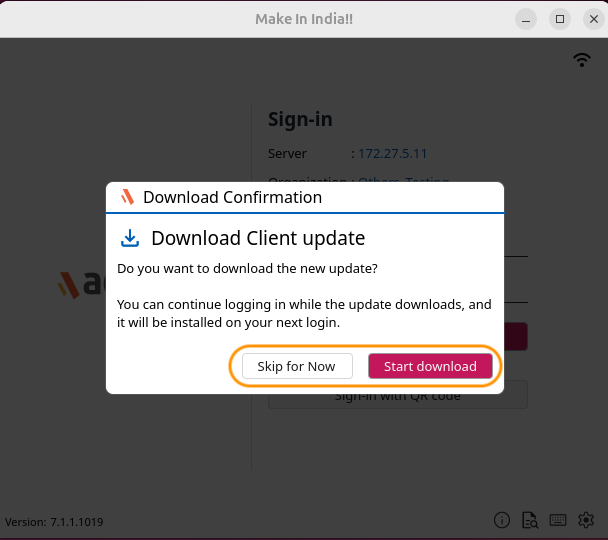
-
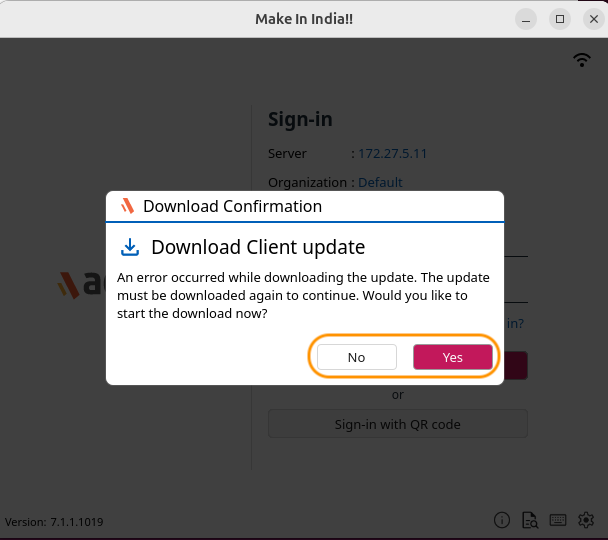
If downloads fail, it may be due to a network issue, an incomplete download, or other errors. In such cases, an error message will pop up with an option to download again.
-
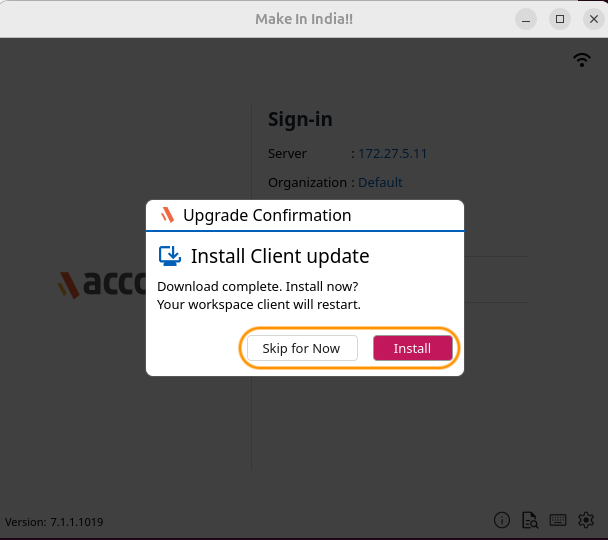
Once the download is complete, a consent notification for the upgrade will appear when the user logs in, logs out, or relaunches the client.
-
Click Install to approve the upgrade. The new version of the Workspace client will be installed.
-
Client upgrade logs are located in the Accopsupdater folder.
-
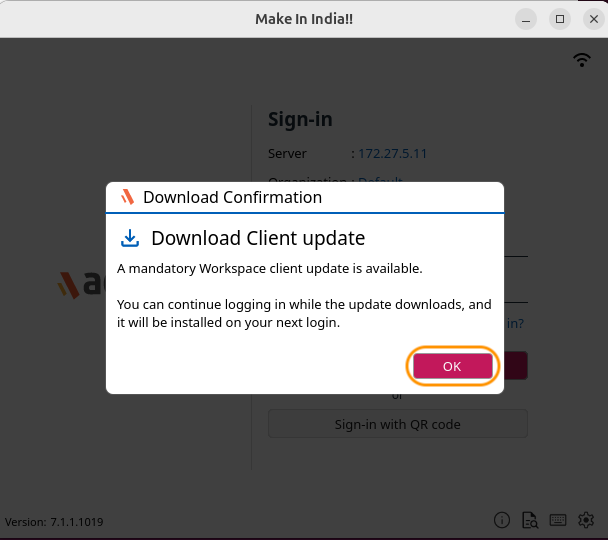
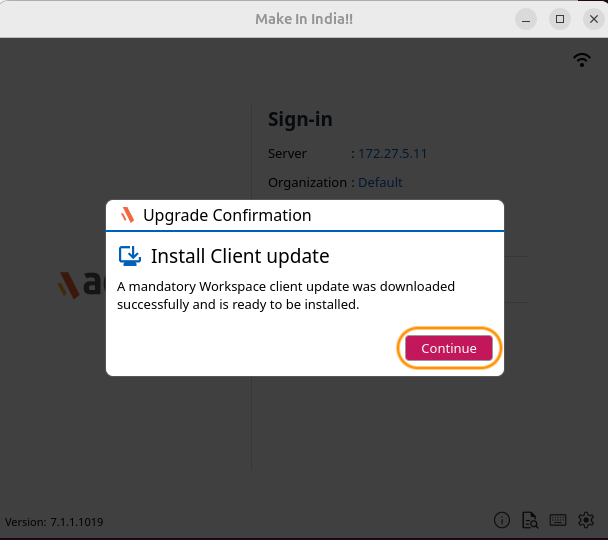
When Force upgrade is enabled from the HySecure Gateway, users must provide consent for the upgrade by default before the process can proceed.
Method 2: Client upgrade through URL
Configuring Third-party websites
-
Upload the installer file to a designated location on the third-party website and create a downloadable URL. Ensure the download link works by testing it in a browser.
-
Ensure that the third-party website has a valid certificate (HTTPS).
-
In the default client settings, add or change the available Linux (64-bit) client version to reflect the correct version number string.
-
Configure the Upgrade client hash in the default client settings.
-
Enable the Upgrade from the third-party website flag.
-
Set the URL in the configuration.
-
Choose the Upgrade mode, either prompt the user for confirmation or enforce the upgrade automatically.
Client downloads workflow
When the client launches, it downloads its settings from the gateway.
If the upgrade flag is enabled, the following checks will occur in the client settings:
-
The version and self-version will be compared. If the self-version is lower than the version specified in the client settings:
-
The system will check if the installer file is present in the AccopsUpdater folder.
-
If the installer file exists, it will verify the setup file’s hash against the default client settings.
-
If the hash matches, the upgrade process will be initiated.
-
If it does not match:
-
The system will determine whether to download from the gateway or a third-party website.
-
If downloading from the gateway, it will retrieve the client and place it in the AccopsUpdater location on the system.
-
If downloading from a third-party website, it will use the download URL specified in the client settings to obtain the client and store it in a temporary location on the system.
-
-
Upgrade workflow
-
Ensure that the ask user to upgrade flag is enabled:
-
If yes, prompt the user to confirm whether they want to proceed with the upgrade.
-
If the user agrees, execute the installer with administrator privileges.
-
If the user declines, take no action and wait till the next execution.
-
Method 3: Client downloads through the HyLite portal
-
Upload the new client setup file (i.e., linux_release_64bit.7z) to the gateway at a publicly accessible location and grant the file all permissions.
-
Rename the client setup file in the loginpage.htm file located at /home/fes/public/portal/act. If required, please verify the name should be linux_release_64bit.7z

Client download and installation
-
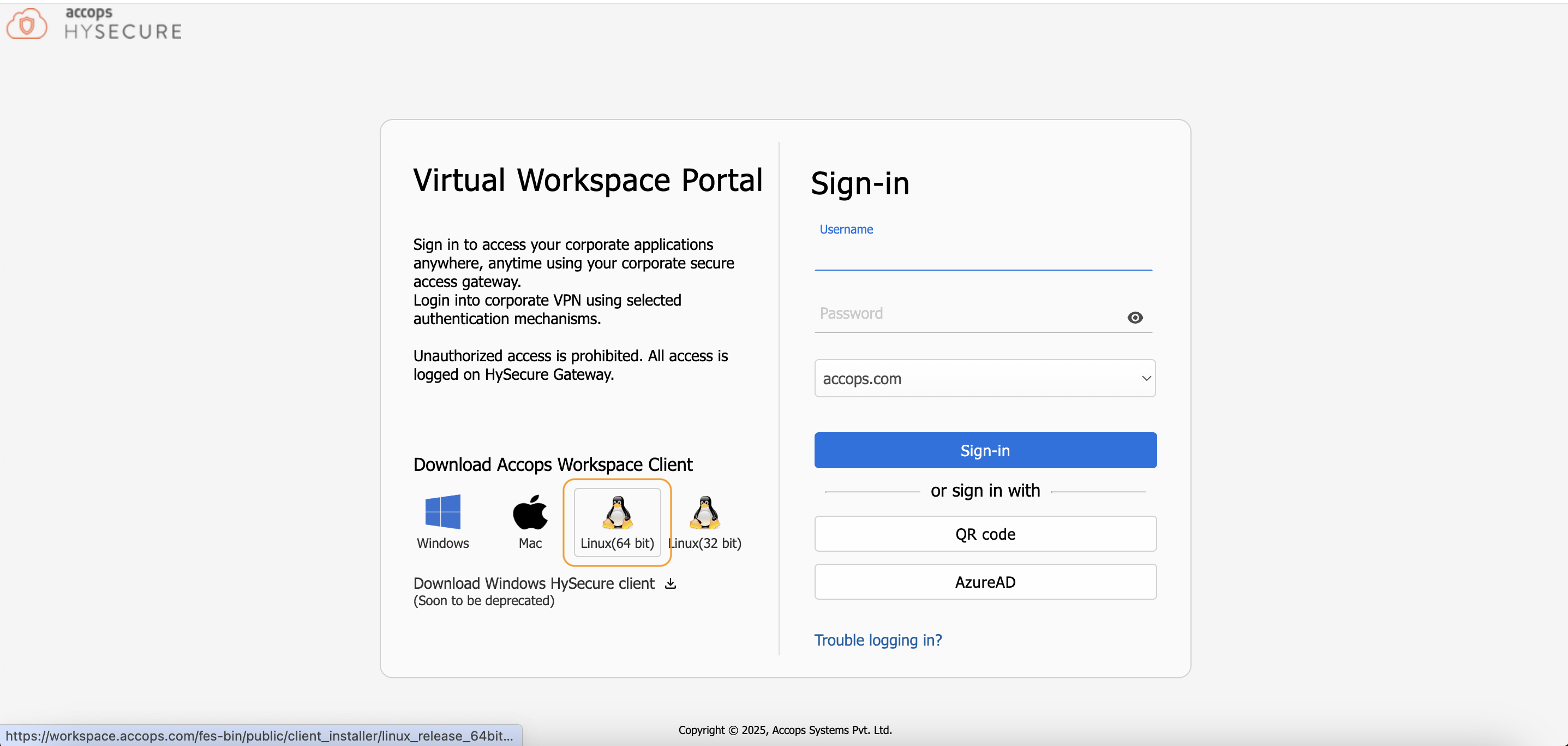
Step 1: In the HyLite portal of the HySecure gateway, locate the section labeled Download Accops Workspace Client, then click the Linux (64-bit) icon.
-
Step 2: A new setup file will be downloaded. Use this file to install the Accops Workspace Client for Linux.
Important Note
- The earlier Workspace client version 7.0.1.1050 does not support upgrades through the HySecure Gateway.
- Upgrade functionality is available starting from subsequent versions of the Workspace Linux Client.
Update Details in System Tray
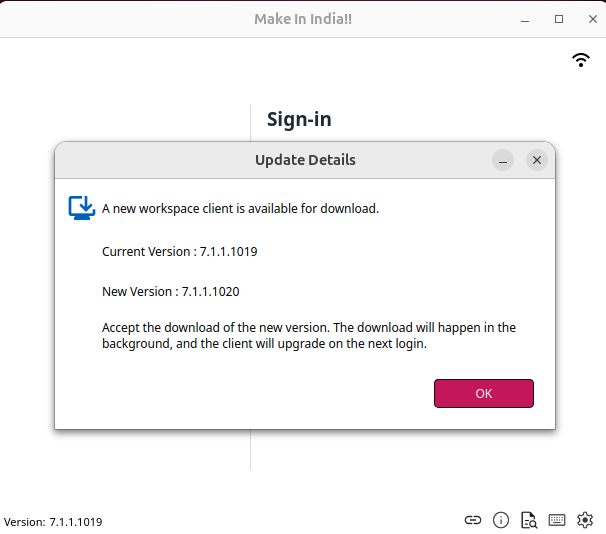
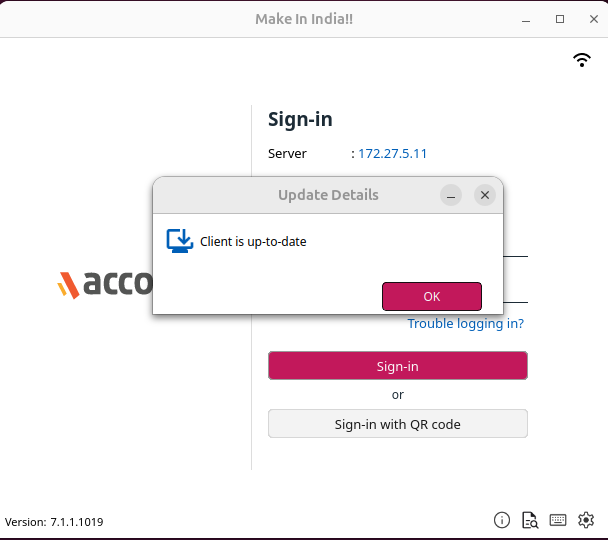
The Linux OS system tray in the Workspace Client now lets users view update details directly.
MTU Recalculation on Network Change
In previous versions of the Workspace client, the MTU was calculated and set only during Gateway login, without support for recalculation if the network changed. In the latest Workspace client, MTU is now recalculated automatically whenever a network change is detected.
Supported Client Platforms and Gateway Compatibility
This new feature is supported in the client modes listed below and is compatible with the HySecure Gateway versions 7.0 & 7.1 and above.
| Supported Client modes on Linux OS | HySecure 5.4 -SP2/5.4 SP5 | HySecure5.4 SP6 | HySecure 7.0/7.1 | HySecure 7.1 SP1 | HySecure 7.2 |
|---|---|---|---|---|---|
| Client Modes: · Admin/Standard Users | No | No | Yes | Yes | Yes |
Self-Service Portal
Linux Workspace Client includes a Self-Service Portal feature that allows users to perform tasks such as password, account, and session management.
Session Management from Client
-
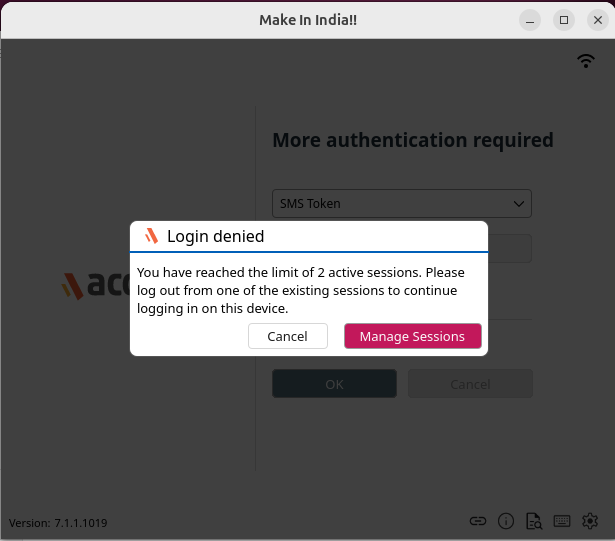
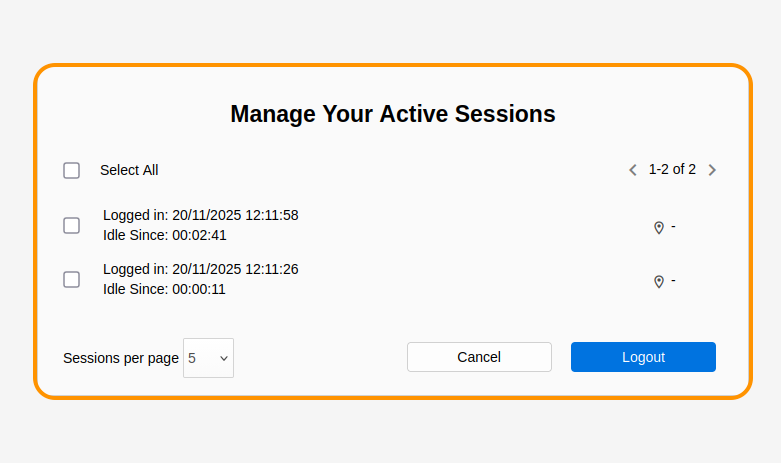
When an administrator configures N simultaneous sessions and a user is already using all of them, the gateway rejects any additional login attempt with a session exhaustion error.
-
In such cases, a Session Self-Service Portal (SSP) link is provided below the login error message, allowing the user to manage or terminate active sessions.
-
The same Session Management link gets displayed on the Workspace Linux Client when a login fails due to session exhaustion.
Supported Gateway Compatibility-Session Management
This new feature is supported in the client modes listed below and is compatible with the HySecure Gateway versions 7.2 and above.
| Supported Client modes on Linux | HySecure 7.2 and above |
|---|---|
| Client Modes: · Admin/Standard Users | Yes |
Supported Client Platforms and Gateway Compatibility, except Session Management
This new feature is supported in the client modes listed below and is compatible with the HySecure Gateway versions 7.1 and above.
| Supported Client modes on Linux OS | HySecure 5.4 -SP2/5.4 SP5 | HySecure 5.4 SP6 | HySecure 7.0 | HySecure 7.1- SP1 |
|---|---|---|---|---|
| Client Modes: · Admin/Standard Users | No | No | No | Yes |
PCOIP Support
The Workspace Client for Linux OS now includes PCoIP protocol support, enabling users to connect to their virtual desktops with high-performance, secure streaming. This enhancement provides enterprises with a seamless, local desktop experience for Linux OS users, including features such as high-resolution display support and robust security.
Supported Linux Operating Systems
| System | Version Required |
|---|---|
| Anyware Client Operating Systems | Ubuntu 22.04 LTS Ubuntu 24.04 LTS |
Compatible Agents
| Agent Type | Supported (Yes/No) | Notes |
|---|---|---|
| Anyware Agent (latest) Version 25.10.3 and above | Yes | Best with matching version VDI OS Version: Ubuntu 22.04 LTS Only Teradici recommends using the same version of PCoIP Agent as PCoIP Client. |
Hardware Requirements
| Display Setup | Processor Requirement | RAM Requirement | Supported (Yes/No) |
|---|---|---|---|
| Up to dual 1080p displays | 1.6 GHz dual-core or higher | Minimum 4 GB RAM | Yes |
| Up to dual 4K/UHD displays | 3.0 GHz quad-core or higher | Minimum 8 GB RAM | Yes |
| Single 4K with low-end specs | No official support | Insufficient performance | No |
Login with MFA Only
This feature introduces a passwordless multi-factor authentication (MFA) method designed to enhance security and improve user experience. Instead of requiring users to enter a traditional password, the "Login with MFA Only" option lets them log in with their username and verify their identity using MFA. These methods include SMS OTP, Email OTP, Push Notifications, or Mobile Tokens.
Supported Client Platforms and Gateway Compatibility
This new feature is supported in the client modes listed below and is compatible with the HySecure Gateway versions 5.4 SP6, 7.0, and above.
| Supported Client modes on Linux OS | HySecure 5.3 | HySecure 5.4 -SP2/5.4 SP5 | HySecure5.4 SP6 | HySecure 7.0 |
|---|---|---|---|---|
| Client Modes:Admin/Standard Users | No | No | Yes | Yes |
HySecure Gateway Configuration
Kindly reach out to the Accops support team for assistance with the Gateway Configuration.
Bookmark (Local Application)
In previous versions, only remote applications could be published through the HySecure Gateway. However, starting with this client release, applications that are local to the endpoint device can be published. This new capability is called the Bookmark feature.
HySecure Gateway Configuration
Please note that the configuration for this feature on the HySecure Gateway must be done from the backend only.
Kindly reach out to the Accops support team for assistance with the Gateway Configuration.
Supported Client platforms and Gateway compatibility
This feature is supported in the client modes listed below, as well as with HySecure Gateway version 5.4 SP6 and HySecure Gateway versions 7.0 and above.
| Supported Client modes on Linux OS | HySecure 5.4 -SP2/5.4 SP5 | HySecure 5.4 SP6 | HySecure 7.0/7.1 | HySecure 7.2 |
|---|---|---|---|---|
| Client Modes:Admin/Standard Users | No | Yes | Yes | Yes |
IMPORTANT SECURITY NOTICE
This feature allows command-line operations to be executed directly on the user's Linuxhint. Extreme caution is necessary when configuring commands, as improper use can cause significant harm to the device or the network.
Safety Guidelines
-
Never configure destructive commands, such as rm, sudo, reboot, shutdown, dd, or mkfs. These can result in irreversible data loss or system damage.
-
Avoid commands that require user interaction, such as read, passwd, or interactive scripts, as they can cause the process to hang or fail.
-
Refrain from using system-altering commands, such as chmod, chown, or mount, unless you are certain they are safe and properly contained.
-
Do not permit execution of downloaded scripts, such as curl | sh, wget | bash, as these are common vectors for exploitation.
-
Limit command usage to safe, user-level application launchers, such as open, xdg-open, google-chrome, firefox, libreoffice, etc.
-
Always validate and sanitize any user input that will be incorporated into command strings to prevent shell injection attacks.
-
Implement logging or auditing for any commands that users can define or modify via a UI or configuration file.
Misuse of command execution capabilities can create security vulnerabilities, lead to data loss, or compromise system integrity. Use this feature responsibly and ensure that you fully understand the associated risks.
Radius Challenge MFA
HySecure Gateway now supports RADIUS challenge-response authentication, allowing users to enter a token (e.g., an OTP) when prompted by the RADIUS server. This enhances security and enables seamless multi-factor authentication.
Note
The radius challenge support added on build 7.0 648 with Hotfix 01 (AH_OL9_NC_HF01_7.0_002_20250221.hpat) along with the Linux Workspace client version 7.1.1.1019
Geolocation Support
In the latest Workspace client, administrators can restrict user logins to the HySecure gateway based on geographic location. Allowed login zones can be defined using latitude and longitude coordinates along with a configurable radius. Users will only be able to authenticate when accessing the system from within these designated areas. The required GPS location should be stored in Active Directory as a user attribute.
To configure User Attributes for geolocation in Active Directory and HySecure:
-
Each user must have a geolocation attribute set in Active Directory in the format: Latitude|Longitude|Area (for example, 16.886543|74.358756|Nashik).
-
Users can store multiple geolocation entries. HySecure will permit login if the device's location corresponds to any one of the allowed geolocations.
-
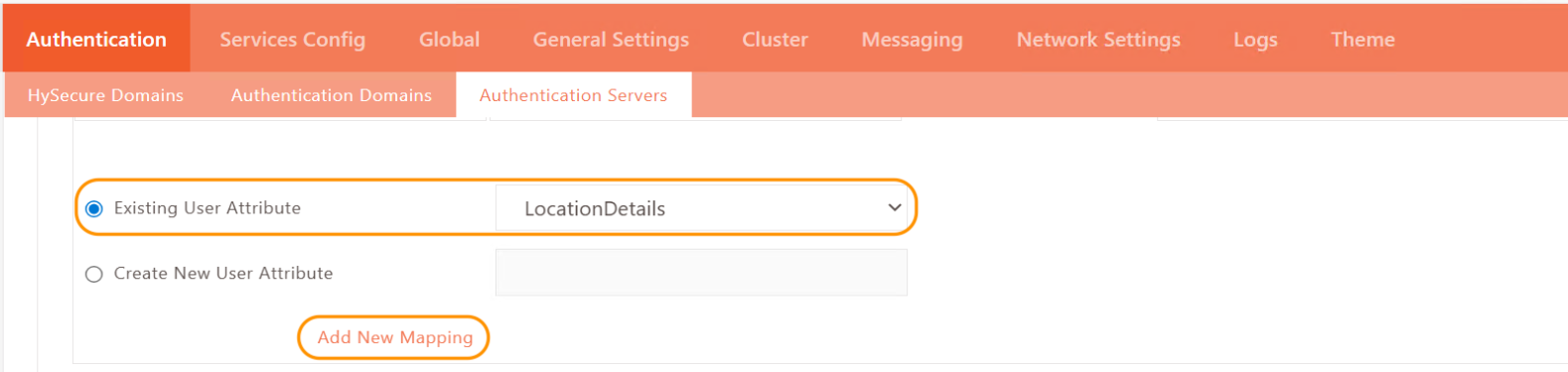
To map these attributes in HySecure, navigate to Settings > Authentication > Authentication Server, and edit the configured authentication server.
-
In the User Attribute Mapping section, choose the existing user attribute named LocationDetails and add a new mapping.
-
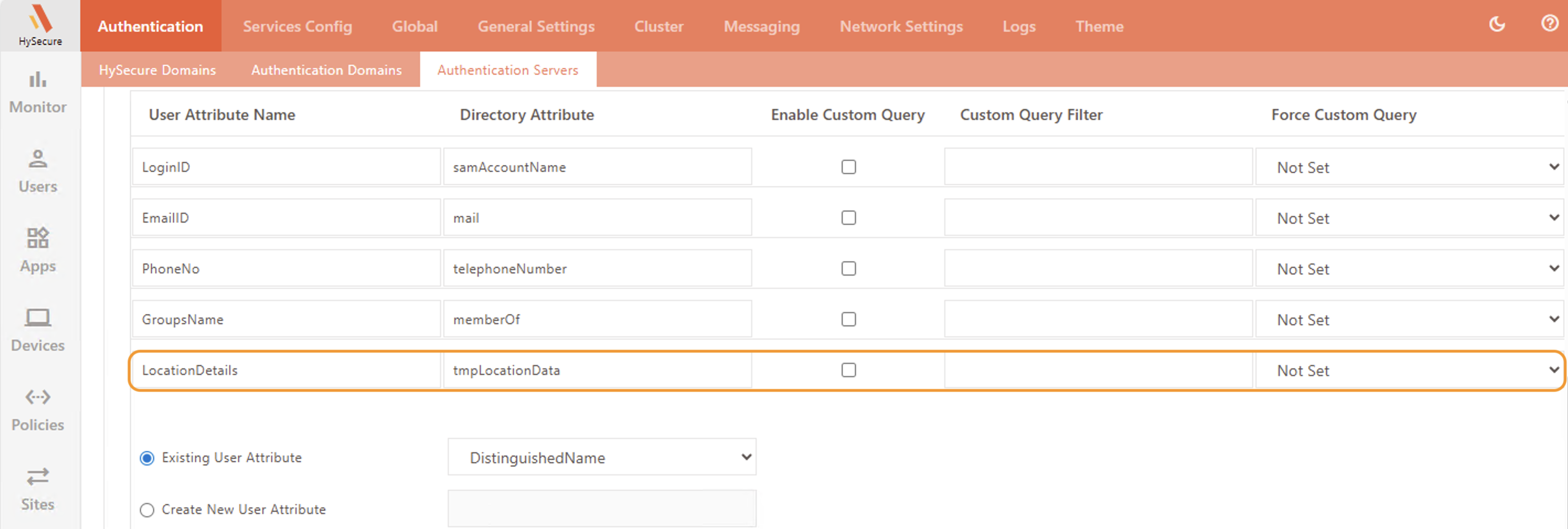
In the User Attribute Name field, make sure LocationDetails is selected. Then, enter the corresponding Directory Attribute that contains the user's geolocation information and click Submit to save the configuration.
To enable geolocation-based login on the HySecure Gateway:
-
Access the active HySecure Gateway node via SSH.
-
Open the “features.status” file with the command:
vi /home/fes/features.status. -
Enable geolocation login by setting the flag: GEOLOCATIONBASEDLOGIN=1
-
Next, open the local.conf configuration file using: vi /home/fes/local.conf.
-
Set the allowed login radius (in meters) by defining the flag AllowedRangeInMeters.
Example
AllowedRangeInMeters=200
-
The default radius is 100 meters, allowing users to log in if they are within this distance from the permitted geographic coordinates.
Workspace Linux Client
The Workspace Linux Client supports two login modes for geolocation-based authentication, which administrators can enable individually or together:
-
Passwordless (login via QR Code).
-
Credential login combined with Push Notification as multi-factor authentication (MFA).
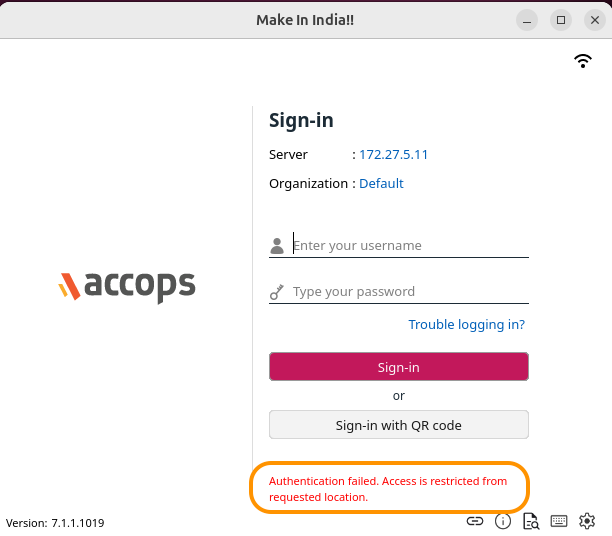
When a user logs into the HySecure Gateway through the Workspace Linux Client using either Passwordless (QR Code sign-in) or Push Notification with the HyID client mobile app. (Android/iOS), the login will be granted or denied based on whether the location provided by the HyID client matches any of the user's authorized geolocations configured in the system.
This ensures that user access is controlled not only by credentials and MFA but also by the device’s physical location, enhancing security through location-based policies.
Note
This feature is supported only on Workspace Linux Client version 7.1.1.1019 and above. It requires the HyID (Android/iOS) client App to be updated to version 4.8.0 or above.
Supported Client Platforms & Gateway Compatibility
This feature is supported on the following types and modes of clients with HySecure Gateway versions 7.1 SP1 & above:
| Supported Client modes on Linux OS | HySecure 5.4-SP2/5.4 SP5/ | HySecure 5.4 SP6 | HySecure 7.0 | HySecure 7.1 SP1 | HySecure 7.2 |
|---|---|---|---|---|---|
| Client Modes: Admin/Standard Users |
No | No | No | Yes | Yes |
HySecure Gateway Configuration
Kindly reach out to the Accops support team for assistance with the Gateway Configuration.
Custom mobile token registration URL
If the Mobile Token registration gateway differs from the login gateway, redirect the user to the registration gateway URL.
For global client settings:
-
Set VPN_MT_REG_HOST_NAME=https://gateway_host_name_with_or_without_port to define the registration gateway.
-
If VPN_MT_REG_HOST_NAME is left empty, users will be redirected to the registration gateway URL.
-
If the tag is populated, the hostname specified in VPN_MT_REG_HOST_NAME will be used to redirect mobile token registration.
-
If the login gateway changed, and MFA registration is configured, then launch the new gateway URL instead of the previous one.
Custom conf and log path
Step 1: Extraction of the Client Files
-
Use the following command to extract the client files: 7z x
-
Replace
with the actual name of your file.
Step 2: Locating the edcinstaller Folder
- After extraction, navigate to the edcinstaller folder. Inside, you will find a file named template.ini.
Step 3: Configuring the template.ini File
-
Open the template.ini file. It contains several tags that need to be updated:
-
conf_path
-
logs_path
-
userconf_path
-
Updating the Tags:
-
conf_path: Set the configuration path. For example, if you want to save configurations in
/var/lib/customconf, you will write:conf_path= /var/lib/customconf -
logs_path: Set the log path. For example:
logs_path=/var/log/customlogs -
userconf_path: Set the user configuration path as needed.
userconf_path=/var/lib/userconfImportant Note
- Do not add a trailing slash after mylogs.
- For logs, .edc/logs will be appended automatically in front of the entered path.
- For userconf_path, .edc will be appended automatically in front of the entered path.
Step 4: Post Updating Configuration in template.ini
- After updating the template.ini, proceed with the installation. Your logs and other configurations will be saved based on your settings.
Configurable Copy/Paste for Password Field
Copy-paste functionality in the password field on the client launchpad is now controlled via Gateway configuration. By default, copy-paste functionality will be blocked in the password field on the client’s login page. If the admin enables it in the gateway configuration, copy-and-paste will be allowed in the password field.
Supported Client Platforms and Gateway Compatibility
This new feature is supported in the client modes listed below and is compatible with the HySecure Gateway versions 7.1 and above.
| Supported Client modes on Linux OS | HySecure 5.4 -SP2/5.4 SP5 | HySecure5.4 SP6 | HySecure 7.0/7.1 | HySecure 7.1 SP1 | HySecure 7.2 |
|---|---|---|---|---|---|
| Client Modes: · Admin/Standard Users | No | Yes | Yes | Yes | Yes |
Gateway configuration
Establish an SSH connection to the HySecure Gateway and add a tag in home/fes/public/globalsetting.js file on the gateway.
ALLOW_COPY_PASTE_PASSWORD=true
| Tag Name | Location for Gateway Version 5.4 series & above | Possible values | Remarks |
|---|---|---|---|
| ALLOW_COPY_PASTE_PASSWORD= | /home/fes/public/globalsettings.js | True | It will allow copy-paste of the password |
| ALLOW_COPY_PASTE_PASSWORD= | /home/fes/public/globalsettings.js | False/Blank | It will not allow copy-paste of the password. |