Workspace Client Functioning and Usage Guide
First time Configuration
-
Once installation is completed, the Client will automatically launched.
-
The user can start the client by double-clicking the Accops Workspace shortcut icon on the desktop.
-
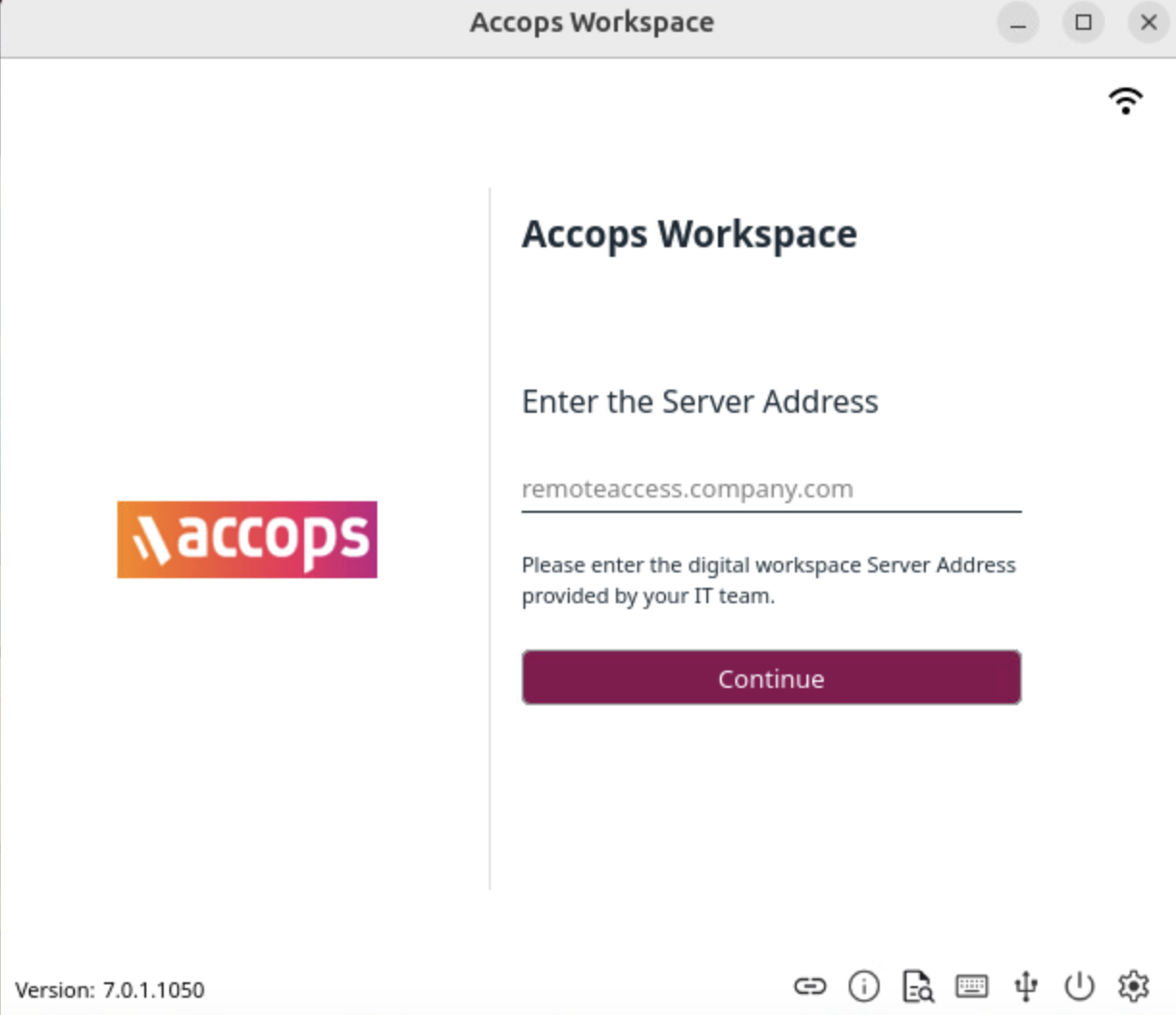
On the first launch, the Workspace Server Address screen will be displayed.
-
In the Workspace Server Address screen, add the appropriate server address and click Connect.
-
Specify HyWorks Controller Address: If HyWorks Controller and VDI/SHD/Apps are reachable.
-
Requires HyWorks Controller address (IP or Hostname)
-
Port number (Default 38866)
-
-
Specify HySecure Gateway Address: If connection to HyWorks Controller for assigned VDI/SHD/Apps and HySecure Applications can be made via HySecure server.
-
Requires HySecure Gateway address (IP or Hostname)
-
Port number (Default 443)
-
-
-
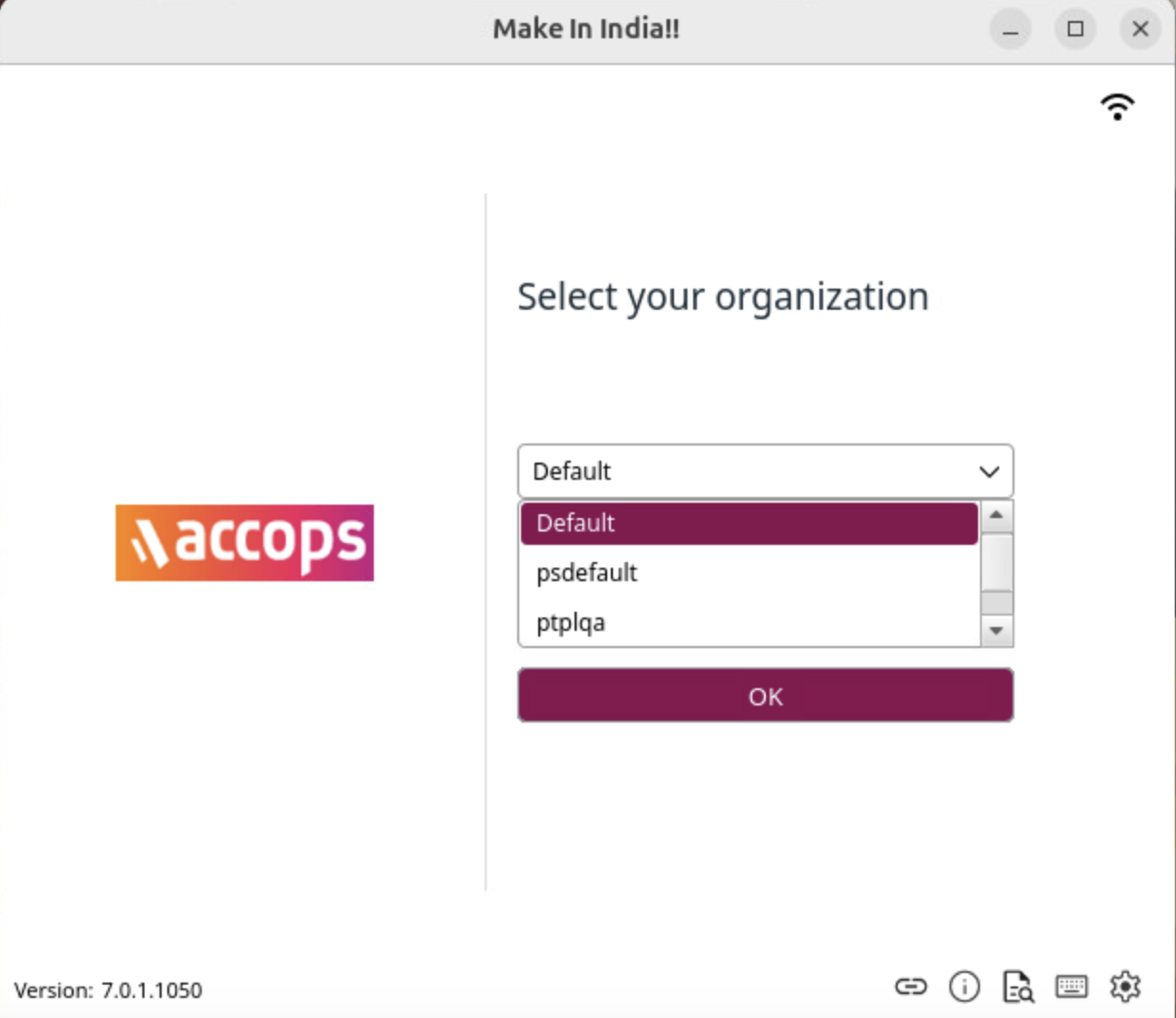
Once connected successfully, select the organizer from the Organization Selection dropdown.
Note
If deployment has only a single organization, this screen will be skipped, and the user will be directly navigated to the login screen.
-
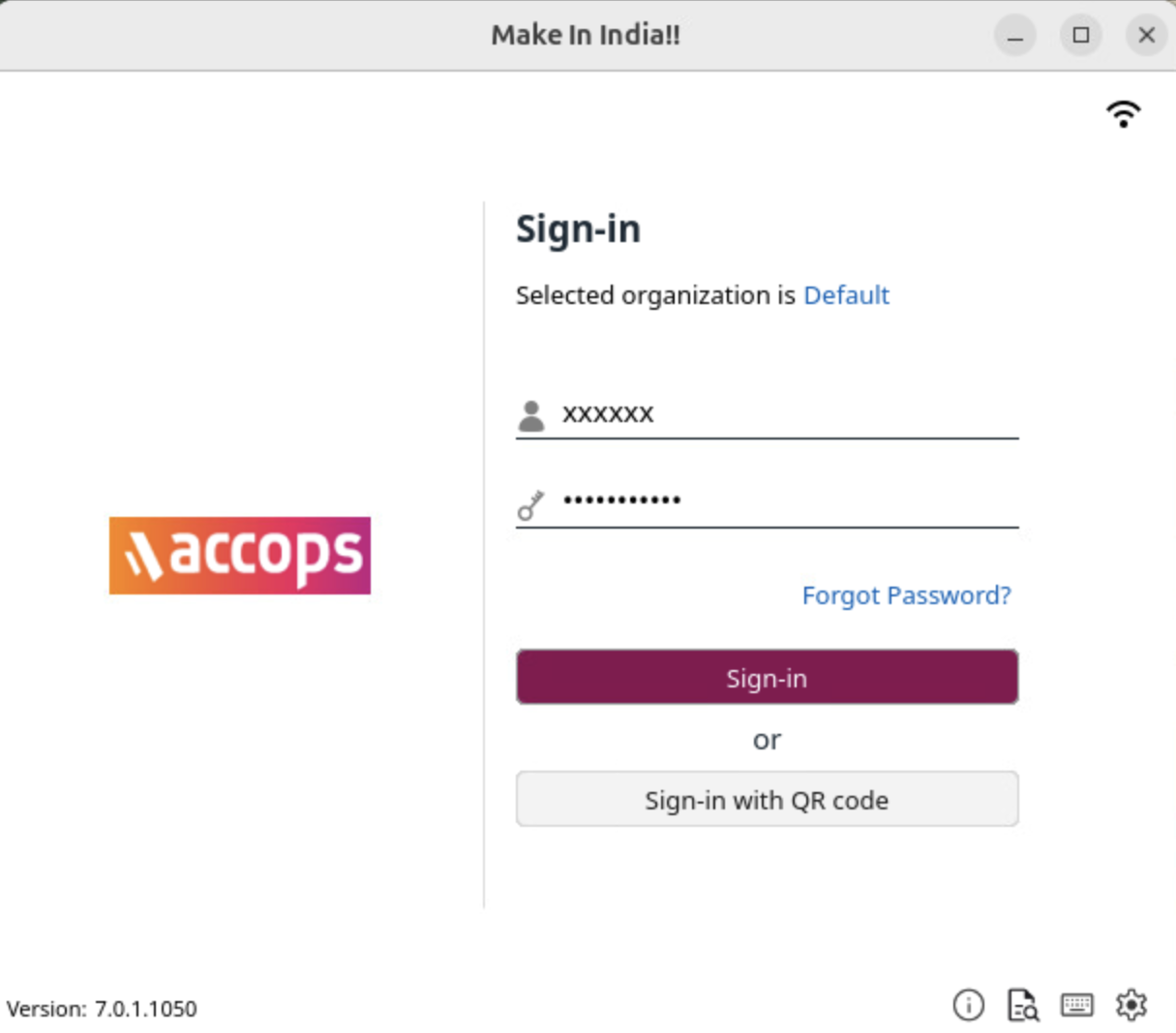
On the Login Screen, enter the appropriate username and password and click Sign-in.
-
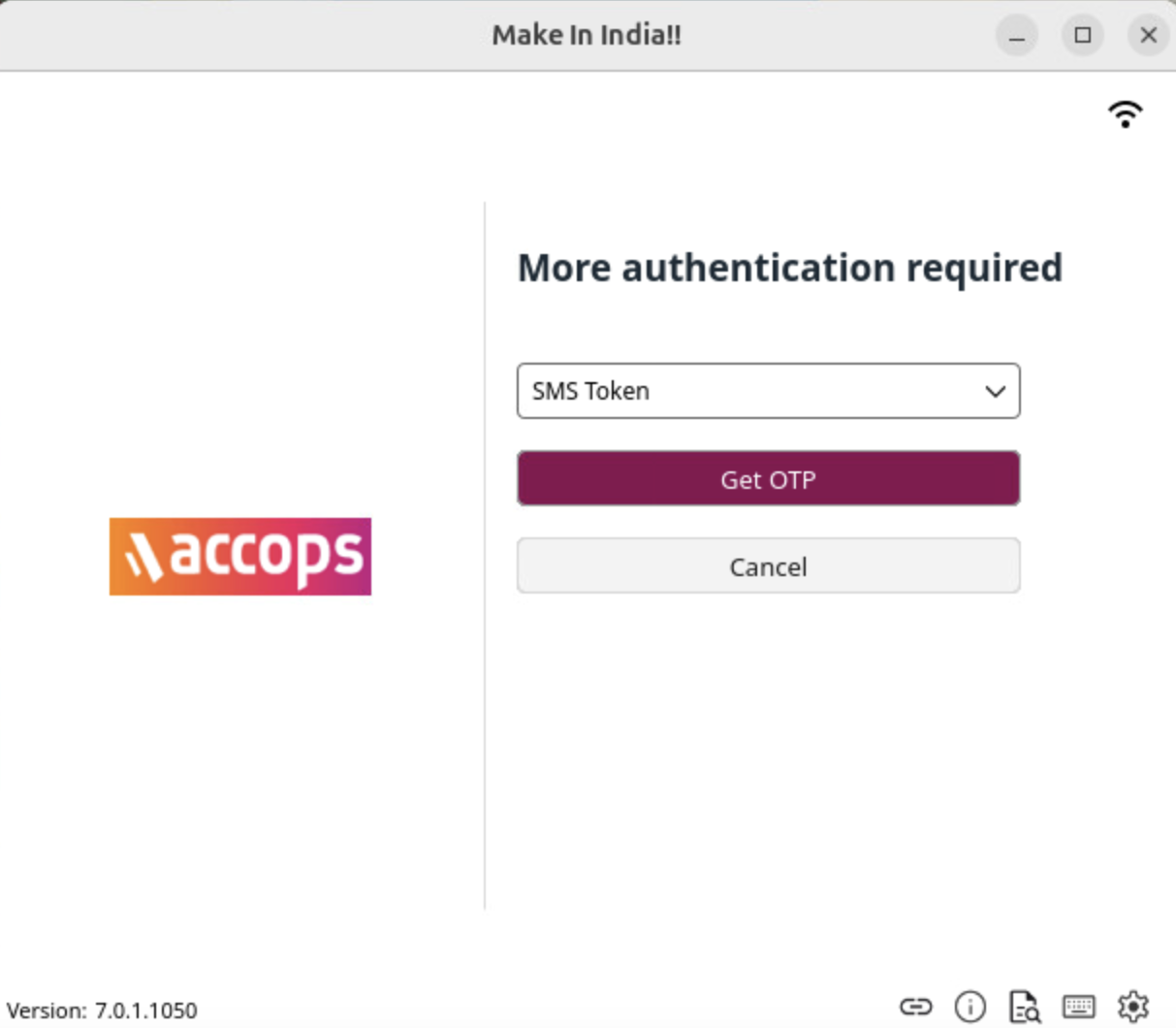
Upon clicking on Sign in, the multifactor authentication is required with HySecure. An SMS token is required for authentication.
-
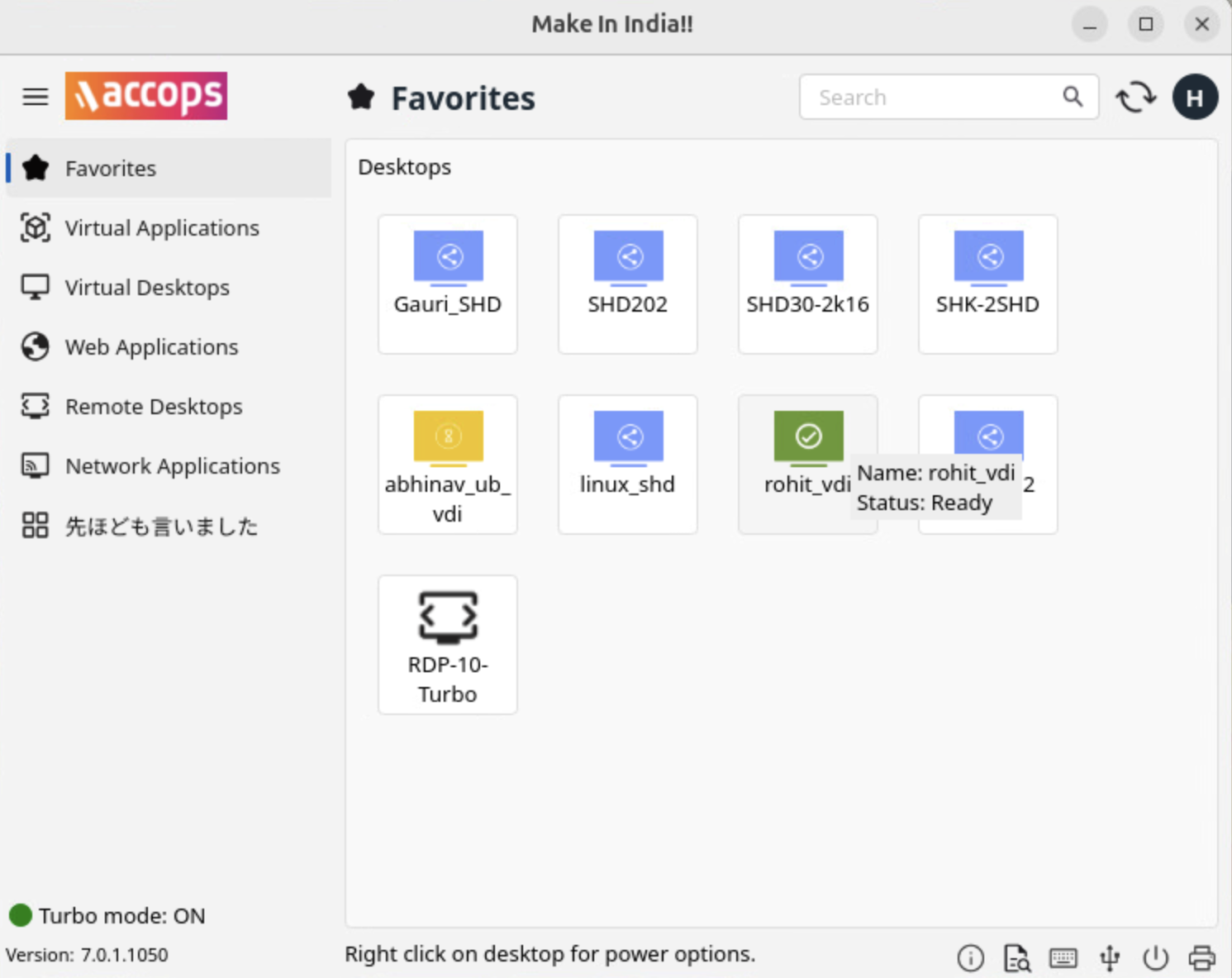
On successful login, the user will be presented with the application tray, displaying the Favorites tab consisting of assigned desktops and favorite applications.
-
In case of single desktop, a desktop session will be launched automatically. With multiple desktops or applications, an application tray will be displayed, and the user can click on the desktop or application icon to launch it.
Different Types of Controls and Usage
The Workspace login screen contains the following controls:
Before Logon
-
Network Status: Displays the status of the network on the system.
-
Organization Selection Link: Displays a drop-down list of organizations, which can be used to switch the organization.
a. If deployment has only one organization, the option will not be displayed, and the user will log in to the default organization.
b. Changing the organization, unregister the device from one organization, and register the device on the newly selected organization.
- Any device-specific assignments will also be deleted from the previous organization.
c. Once selected, the user’s choice will be remembered, and on the next client launch, the last selected organization will be displayed.
-
Virtual Keyboard: The control is by default hidden and can be made visible from HyWorks Controller Management Console > Devices > Device Settings > UI Controls > Click Virtual Keyboard. This will invoke the system’s default on-screen keyboard.
-
Settings Button: To invoke the Settings screen with multiple user-configurable options. The control can be hidden from the HyWorks Controller Management Console – Endpoints – Device Settings.
The settings Button is not displayed post logon, however, multiple tabs and buttons will be displayed to allow users to configure a few settings.
-
Click Settings to configure the following:
a. Server Address Configuration: Enter the server address of the HyWorks Controller or the HySecure Gateway.

b. Network: Click to view and check the network status.

c. Language: Displays the language list fetched from the controller.

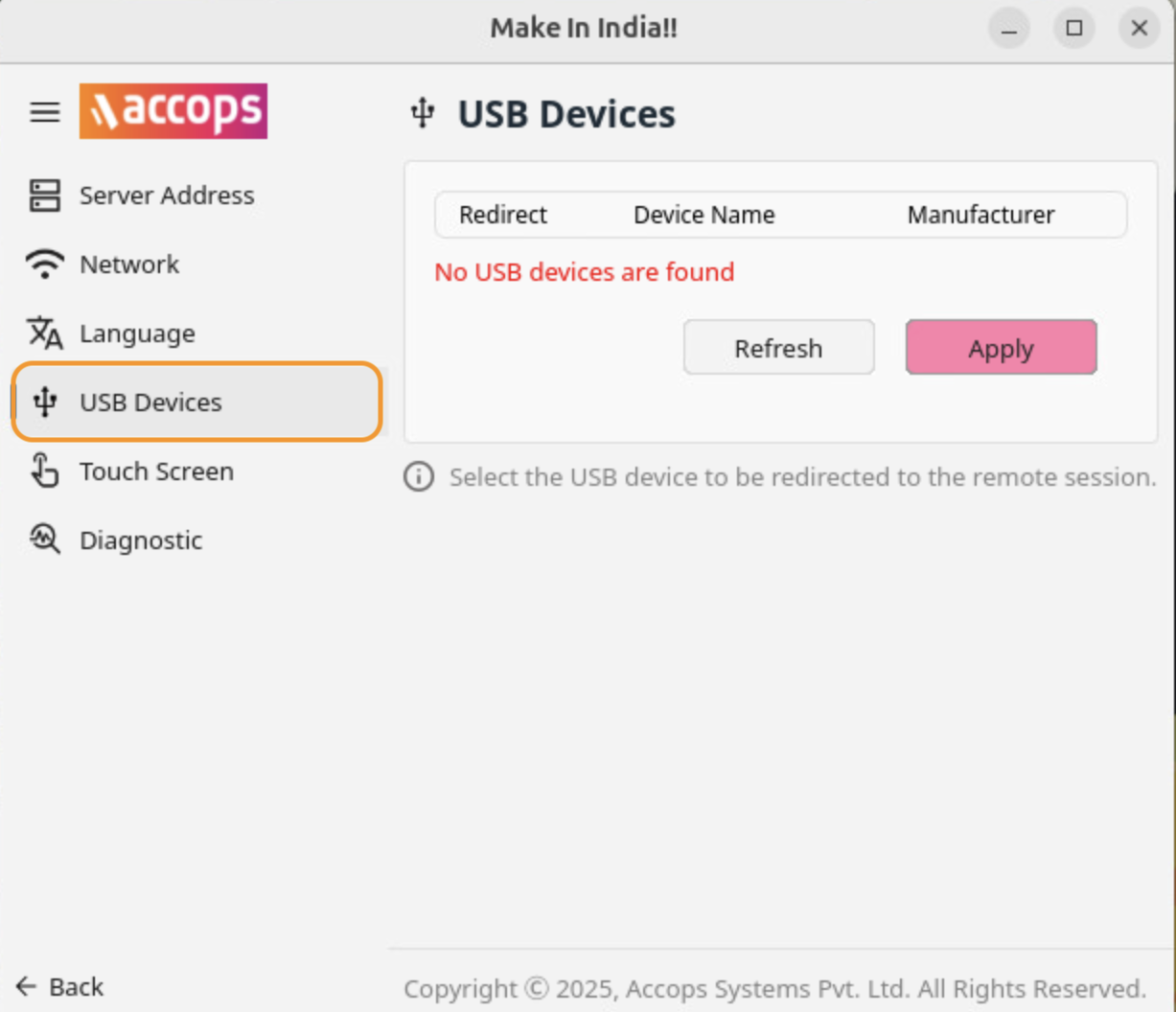
d. USB Devices: To select and share the usbdevice that will be used to redirect USB devices inside VDI.
e. Touch Screen: The Touch Screen calibration on the Ubuntu Workspace Client involves adjusting the touch input settings to ensure accuracy and responsiveness on the device. This process typically includes accessing calibration utilities or settings within Ubuntu or the Workspace Client.

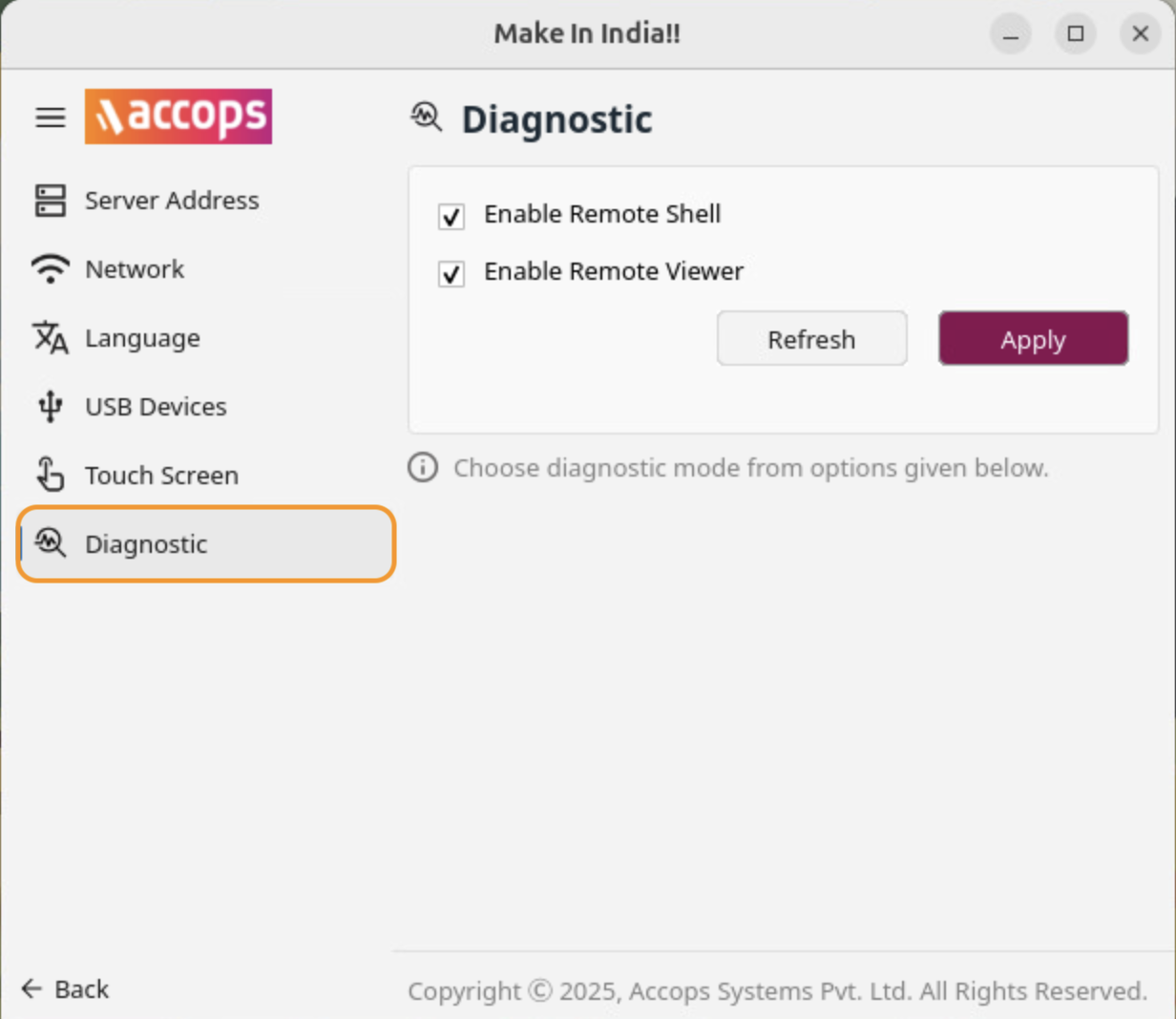
f. Diagnostic: Enables the settings for remote shell access and remote viewing of the client to facilitate troubleshooting.
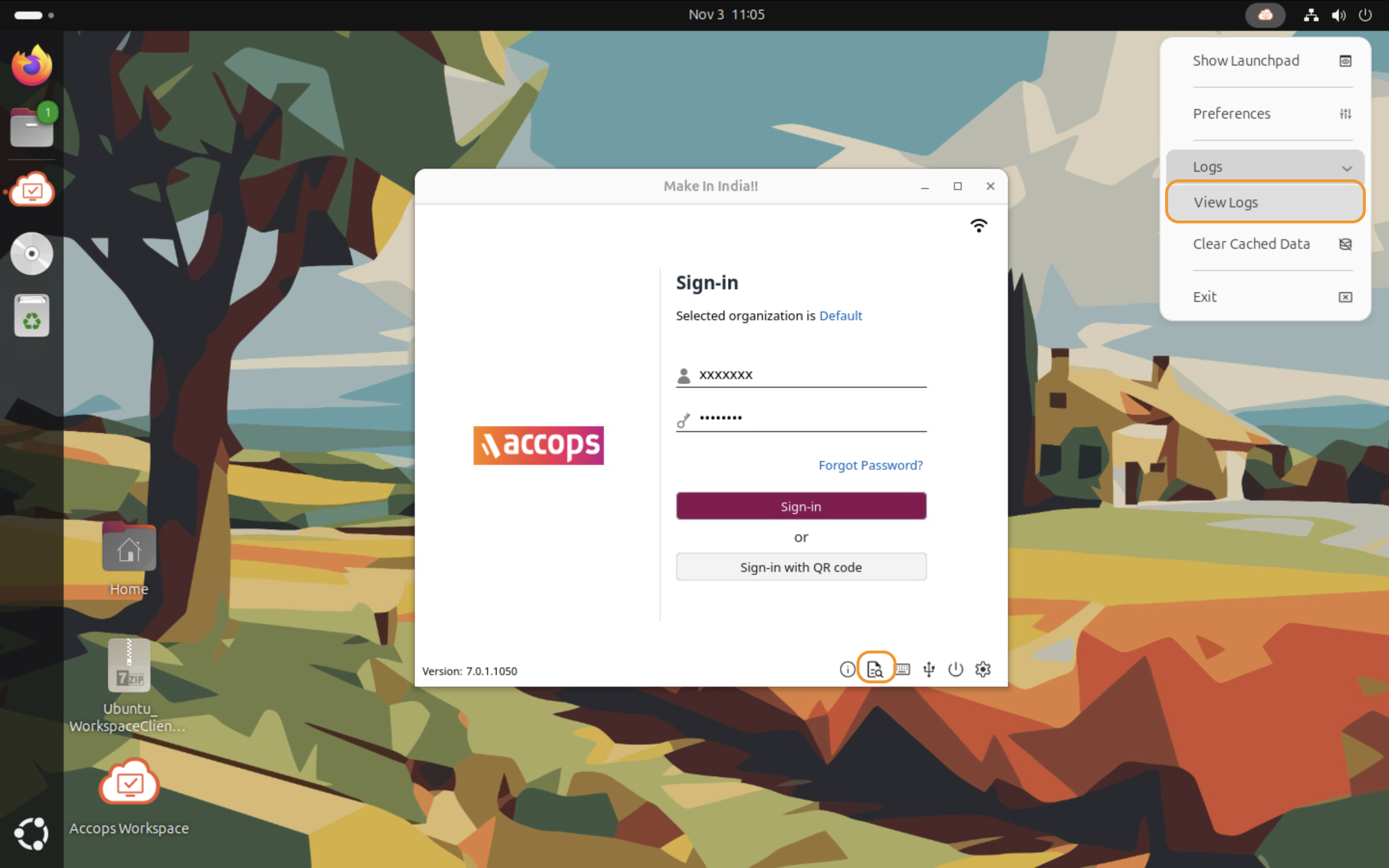
g. View logs from system tray: Client Logs can be opened from the system tray. We have included this feature in the system tray to open the logs while the user is logged in.
-
-
Info Button: Click the Info button to view the client information screen:
a. Connected To: Currently connected HyWorks Controller/ Gateway address.
b. Local Address/Netmask: IP Address and Netmask of the network.
c. MAC ID: MAC ID of client machine.
d. Serial Number: Device/ Machine serial number.
e. Model: Client model, possible value: Ubuntu Client 64-bit.
f. Software Version: Version of Workspace Client.
