Workspace Client System Tray
The System Tray of a workspace client can be viewed in the top-right corner of the Mac taskbar, where icons for background applications and system functions are displayed. The system tray provides quick access to important features related to the workspace client.
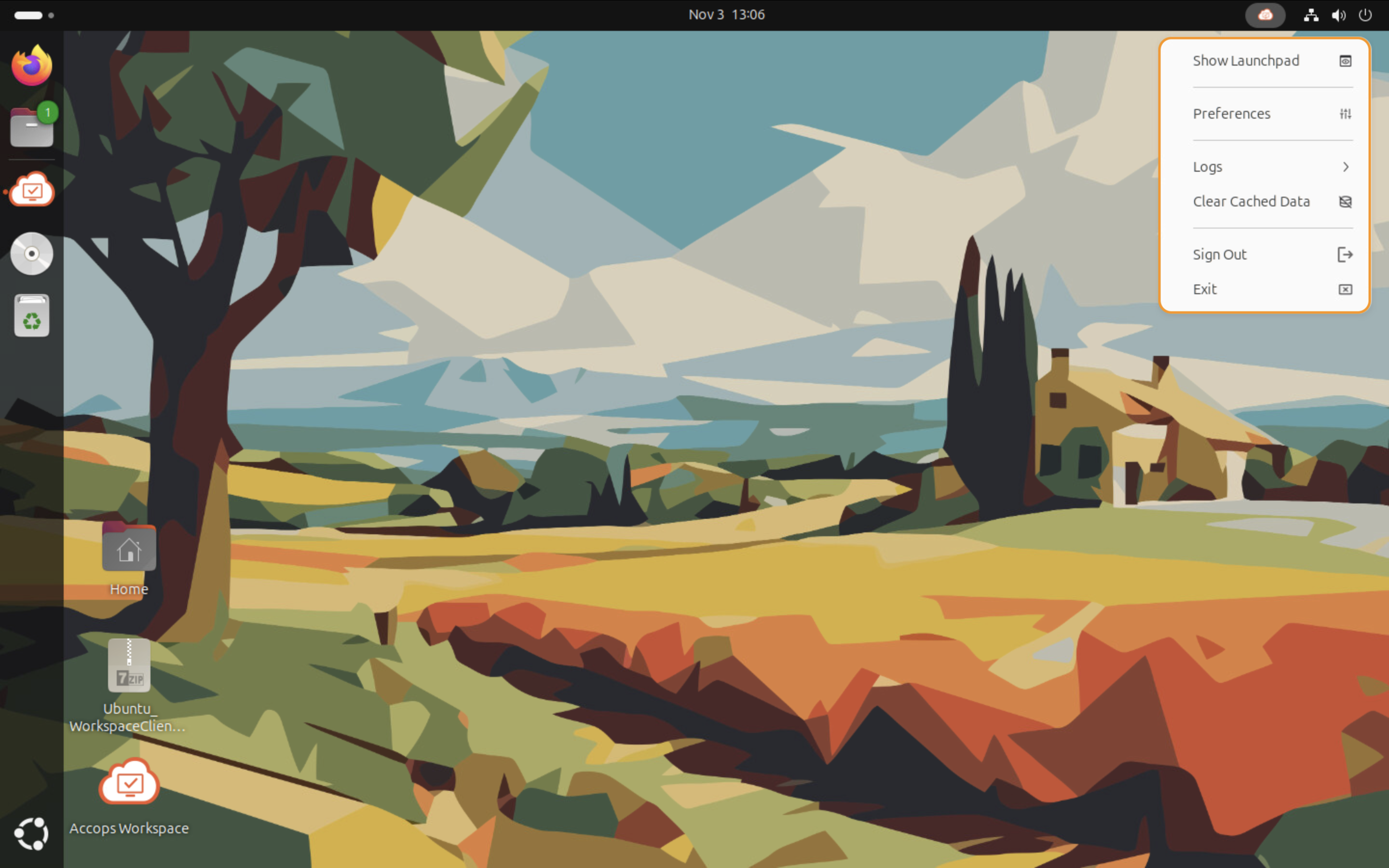
The Workspace Client System Tray includes the following options:
-
Show Launchpad: Click to open the Launchpad, allowing quick access to virtual applications, desktops, or other resources available in the workspace.
-
Preferences: Click to open the user’s profile preferences settings to customize the workspace client’s settings.
-
Logs: Click to open the log viewer, which allows users to access detailed logs and events related to the workspace client’s operations for troubleshooting or monitoring purposes.
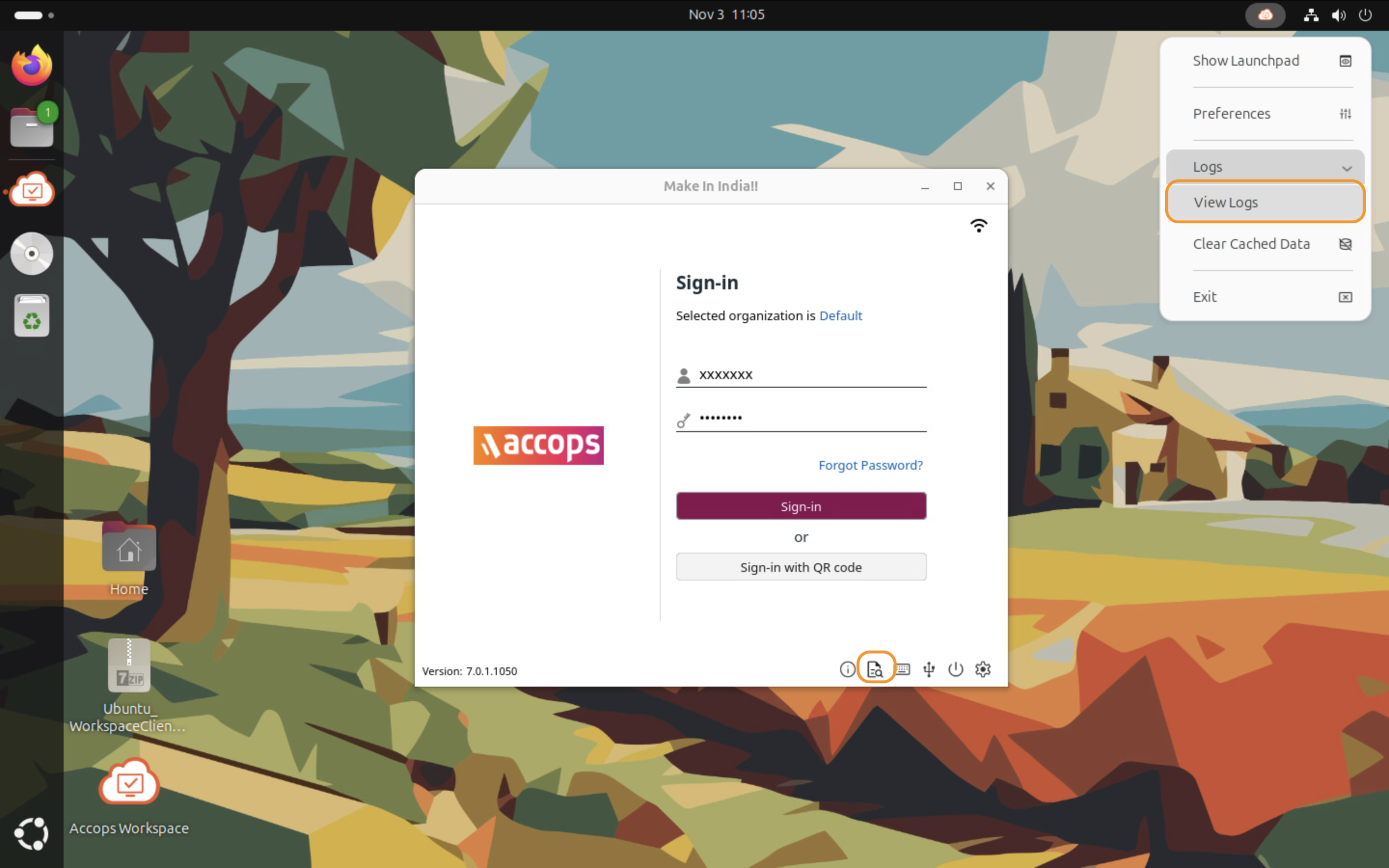
Currently, the View Logs option is available under the Logs tab.
- View Logs: Click to open the log viewer to view all the logs.
-
Clear Cache: Click to clear stored temporary files and data.
-
Sign Out: Click to log the user out of the workspace client, ending the current session while keeping account data intact for future logins.
-
Exit: Click to close the workspace client entirely, shutting down the application and terminating any active connections or processes associated with the session.