HyWorks Clients: New Features & Enhancements in HyWorks 3.2 GA
Following features and enhancements are being delivered with v3.2-GA HyWorks Clients:
MAC OS Client Release: v312093
Release for MAC client is available to download as an independent installer, supporting following operating systems
-
El Capitan:10.11.x,
-
Sierra: 10.12.x
-
High Sierra: 10.13.x
Note:
- HyWorks Client for MAC does not support all features of HyWorks and thus should be used as per the suggested configurations by Accops Support team.
SEP support for RDP10 (HyDesk Hy4000/Hy3000/Linux Client)
All Linux based HyWorks Clients i.e. HyDesk Hy3000, Hy4000 or xUbuntu (16.0.4.3-x32/64) Clients will now support SEP (Enhanced USB Redirection) driver with RDP10 protocol.
Until RC9 only built-in or Eltima USB redirection drivers were supported with RDP10 protocol on Linux based devices.
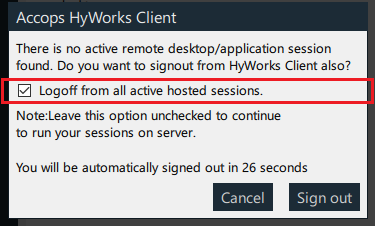
Improved Auto-logout with option to Sign-out or disconnect the session
With user having access to a single desktop or application, on disconnection of the session, user session will automatically be logged out in 60 seconds.
On remote App/ Desktop session disconnection, the user will be prompted with a dialog to sign-out the session or continue to use it with an automatic timer of 60 seconds.
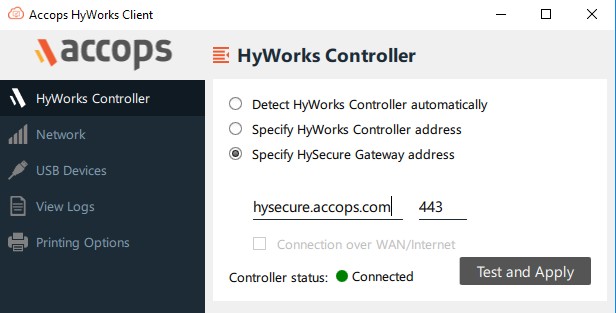
Connection through HySecure Mode
HyWorks client is now having option to connect via HySecure to deliver HyWorks applications. The feature will help in delivering HyWorks Apps/ Desktops over the internet using HyWorks client.
User must provide the HySecure Gateway address with appropriate port configuration. Appropriate applications (HyWorks Controller, Application Servers) should be published on HySecure.
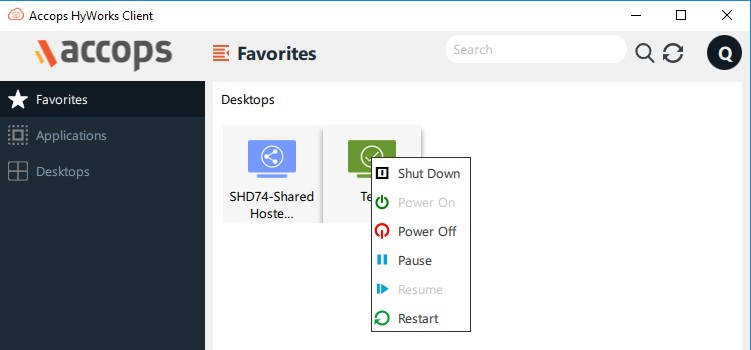
Power Operations support
In HyWorks v3.2, users will be able to initiate the power operations on assigned dedicated desktops. Power operations will be available as per the current state of the desktop.
To initiate a power operation, right click on assigned dedicated desktop and select the option to initiate operation.
Option to Open Log Files on Client side
On client, option View Logs has been provided which can be analyzed on client side to troubleshoot any client-side issues having connectivity issue with HyWorks Controller or Gateway.
HyWorks Client for Windows
Installer Changes to Support Installation in Thinclient or desktop Mode
While installing HyWorks Client for Windows on desktops, option to install client in Thinclient or Full desktop mode will be displayed.
The option Thinclient mode is recommended for HyDesk Hy3020/Hy4020 devices, whereas while installation is done on user desktops, Desktop mode should be used.
Silent Installation using Command Line Arguments
New HyWorks Client for Windows supports installation using command line with following switches:
-
/S: To install silently
-
/SEP=yes: For SEP installation (User must use client installer having SEP integrated)
-
/Eltima=yes: For Eltima installation (User must use client setup having Eltima integrated)
-
/kiosk=yes: For installing client in thinclient mode. (Default: Desktop mode)
-
/reboot=no: For installing HyWorks Client and not rebooting post installation (Will require manual reboot, if SEP/Eltima is being installed for correct functioning of USB redirection drivers.
Example:
-
For installing HyWorks Client with SEP and Eltima both, and reboot automatically run the following command:
Accops_HyWorksSetup_with_SEP.exe /S /eltima=yes /SEP=yes
Shortcut keys to minimize SHD/Dedicated Sessions
Following shortcut keys can be specified as additional command line options to enable shortcuts to minimize or restore full screen desktop sessions:
-
accQuickMinimize:i:1, accHotKeyFullScreen:i:16: Mentioning the above commands, shortcut keys "Ctrl + Alt + Shift" can be used to minimize the full screen desktop sessions.
-
accQuickMinimize:i:0/(Empty): Mentioning this additional command line parameter will enable the shortcut keys "Ctrl + Alt + Shift" to restore the full screen desktop sessions.
Option to Open RDP Session on Single Monitor (Stop Multi-monitor for Remote Session) Specifying the following additional command line option will enable enforce desktop sessions to be opened in single monitor, though user is using it on single monitor:
- use multimon:i:0 (By default command sent is Use Multimon:i:1)
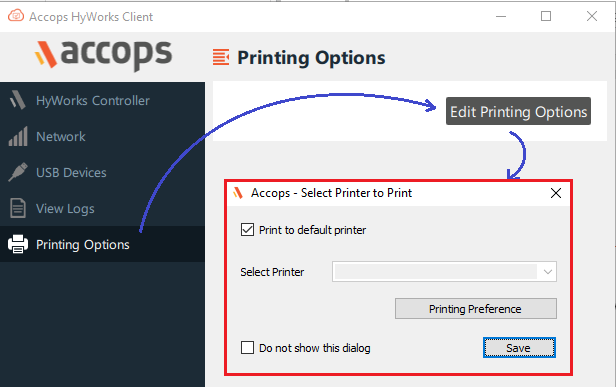
Printer Option on Windows Client
Windows client is integrated with an independent module to configure printing options. Which can be used to configure following settings, while printing using HyPrint PDF Printer:
-
Choose to send the print job to default printer
-
Choose to send the print job to configured printer (Selecting default printer for HyPrint PDF Print)
-
Setting-up printing preferences for configured printer
-
Option to show the dialog for all print jobs, so that user can either click on Open or Print from Printing Options dialog
Accops Session Server Extensions: New Features and Enhancements
HyPrint PDF Printing Support for Linux SHD and Desktops VMs
HyWorks DVM Tools for Linux SHD and Desktop VMs are having integrated HyPrint PDF Printer module, enabling PDF based printing from Linux session servers.
HyFR Integrations
All latest DVM Tools and session host agents are having integrated server-side file redirection modules and HyWorks Clients are having client-side extensions for file transfer.
HyFR module enables the file transfer between client and remote server machines, also the file transfer logs are sent to configured syslog server. After enabling file transfer,
-
Right click context menu on files will show option 'Download files to local computer', which on selection will open Save as windows, showing file system of client computer
-
Right clicking on any directory/desktop will show option to "Upload file to local computer"; which on selection will show Open dialog, showing client computer file system
Following additional configurations are also possible:
-
Blocking any specific type of file types
-
Stopping compression of specific file types