HyWorks Configurations
Power management feature can be enabled for managed session team by defining some configuration in HyWork like define or create capacity plan and assign that capacity plans to session team.
Capacity Plans
The purpose of capacity plan is to keep SHD servers ready for session teams as per plan and to save cost in cloud deployment. Based on user session load, plans can be assigned to teams like plans for weekday load and weekend load. Each team can be assigned multiple plans based on session usage pattern.
Below diagram shows the live user session pattern on weekdays and weekend. Mostly resource utilization or user session are high during working hours, but gets reduce during non-working hours on weekdays and very limited resource utilization on weekend. So capacity plan needs to be defined as per the usage pattern on weekend and weekdays.
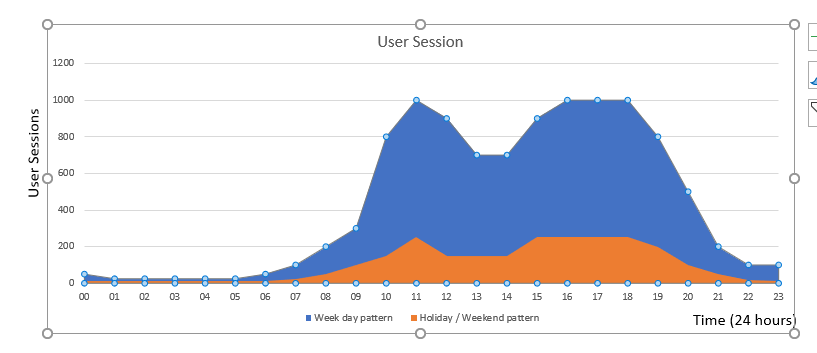
Figure : Typical user session pattern on weekday and holiday
Below diagram shows the sample capacity plan definition UI for weekday
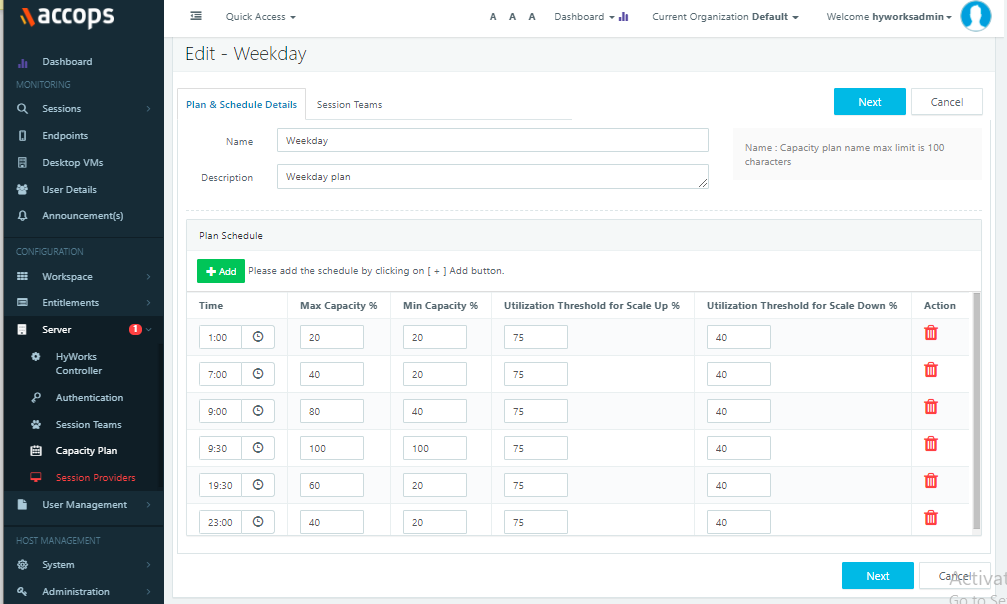
Figure: Sample capacity plan weekday based on user session pattern
Schedules in Capacity Plan
Schedules in capacity plan are used to defined the powered on server limits at particular instance of time, so the SHD servers will be powered on or powered off based on defined limits.
Plan consist of multiple schedule with following attributes:
-
Time – At this time assigned team`s capacity updated and Scale UP & Down threshold are applicable
-
Max Capacity % - What percentage of Team`s capacity will be allowed to be when powered on, based, actual SHD power on based on sessions on team. Act as an upper limit.
-
Min Capacity % - What percentage of Team`s capacity will be Powered On, irrespective no of sessions in the team.
-
Utilization Threshold for Scale up % - Dynamic scaling will be triggered to add more servers in powered on state if overall team’s session utilization has reached or above the threshold.
-
Utilization Threshold for Scale down % - Dynamic scaling will be triggered to reduce servers in powered on state if overall team’s session utilization has reached or below the threshold.
Team Assignments in Capacity Plan
Capacity plan is applicable for only managed session team, so only managed session teams will appear in session team addition window. Admin can click add teams button and all available managed teams will be appear to add in current capacity plan.
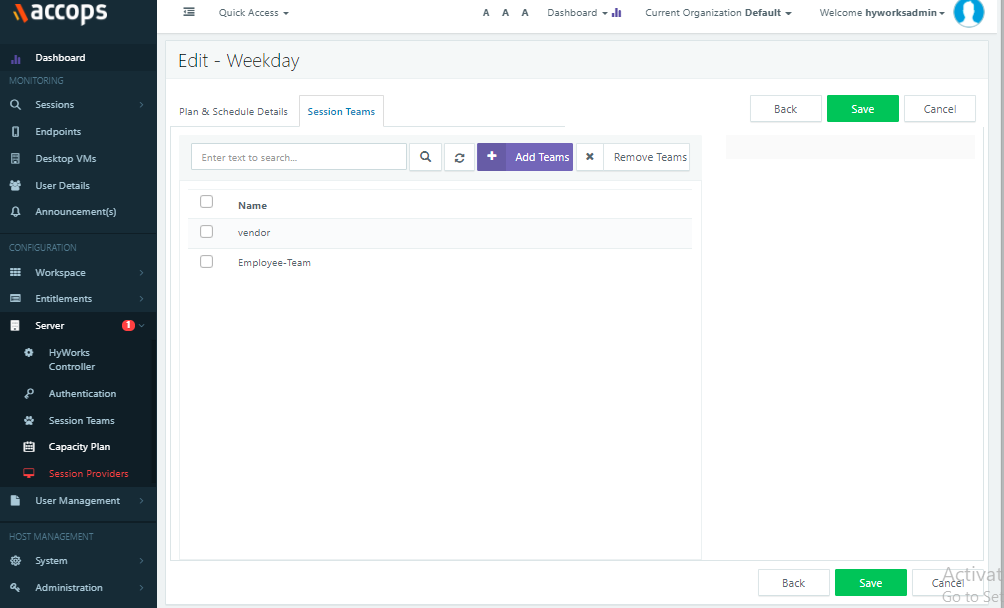
Figure: Managed Teams assigned capacity plan sample weekday.
Managed Team Details
Administrator can check the manage team details from Server > Session Team. Below field will be updated by scheduler/trigger for managed session team based on applicable capacity plan and are calculated using individual schedule capacity plan at a given time.
Fields Calculated by Power Management
-
Max Server - Upper limit for server to be online, based on session load.
-
Min server – Minimum server will be online, irrespective of session load.
-
Scale Up utilization % – New servers will be powered on, when team session load is higher than Scale up utilization
-
Scale Down utilization % - Servers will be cordoned (no new session) and then will be powered on.
Managed Teams Status Graph
Graph shows the current session teams resource utilization based on applicable capacity plan.
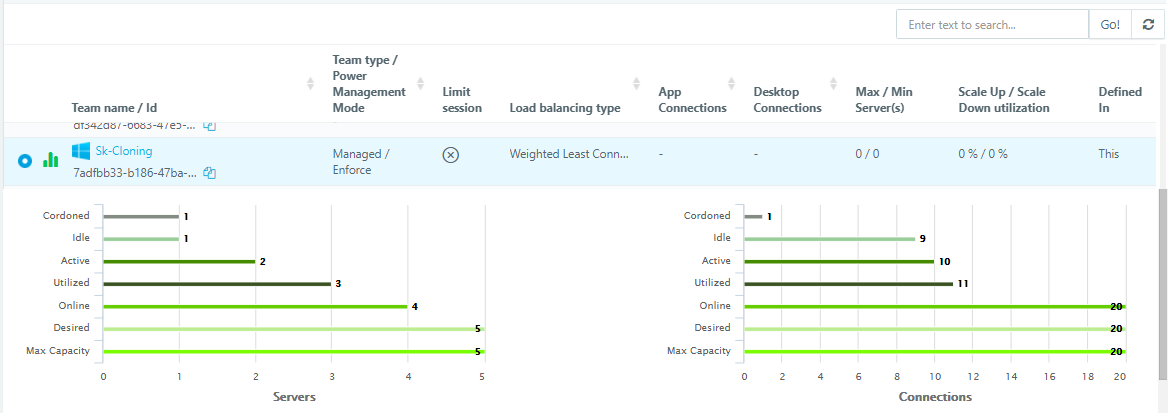
Figure: Managed Teams graph status
Graph is divided into two section, left hand side graph shows server status and right hand side graph shows connection or Session status.
Servers
-
Max Capacity - Maximum Servers configured in the team.
-
Desired - Based current session load, no of server should be online. System tries to match desired servers and online servers based on the plan on the team and scaling parameters are configured.
-
Online - No of server are powered on.
-
Utilized - No of servers utilized based on teams Max session per server. (Indicative number)
-
Active - No of servers online and ready to new connections or has session running.
-
Idle - No of servers not utilized based on teams Max session per server. (Indicative number)
-
Cordoned - No of Servers to planned for shutdown and no new connection will be given from these servers.
Connections
-
Max Capacity - Maximum connections configured in the team.
-
Desired - Based current session load, no of connection should be online. System tries to match desired connections and online connections based on the capacity plan on the team and scaling parameters are configured.
-
Online - Current total connections capacity (Team Max session per server X Online Server).
-
Utilized - Connection capacity utilized out of Online connections.
-
Active - Connection capacity that is ready to take new connections or it has session running.
-
Idle - Connection capacity not utilized.
-
Cordoned - Connection capacity to planned for reduction as servers are slated for shutdown.
Implementation Considerations
| Capacity Plans | Dynamic Scale Logic App | Capacity Plans Logic App | Team | |
|---|---|---|---|---|
| Purpose | For teams, define Max and Min servers’ limits for the day. | It will scale up or scale down based on 1) Session load 2) Try meet the Min and max limits of team. Currently, on scale up it will Power On SHD and on Scaled down shutdown VM`s | Update Max, Min Limits and scale up/down thresholds on the team as per current active plan | Collectively manage SHD server. |
| Configurations | Recommended to assign it to across multiple Teams, for easier management | One and only one per team is required. | Multiple Plans can be implemented by it. | Team can be part of multiple plans, but admin must make sure multiple plans are not implemented simultaneously. Ideally one plan to implemented in given day. |
Currently we have Azure Logic Apps implementation as trigger/scheduler for power management, Please refer this section for Azure Logic App trigger interaction with controller.
VM Scale Booster
The configurations required for faster updates of SHD VM power , SHD Agent , DVM Agent and Monitoring Statuses. Recommended to configure VM Scale Booster.
Additional Port to be opened:
-
Between SHD & Management controllers: 5672 (Default).
-
On management controllers to access portal: 15672 (Default).
Detailed steps to configure VM Scale Booster