Verify Deployment
Overview
Once the device is assigned to a group, the CMS server automatically pushes the configured software packages to the client machine. This page covers confirming that automatic deployment has started, verifying that all applications are installed, and restarting the system to complete the process.
Step 1 — Confirm automatic deployment
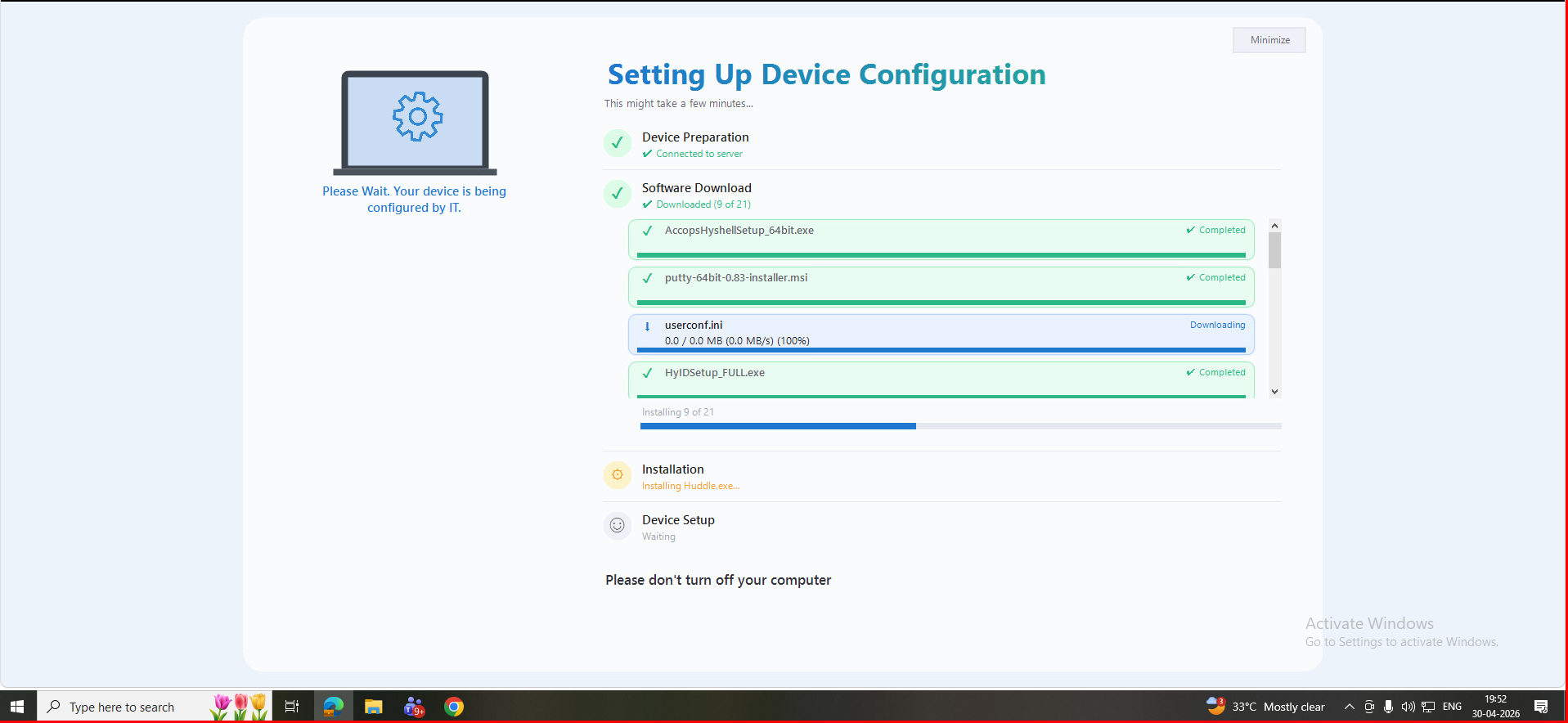
After group assignment, the required applications are automatically pushed from the CMS server to the client machine and installation begins without any further action.
Note
Deployment timing depends on network bandwidth and the size of the packages in the runbook. The client machine must remain powered on and connected to the network during this process.
Step 2 — Verify application installation
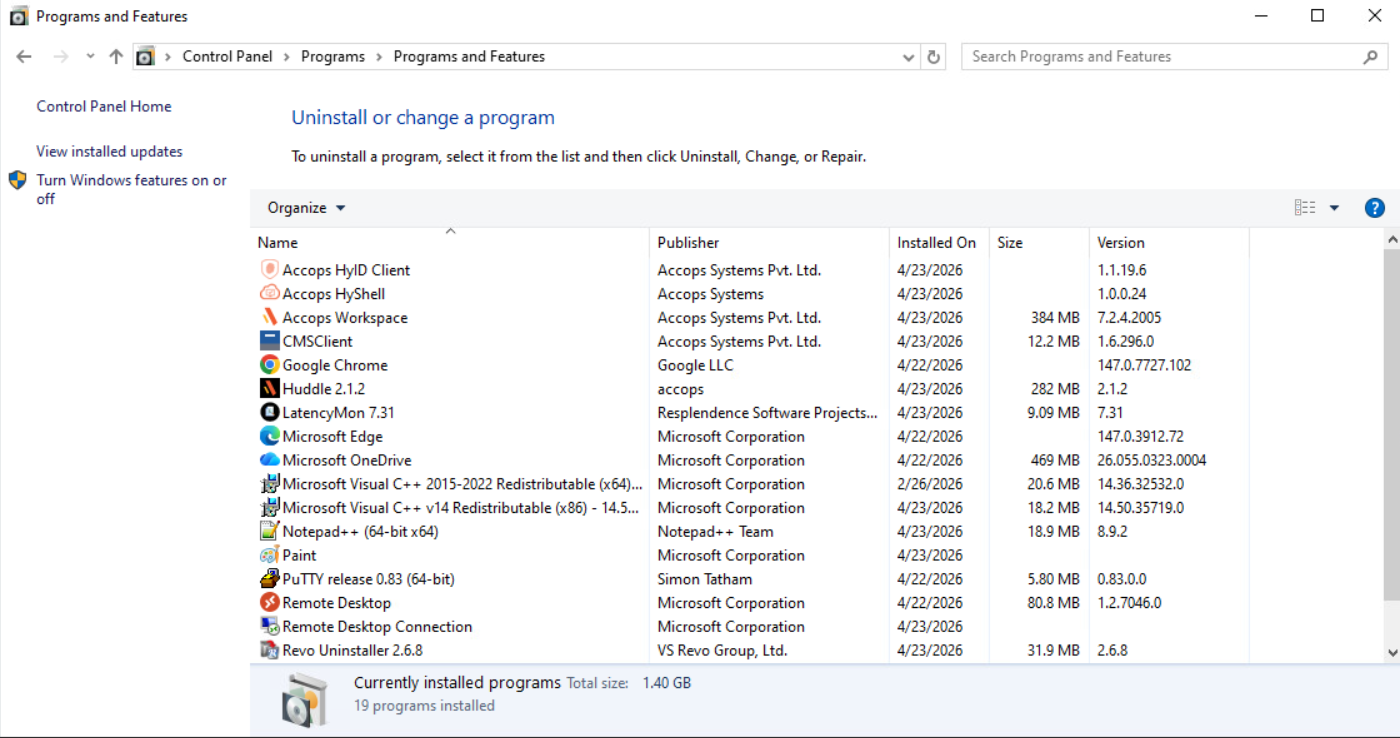
On the client machine, open Control Panel > Programs and Features.
Verify that all required applications are listed as installed. Applications deployed via CMS typically include the Accops HyID Client, Accops HyWorks Client, and any other packages configured in the group runbook.
Step 3 — Restart the client machine
Restart the client machine to ensure all configurations and installations are applied successfully.
Expected outcome
After completing Steps 1 and 2 of this guide, the following state is confirmed:
- Device is registered in CMS and visible in the Devices tab
- Device is assigned to a group
- All applications defined in the group runbook are installed on the client machine
Deployment complete
The client machine is fully configured and managed by CMS. Ongoing device health and performance data is now available in the Health Monitoring reference section.