Features and Enhancements in HyWorks v3.6-SP1
This release notes section highlights the new features and improvements introduced in HyWorks v3.6-SP1.
HyWorks Enhancements and Features
Deployment and Desktop Profile Support with VMware
The latest release of HyWorks introduces support for provisioning new desktops using Deployment Profiles and Desktop Profiles. This enhancement allows administrators to define custom hardware and configuration parameters for deployed virtual machines, rather than relying solely on the source VM’s settings, as in previous versions.
Key Benefits
-
Flexible Deployment Specifications: Configure compute resources, datastores, and network mappings to meet specific requirements.
-
Custom Hardware Settings: Define vCPU, memory, video card, and network configurations per deployment.
-
Profile Reusability: Reuse deployment profiles across multiple desktop pools, streamlining setup and ensuring consistency.
Compatibility & Support
-
Supported Provider: VMware (currently limited to VMware environments).
-
Deployment Type: Supported with Desktop Pools in HyWorks; not supported with HyLabs.
Using Deployment and Desktop Profiles
-
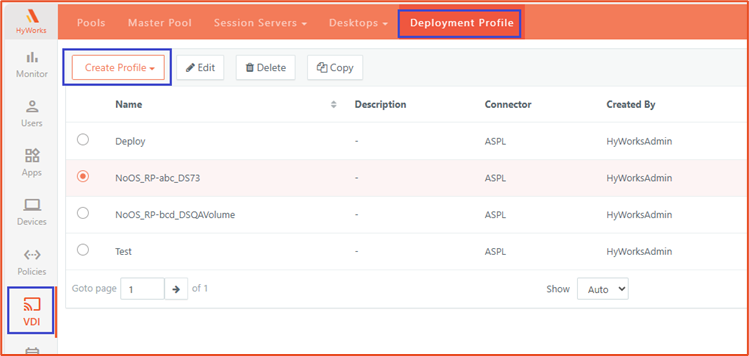
Create Profiles: From the HyWorks Controller Management Console, navigate to VDI > Deployment Profile and create a Deployment Profile along with its associated Desktop Profile.
-
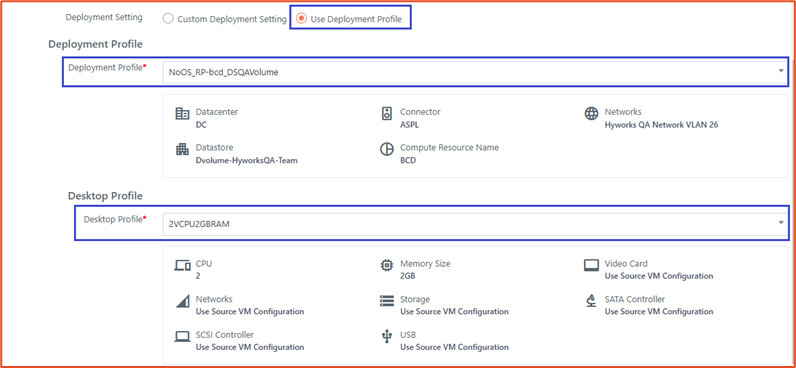
Apply Profiles: When adding or editing a desktop pool, go to the Deployment screen and either configure custom deployment settings or select an existing Deployment Profile / Desktop Profile.
Very Fast Provisioning on Azure Using Azure Compute Gallery
HyWorks v3.6-SP1 introduces seamless integration with Azure Compute Galleries, enabling the creation and management of specialized image definitions and versions directly from the Controller UI. This advancement enhances VM provisioning speed, reliability, and scalability—especially when cloning via Image Templates.
Key Benefits:
-
Direct Azure Image Management: Create and manage Azure images directly through the HyWorks and HyLabs Controller UI.
-
Improved Scalability: Optimize large-scale VM cloning with Azure Compute Gallery.
-
Consistent Provisioning: Ensure predictable, high-performance VM deployments from standardized image versions.
Compatibility & Support:
-
Provider: Azure
-
Deployment Types: Supported for both HyWorks and HyLabs
Using Azure Compute Gallery
-
HyWorks
- Clone from Image: When adding or editing a pool, select Clone from Image. If no existing image versions are available, create a new version directly from the same interface.
-
HyLabs
-
Gold Master Enhancements: Create image versions directly from the Gold Master page UI.
-
Snapshot Management: Manage snapshots for Azure Gold Masters via the Gold Master homepage.
-
Reservation Enhancements: Create image versions directly from the Reservation page UI.
Advanced Configurations:
-
Azure Image Replication Mode
-
Full Replication: Copies the entire image to all selected regions up front for faster availability.
-
Shallow Replication (default): Copies only metadata initially; the entire image is transferred when it is first used in a region.
-
-
Azure Gallery Name: Defines the Azure gallery where image versions will be stored. Default: Azure_HyWorks.
-
Azure Image Publisher: Publisher value for creating an image definition. Default: Accops.
-
Azure Image Offer: Offer value for creating an image definition. Default: HyWorks.
Known Limitations
-
Network Preserve: Not supported for Image Gallery–based cloning.
-
Image Creation Time: Image creation may take up to 5 minutes; the admin must remain on the page until the operation is completed to proceed.
-
The old managed image-based cloning method is no longer supported.
ADMX (Desktop Policy) and Script Execution Using Policy Engine
This release introduces enhanced Policy Engine capabilities that enable the distribution and execution of scripts (Batch or PowerShell) on desktop endpoints for specific session events, such as connect, disconnect, and reconnect, directly from the HyWorks Controller Management Console. In addition, ADMX-based Desktop Policies can now be delivered via the Policy Engine, extending the existing AUEM resource management and optimization features.
Key Benefits
-
Centralized Management: Configure and manage desktop policies and scripts entirely from the HyWorks Controller Management Console.
-
Granular Control: Apply specific ADMX settings and scripts to targeted users or groups with precision and accuracy.
Compatibility and Support
- Desktop Types: Windows only.
Using Desktop Policies and Scripts
-
Create a Desktop Policy: Navigate to Policies > Entities > Desktop Policies in the Controller Management Console and configure ADMX settings and/or script execution.
-
Assign via Resource Policy:
-
Go to Policies > Policies > Resource Policies.
-
Create a new Resource Policy using the Desktop Policy created above.
-
Assign the policy to the required users or groups.
-
Note: In earlier releases, script execution was not supported, and desktop policies were applied through the connection profile rather than the Policy Engine.
-
Advanced Configurations
-
Is Policy Engine Configured: Set to True to enable Policy Engine integration. Default: False.
-
Policy Manager Endpoint: Specify in the format: https://\<server_address>:\<port>. Example: https://192.168.1.20:38901 (Port 38901 is the default Policy Engine port).
Support for Hibernate Operation on Desktops from Azure
HyWorks v3.6-SP1 includes an implementation to initiate Hibernate operations on desktop VMs from Azure.
The action is termed Suspend in HyWorks.
Key Benefits:
-
Reducing resource consumption
-
Preserving the machine’s in-memory state for faster resume times
Support and Compatibility:
- The VM is hosted on Azure, and Hibernation is enabled for the VM.
How to hibernate from HyWorks:
-
From the HyWorks Controller Management Console > Desktops page, select one or multiple DVMs.
-
Go to Power > Suspend.
-
Following similar steps, suspended VMs can be resumed.
Integration of Azure Local (Azure HCI)
HyWorks v3.6-SP1 integrates Azure Local (Azure Stack HCI 23H2), Microsoft's optimized Hyperconverged infrastructure solution for hybrid cloud scenarios. The purpose of this integration is to deliver a robust, secure, and scalable virtual desktop and application delivery environment that combines Azure Local’s hybrid cloud capabilities and performance advantages with HyWorks’ comprehensive workspace orchestration features.
Key Benefits:
-
With the integration of Azure Local in HyWorks, all the benefits of Azure Local (e.g., simpler, single-place management, pay for software monthly) can be obtained while maintaining effective VM deployment and management through the HyWorks Controller Management Console.
- More details can be found in the reference article: Azure Local solution overview - Azure Local | Microsoft Learn
Support and Compatibility:
| Feature | Sub Feature | Provider/ Connector | |
|---|---|---|---|
| Azure HCI | |||
| Deploy pool with existing VMs | Deploy pool with existing VMs | Deploy pool with existing VMs | Yes |
| Desktop VM Provisioning | Clone Type | Linked Clone | No |
| - | - | Full clone | Yes |
| - | Clone from Checkpoint | Clone from Checkpoint | Yes |
| - | Disk persistence | Persistent VM Deployment | Yes |
| - | - | Non-persistent VM Deployment | No |
| - | Recompose/ Recreate | Recompose All | Yes |
| - | - | Preserve MAC Address | No |
| - | - | Recreate Single Desktop ( Full) | Yes |
| - | - | Graceful Recompose | Yes |
| Desktop Power Operations | Desktop Power Operations | Desktop Power Operations | Yes |
| - | - | Windows 8.1 | Unverified |
| - | - | Windows 10/11 | Yes |
| - | Windows Servers | Windows 2016 | Unverified |
| - | - | Windows 2019/2022/2025 | Yes |
| - | Linux Desktops | Ubuntu 22/RHEL 9.x | Unverified |
| - | Capacity Planning | - | Yes |
| Scheduled Actions | - | - | Yes |
| SHD Virtual IP | - | - | Yes |
| Deployment Profile | - | - | TBD |
| Load Distribution | - | - | TBD |
| Override Setting | - | - | TBD |
| Console Connect | - | - | TBD |
| Throttling Options (Power / Full Clone) | - | - | Yes |
| HyLabs | - | - | TBD |
| Deployment Profile & Desktop Profile | - | - | TBD |
MSIX App Attach Support for Personal Desktops
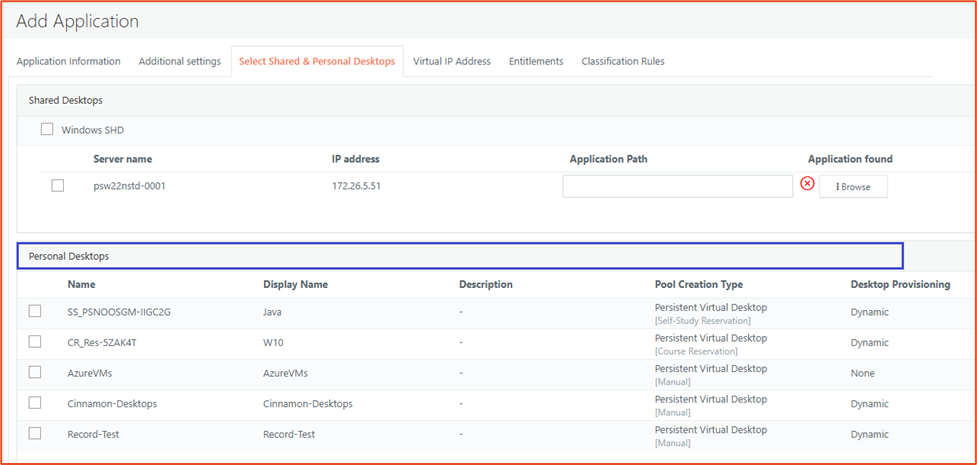
Earlier, the MSIX App Attach feature was supported with shared hosted desktops only using HyShell. The feature support has been extended to personal desktops as well.
The feature is supported by both HyWorks Desktop Pools and HyLabs Pools, but it can only be configured through the HyWorks Controller Management Console.
Key Benefits:
- Extending the benefits of MSIX App Attach (App Layering) to personal desktops as well.
Bulk Un-assignment from Desktops Page
This release adds the capability to bulk-unassign users from desktops directly on the Desktops page, with an additional option to remove those users from Desktop Pool configurations.
In earlier versions of HyWorks:
-
Multiple desktop assignments could not be removed simultaneously.
-
Removing a user’s assignment from a desktop did not automatically remove them from the Desktops page.
The new enhancement streamlines user management, reduces administrative effort, and ensures that desktop and pool assignments remain synchronized.
Supporting Single Sign-on Feature with New Accops Certificate Manager
In previous versions, HyWorks supported Single Sign-On (SSO) only with Microsoft Certificate Authority (CA) for certificate generation.
With HyWorks v3.6-SP1, support is now extended to include the Accops Certificate Manager (ACM).
Accops Certificate Manager (ACM) is Accops' native certificate issuing module, integrated with HashiCorp Vault for secure certificate management.
-
When a user requests a certificate via API, ACM internally processes the request and returns the certificate in PFX format.
-
Expired or revoked certificates are never issued, and any expired ones are automatically removed from the system.
Key Benefits
-
Independence from Microsoft CA: Avoid dependency on Microsoft Certificate Authority.
- Prevents disk space issues commonly caused by excessive certificate generation.
-
Reduced Overhead: Offloads certificate management from the HyWorks Controller.
-
Performance Improvements: Faster and more reliable certificate issuance.
-
Scalability: ACM can be scaled horizontally by adding servers to a cluster.
Configuring HyWorks with ACM for SSO
SSO with ACM can be enabled via HyWorks Controller Advanced Settings:
-
Go to HyWorks Controller Management Console > Settings > Advanced Settings.
-
Apply the SSO tag filter and configure:
- Enable SSO > Set to True.
-
Remove the SSO filter and apply the ACM tag filter. Configure the following (values depend on ACM setup):
Setting Description Example Notes Authorizer Service URI ACM Authorizer endpoint for authentication and token issuance. http://192.168.1.10:4000 Not applicable for Windows Enrollment Agent. Certificate Partition Partition or scope defined in ACM. mydomain Not applicable for Windows Enrollment Agent. Tenant Service URI ACM Tenant Service endpoint (public key fetch & related APIs). http://192.168.1.10:4001 Not applicable for Windows Enrollment Agent. Certificate Manager URI ACM service endpoint. http://192.168.1.10:4002 Not applicable for Windows Enrollment Agent. Customer ID Customer ID from ACM. customer_id Not applicable for Windows Enrollment Agent. Certificate Generation Method Method for certificate generation. 0 = Windows Enrollment Agent, 1 = ACM Select 1 for ACM. Service ID Service ID from ACM. id_66b9fc3rf5451234569448b Not applicable for Windows Enrollment Agent. Certificate Expiry (Minutes) Validity of ACM-issued certificates. Minimum: 6. 6 (default) Not applicable for Windows Enrollment Agent. Tenant ID Tenant ID from ACM. tenant_id Not applicable to Windows Enrollment Agent. ACM Authorizer Key ACM Authorizer service key. — Not applicable for Windows Enrollment Agent. -
Verification:
-
Ensure the RHEL machine is domain-joined and SSO-configured.
-
Log in with user credentials and confirm successful access to the assigned RHEL desktop.
-
HyLabs Features and Enhancements
Self-study Batch Processing for Faster Deployment
HyWorks v3.6-SP1 now introduces batch processing for self-studies, optimizing large-scale deployments. The following providers are supported:
- VMware vCenter
- Proxmox
- Microsoft Azure
- Nutanix
When multiple self-studies are scheduled to run simultaneously (for example, 10 at once), they will be processed based on the Self-Study Batch Count defined in the Advanced Settings.
Configuration:
-
Navigate to HyWorks Controller Management Console > Settings > General > Advanced.
-
Locate Reservation Batch Size (default: 50).
HyLabs Corporate Mode (English)
HyLabs can now be configured to operate in Corporate Mode, which updates portal labels and terminologies to better align with enterprise environments.
Examples:
-
Incharges → Program Owners
-
Assistants → Moderators
Configuration:
-
Go to HyWorks Controller Management Console > Settings > General > Advanced.
-
Locate Enable Corporate Mode.
-
Default: False. Set to True to enable Corporate Mode.
HyWorks DVM Tools for Windows
Feature integrations for v3.6-SP1 release:
-
MSIX App Attach for personal desktops
-
ADMX (Desktop Policy) and Script Execution Using Policy Engine
-
Accops Virtual Camera Support and Installation