Cluster Configurations for HyLabs Delivery
In a production deployment, all components should be fault-tolerant, and the failure of a single component should not cause system failure or downtime.
To achieve this, the following modules should be configured in the cluster:
-
Accops HySecure Servers - labelled as 1 in the image below.
-
Accops HyWorks HyLabs Portal - labelled as 2 in the image below.
-
Accops HyWorks Reservation Management Service (HyLabs Service) - labelled as 3 in the image below.
-
Accops HyWorks Controller Service and Database - labelled as 4 and 5 in the image below.
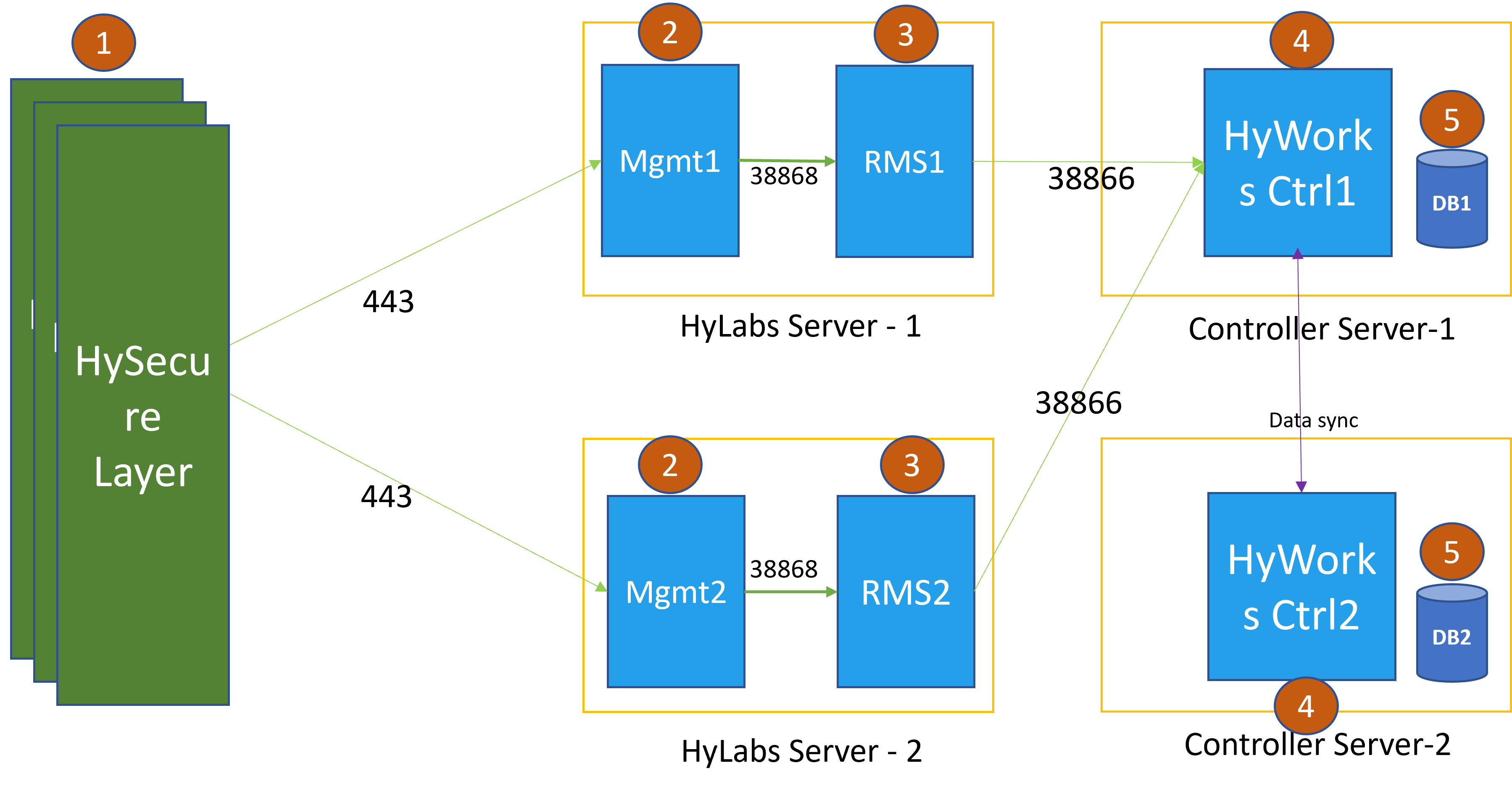
Cluster Configurations of HySecure Servers
-
For Platforms that support HySecure server installation, refer Supported Platform for HySecure
-
For cluster configurations, refer HA and cluster configurations of HySecure
Accops HyWorks HyLabs Portal Clustering
Accops HyWorks HyLabs portal is a web-based user interface for accessing HyLabs. The HyLabs portal clustering is achieved by configuring the web server on a Windows system, where the HyWorks Management console is installed with HyLabs (RMS Service). Follow the steps below for configuration:
HyLabs Server 1 (IIS Configurations on HyLabs/HyLabs servers)
-
To open IIS Manager, open the Run prompt, type inetmgr, and press Enter.
-
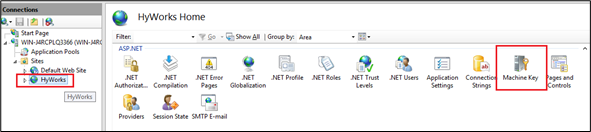
Expand the tree view on the left-hand side and click HyWorks.
-
Double click Machine Key module to open the Machine Key wizard.
-
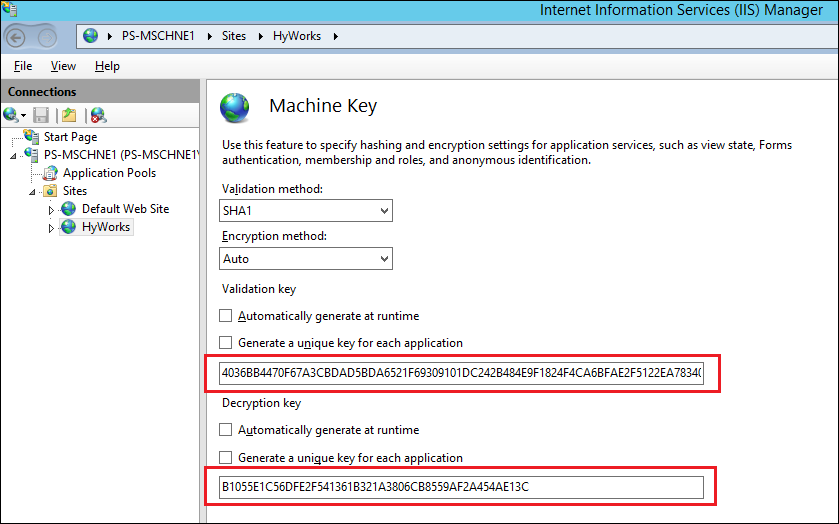
Uncheck the Validation Key and Decryption Key to generate them at run time.
-
From the Action panel, click the Generate Keys link to generate the Validation and Decryption keys.
-
Copy and save both the keys.
-
Go to the Action panel and click Apply.
-
Open the command prompt with Admin privileges, then restart the IIS by running the IISreset command.
HyLabs Server 2 (IIS Configurations on HyLabs/HyLabs servers)
-
To open IIS Manager, open the Run prompt, type inetmgr, and press Enter.
-
Expand the tree view on the left-hand side and click HyWorks.
-
Double click Machine Key module to open the Machine Key wizard.
-
Uncheck the Validation Key and Decryption Key to generate them at run time
-
Enter the copied validation key and decryption key saved in step 6 of the previous section - HyLabs Server 1 (IIS Configurations on HyLabs/HyLabs servers).
-
Go to the Action panel and click Apply.
-
Open the command prompt with Admin privileges, then restart the IIS by running the IISreset command.
HyLabs Web Portal Configurations for HyLabs Service High Availability
We have taken an example of the server’s configuration to explain the high availability configuration:
-
HyWorks
-
Primary Server 1: Controller Service and SQL Server IP address: 192.168.1.98
-
Secondary Server 2: Controller Service and SQL Server IP address: 192.168.1.99
-
-
HyLabs
-
Server 1: RMS Service and Management Console IP address: 192.168.1.96
-
Server 2: RMS Service and Management Console IP address: 192.168.1.97
-
Primary management console server (HyLabs Server 1)
Note
If HyWorks and RMS Services are installed on the same server, check the web.config file in the HyWorks Server Node 1. The location and details of the web.config file are provided later in this section.
-
Access the primary management console server (192.168.1.96) with a user having administrator rights.
-
Take a backup of web.config file from the location:
C:\Program Files (x86)\Accops\HyWorks\Mmc\web.config
-
Modify web.config with the following configurations:
-
In the section
<appSettings\>, check for the tag RMSSecondNodeAddess and set its value to the IP address of the 2nd HyLabs server with port as 38868, e.g.,<add key="RMSSecondNodeAddess" value="192.168.1.97:38868"\></add\>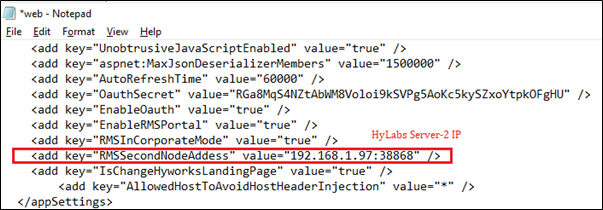
-
In the section
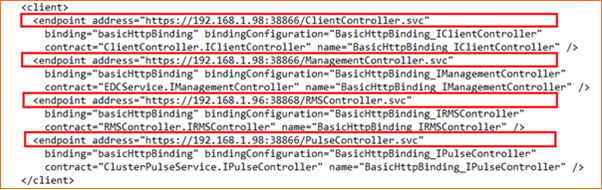
<client\>, update controller address from localhost:38866 to IP address of the primary HyWorks Controller, e.g.,endpoint address=https://192.168.1.98:38866/ClientController.svc
endpoint address=https://192.168.1.98:38866/PulseController.svc
endpoint address=https://192.168.1.98:38866/ManagementController.svc
-
In the section
<client\>, update the RMS service address to point to the localhost or IP address of the primary HyLabs server, e.g.endpoint address=https://192.168.1.96:38868/RMSController.svc
Note
The above configuration (Client section: RMS Controller) is based on four servers deployment, and in case of two node deployment, it can be configured with the HyWorks Controller IP as all modules, HyWorks Controller, HyLabs (RMS) service, and Management Console are installed on a single Windows server only.
-
-
Save the web.config file.
Secondary management console server (HyLabs Server 2)
-
Access the secondary management console server (192.168.1.97) with a user having administrator rights.
-
Take a backup of the web.config file from the location:
C:\Program Files (x86) \Accops\HyWorks\Mmc\web.config
-
Modify web.config with the following configurations:
-
In section
<appSettings\>, check for tag RMSSecondNodeAddess and set its value to 1st HyLabs Server with port as 38868, e.g.,<add key="RMSSecondNodeAddess" value="192.168.1.96:38868"\></add\> -
In the section
<client\>, update controller address from localhost:38866 to IP address of the secondary HyWorks Controller, e.g.,endpoint address=https://192.168.1.99:38866/ClientController.svc
endpoint address=https://192.168.1.99:38866/PulseController.svc
endpoint address=https://192.168.1.99:38866/ManagementController.svc
-
In the section
<client\>, update the RMS service address to point to the localhost or IP address of the secondary HyLabs server, e.g.,endpoint address=https://192.168.1.97:38868/RMSController.svc
Important
Some of the configuration may already have been done during the configuration. Refer to Configure Management Console to Point to HyWorks Controller.
-
-
Save the web.config file.
HyLabs Service Configurations for Controller High-Availability
We will use the same configuration example from the above section, and the RMS service is installed on the same server as the Management Console.
The configuration remains the same for deployments with two or four Windows servers.
-
Primary HyLabs Server 1: 192.168.1.96
-
Secondary HyLabs Server 2: 192.168.1.97
Primary RMS Service Configuration (HyLabs Server 1)
Note
- If HyWorks and RMS Service are installed on the same server, then check the service configuration file in the HyWorks Server Node 1.
- If addresses of Primary and Secondary HyWorks Controllers are correctly specified during installation, then this step may not be needed or can be used to just verify the configurations.
-
Access the primary HyLabs server with administrator rights.
-
Take a backup of EDC.RMSService.exe.config file from the following location:
C:\Program Files (x86)\Accops\HyWorks\RMSService\EDC.RMSService.exe.config
-
Modify the file with the following changes:
-
In the section
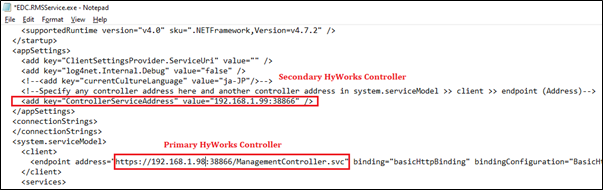
<appSettings\>, set ControllerServiceAddress as the secondary HyWorks Controller, e.g.,<add key="ControllerServiceAddress" value="192.168.1.99:38866"\> -
In the section
<client\>, set the endpoint address with the IP of the primary HyWorks controller, e.g.,<endpoint address=https://192.168.1.98:38866 ManagementController.svc
-
-
Save the configuration.
-
Open services.msc, select Accops RMS service and select Restart to restart the RMS service.
Secondary RMS Service Configuration (HyLabs Server 2)
Note
- If HyWorks and RMS Service are installed on the same server, then check the service configuration file in HyWorks Server Node#2.
- If the addresses of Primary and Secondary HyWorks Controllers are correctly specified during installation, then this step may not be needed or can be used to just verify the configurations.
-
Access the secondary HyLabs server with a user having administrator rights.
-
Take a backup of EDC.RMSService.exe.config file from the following location:
C:\Program Files (x86)\Accops\HyWorks\RMSService\EDC.RMSService.exe.config
-
Modify the file with the following changes:
-
In the section
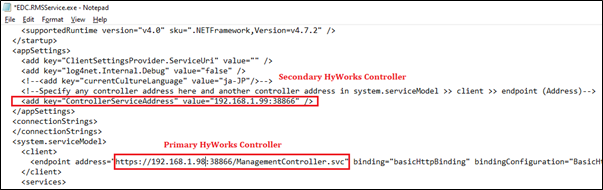
<appSettings\>, set ControllerServiceAddress as the secondary HyWorks Controller, e.g.,<add key="ControllerServiceAddress" value="192.168.1.99:38866" >
-
In the section
<client\>, set the endpoint address with the IP of the primary HyWorks controller, e.g.,<endpoint address=https://192.168.1.98:38866/ManagementController.svc
-
-
Save the configuration.
-
Open services.msc, select Accops RMS service and select Restart to restart the RMS service.
Configure HyWorks Controller Cluster
The two HyWorks servers installed separately can be joined in a cluster from any of the management consoles. For details, refer HyWorks Controller Cluster document.
Configuration is required to make both the components, i.e., HyWorks Controller Services and the database, available all the time.