Deployment and Desktop Profiles
The release of HyWorks (v3.6-SP1) introduces support for provisioning new desktops using Deployment Profiles and Desktop Profiles. This enhancement allows administrators to define custom hardware and configuration parameters when deploying virtual machines, rather than relying solely on the source VM's settings or explicit pool-wide deployment settings, as in previous versions.
Definition:
-
Deployment Profile: Defines the deployment location.
-
Desktop Profile: Defines the key hardware specifications for the virtual machines to be deployed.
Association of Deployment Profile and Desktop Profile: A single Deployment Profile can be associated with multiple Desktop Profiles, each of which inherits the base settings while allowing customization specific to the virtual desktop, such as vCPU, memory, and disk configurations.
Key Benefits:
-
Flexible Deployment Specifications: Configure compute resources, datastores, and network mappings to meet specific requirements.
-
Custom Hardware Settings: Define vCPU, memory, video card, and network configurations per deployment.
-
Profile Reusability: Reuse deployment profiles across multiple desktop pools, streamlining setup and ensuring consistency.
Compatibility & Support:
-
Supported Provider: VMware only (currently limited to VMware environments).
-
Deployment Type: Supported with Desktop Pools in HyWorks; not supported with HyLabs.
-
HyWorks Controller Version: v3.6-SP1 or later.
Supported Deployment Configurations
Deployment Profile Configurations
| Section | Configuration | Description | Remarks |
|---|---|---|---|
| Primary Details | Name | Name for the deployment profile | 100 characters, allowed special characters: _ SPACE () {} # @ : - |
| Description | Description for the deployment profile | - | |
| Connector Type | The type of connector for which the deployment profile is being created. | Only VMware supported | |
| Connector Name | Listing the connectors available of the type configured above. | Select the connector for which the deployment profile has to be created. | |
| Compute | Datacenter | Listing the datacenters available in the selected connector. | - |
| Search Compute Resource | Enter some string to search the compute resource, e.g., cluster-name, resource pool, etc. | ||
| Compute Resource Name | Expand the list and select the listed compute resource | If a search string is provided, then only filtered resources will be listed. | |
| Datastore | Datastore Selection | Select the listed datastores. | It is important to note that compatibility between compute resources and datastores will not be checked; therefore, the administrator must ensure that the selected datastore(s) and compute resources are compatible. |
| Network | Network Selection | All available networks will be listed. | One or multiple networks can be selected. Selected networks will be used when defining desktop profiles. |
Desktop Profile Configurations
| Section | Configuration | Description | Remarks |
|---|---|---|---|
| Primary Details | Name | Name of the desktop profile. | Max 100 characters. Allowed special characters: _ SPACE () {} # @ : - |
| Description | Description of the desktop profile. | - | |
| Deployment Profile | Select the deployment profile to associate with the desktop profile. | A deployment profile can be associated with multiple desktop profiles. | |
| vCPU | vCPU | Configure virtual machine vCPU settings. | Use Source VM Configuration: Inherits vCPU settings from the source VM. Override Source VM Configuration: Allows manual vCPU configuration. Advanced options support CPU reservation and scheduling affinity (VMware-aligned). |
| Memory | Memory | Configure virtual machine memory settings. | Use Source VM Configuration: Inherits memory settings from the source VM. Override Source VM Configuration: Allows manual memory limits. Advanced options include memory reservation and memory hot plug (VMware-aligned). |
| SCSI Controller | SCSI Controller | Virtual controller for connecting high-performance virtual disks. | Currently disabled. Uses source VM configuration only. |
| SATA Controller | SATA Controller | Virtual controller for CD/DVD drives or legacy storage devices. | Currently disabled. Uses source VM configuration only. |
| Storage | Storage | Storage configuration for the cloned virtual machines. | Currently disabled. Uses source VM configuration only. |
| Network | Network | Configure network settings for cloned virtual machines. | Use Source VM Configuration: Inherits network settings from the source VM. Extend Source VM Configuration: Retains source settings and allows additional modifications. Override Source VM Configuration: Replaces source VM network settings entirely. |
| USB Controller | USB Controller | USB controller configuration for the virtual machine. | Extend and Override options are disabled. Uses source VM configuration by default. |
| Video Card | Video Card | Configure video card settings for the virtual machine. | Use Source VM Configuration: Inherits video settings from the source VM. Override Source VM Configuration: Allows custom settings such as display count, video memory, and enabling 3D graphics support. |
Management
Now that the different aspects of the deployment and desktop profiles are explained, the following management operations can be performed.
Create
Create Deployment Profile
To create a deployment profile:
-
Navigate to
Management Console > VDI > Deployment Profile > Create > Create Deployment Profile. -
Configure the following sections as required:
-
Primary Details: Specify the profile name, description, connector type, and connector.
-
Compute: Select the compute resource for cloned virtual machines (host, cluster, resource pool, etc.).
-
Datastore(s): Select one or more datastores. Ensure datastore compatibility before selection.
-
Networks: Select one or more networks to form a superset that can later be used in the desktop profile.
-
-
Click Save & Close to save the deployment profile without creating a desktop profile, or click Save & Continue to Desktop Profile to proceed with desktop profile creation.
Create Desktop Profile
A desktop profile can be created in the following ways:
-
Initiate desktop profile creation using one of these methods:
-
During deployment profile creation, click Save & Continue to Desktop Profile on the final screen.
-
Directly from
Management Console > VDI > Deployment Profile > Create > Create Desktop Profile.
-
-
Configure the following sections:
-
Primary Details Specify the profile name, description, and deployment profile.
-
If created from a deployment profile, the deployment profile is selected by default and can be changed.
-
If created directly, select the deployment profile to associate with the desktop profile.
-
-
vCPU: Configure vCPU settings using either source VM configuration or override options.
-
Memory: Configure memory settings using either source VM configuration or override options.
-
SCSI Controller, SATA Controller, Storage, and USB Controller: These options are currently disabled and use only the source VM configuration.
-
Network: Configure network settings using one of the following options: Use Source VM Configuration, Extend Source VM Configuration, or Override Source VM Configuration
-
Video Card: Configure video card settings using source VM configuration or override options.
-
-
Click Finish to save the desktop profile.
Copy Profile
A new deployment or desktop profile can be created by copying an existing profile.
-
Select the profile to copy:
-
Select a deployment profile from the list.
-
Expand Linked Desktop Profile(s) and select the desktop profile to copy, if required.
-
Click Copy.
-
Modify the configuration, if needed.
-
For deployment profile copy:
-
Click Save & Close, or
-
Click Save & Continue to Desktop Profile.
-
-
For desktop profile copy:
- Click Finish.
-
The copied profile is created and displayed in the respective list.
Modify Profile
To modify an existing profile:
-
Select the profile to edit:
-
Select a deployment profile from the list.
-
Expand Linked Desktop Profile(s) and select the desktop profile to modify, if required.
-
-
Click Edit.
-
Update the configuration as required.
-
Click Save Deployment Profile for deployment profiles or Finish for desktop profiles.
Note
- Changes to deployment or desktop profiles do not affect already deployed desktop pools.
- Modified profiles are applied during the next deployment event.
Delete Profile
Important
- A deployment profile cannot be deleted until all associated desktop profiles are deleted.
- A desktop profile cannot be deleted while it is associated with a desktop pool.
To delete a profile:
-
Select the deployment or desktop profile to delete (ensure all required associations are removed).
-
Click Delete.
-
In the Confirm Action dialog, enter the profile name and click OK.
-
The profile is deleted and removed from the list.
Using Deployment Profile in Desktop Pools
When creating or editing a desktop pool:
-
Navigate to the Deployment screen.
-
Select an existing deployment profile or desktop profile, or configure custom deployment settings.
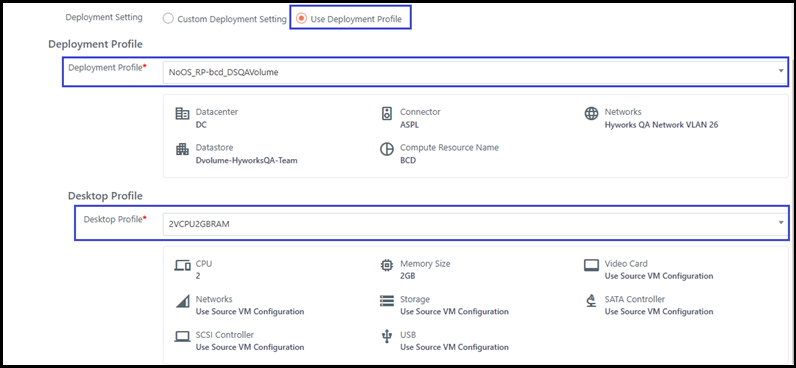
During clone or recompose operations, HyWorks deploys new virtual machines using the selected deployment and desktop profile specifications.