Smtp server
{!./common_pages/settings/messaging/smtp_server_overview.md!}
E-mail templates are available for different scenarios, such as sending OTPs and performing passphrase resets. You can customize these templates or use them as is for the necessary notifications.
Configure SMTP Server Settings
-
Log on to the Management Console.
-
Navigate to Settings > Messaging > SMTP.
-
Under SMTP Server Settings, select SMTP Authentication Type (Basic Authentication or OAuth Authentication), and configure the following fields.
-
Click Submit.
Basic Authentication SMTP Configuration
Basic Authentication is a legacy authentication method in which the SMTP client verifies its identity with a Username and Password.
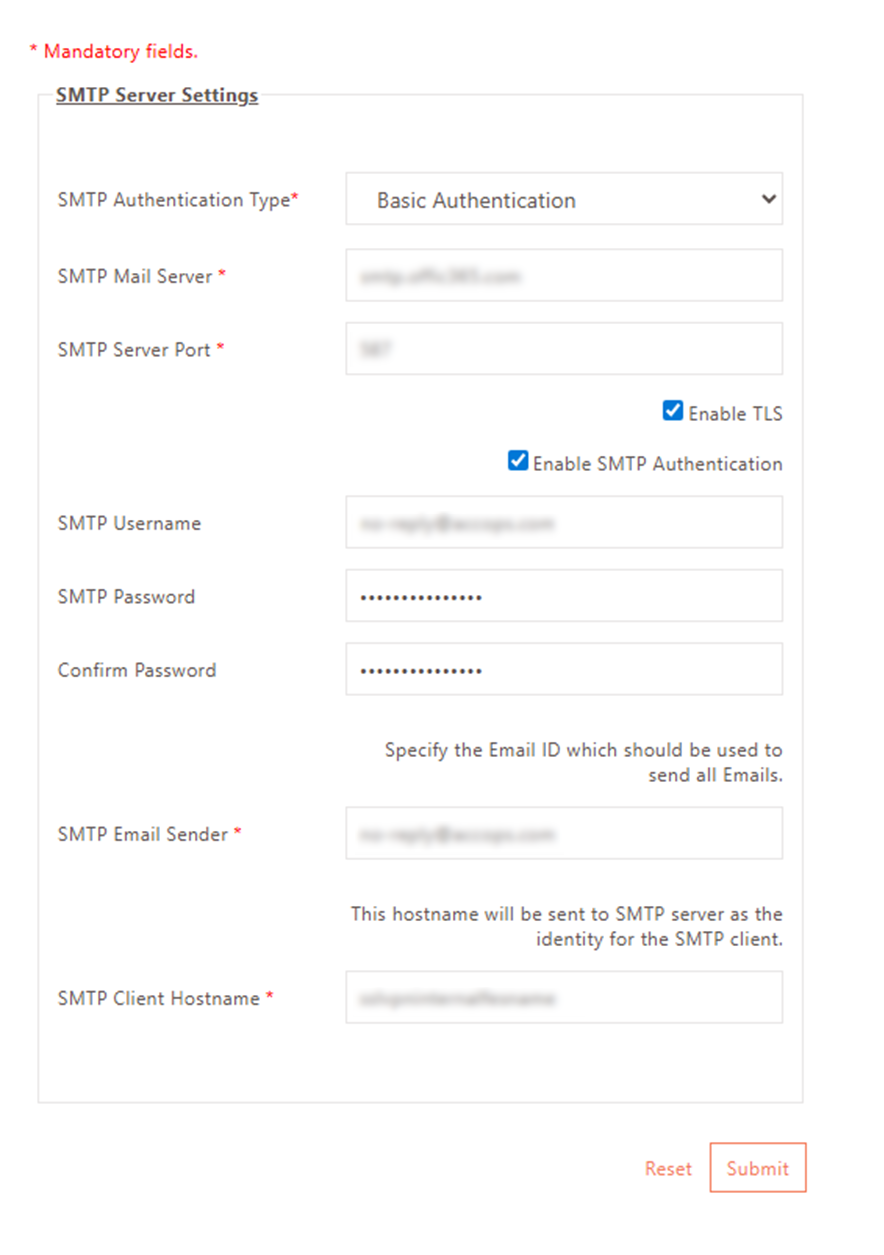
Configure Basic Auth Parameters
| Field | Description |
|---|---|
| SMTP Authentication Type | Select Basic Authentication to configure SMTP with Basic Authentication. |
| SMTP Mail Server | Enter the SMTP server address for sending email notifications. |
| SMTP Server Port | Enter the port number to connect to the SMTP server from the Gateway. |
| Enable TLS | Check this option if the SMTP server is configured to use TLS for secure communication. |
| Enable SMTP Authentication | Check this option if the SMTP server requires authentication with a username and password. |
| SMTP Username | Enter the name of the user used to authenticate the HySecure gateway with the SMTP server. This field should be configured only if the Enable SMTP Authentication option is enabled. |
| SMTP Password | Enter the password of the user who will authenticate the HySecure gateway with the SMTP server. This field should be configured only if the Enable SMTP Authentication option is enabled. |
| Confirm Password | Enter the same password entered in the SMTP Password field. This field should be configured only if the Enable SMTP Authentication option is enabled. |
| SMTP Email Sender | Enter SMTP Email Sender, which does not allow impersonating user email IDs, and specify the email ID of the user whose username is set on this page for authentication with the SMTP Server. |
| SMTP Client Hostname | This is the hostname sent by HySecure Gateway to the SMTP server in the Hello message. Unless the SMTP server has specific requirements, leave this parameter as it is. |
- Save Configuration: Click Submit to save the SMTP configuration.
Verify that the configuration is applied successfully.
OAuth Authentication SMTP Configuration
OAuth-based SMTP authentication integrates with Microsoft Azure and provides a secure way to send emails without using basic username/password authentication.
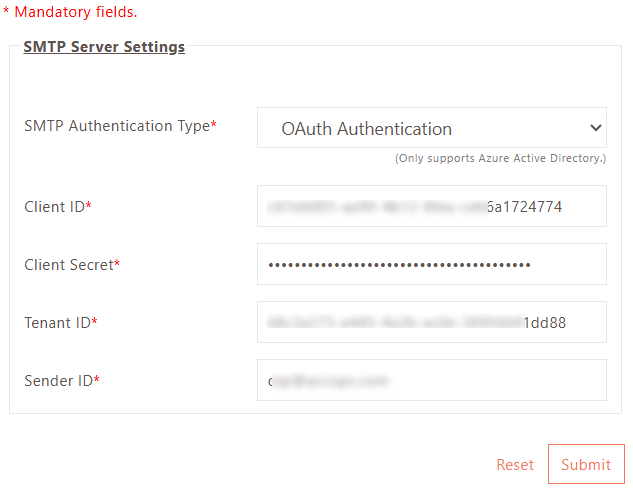
Set Authentication Type
-
SMTP Authentication Type: Select OAuth Authentication.
-
Server Details: Configure Exchange Online SMTP settings.
Configure OAuth Parameters
| Field | Description |
|---|---|
| SMTP Authentication Type | Select OAuth Authentication to configure SMTP with this type. |
| Client ID | Enter the Azure AD App’s Client ID. |
| Client Secret | Enter the Azure AD App’s Client Secret. |
| Tenant ID | Enter your Azure Active Directory Tenant ID. |
| Sender ID | Enter the email address configured and allowed in Azure/Exchange. |
- Save Configuration: Click Submit to save the SMTP configuration.
Verify that the configuration is applied successfully.
For more information, refer to the KB Article: Configure OAuth SMTP Authentication
Test Email Server Settings
Once the SMTP Server configuration is completed, it can be tested.
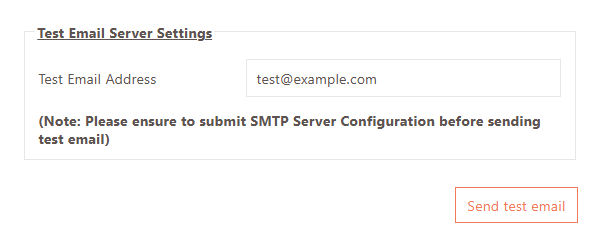
- Under Test Email Server Settings, configure the email address of a user to whom the test mail should be sent.
- Click Send test email.
!!!Note Please ensure to submit the SMTP Server Configuration before sending the test email.
Email Formats
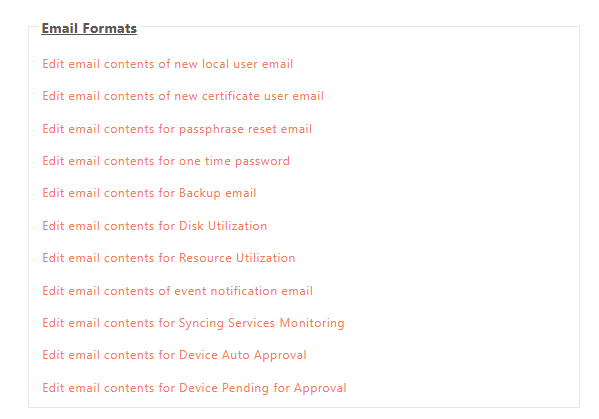
Various email templates are provided here for sending appropriate email notifications. Use the template directly or modify it as needed.
List of email templates:
- New Local User email
- New Certificate User email
- Passphrase reset email
- OTP (one-time password)
- Backup email
- Disk Utilization mail
- Resource Utilization mail
- Event notification email
- Syncing Services Monitoring
- Device Auto Approval
- Device Pending for Approval