Apps
Overview
Accops HySecure supports a wide range of multi-port TCP/UDP applications. You can register the services manually or with Auto Configuration of Standard Applications. Accops HySecure can automatically detect standard services running on devices within a given subnet range and use them to configure services.
When adding applications, HySecure will check whether the Application Server hostname specified and the hostname/domain name in the Web URL are resolvable from a gateway. An error is displayed if the name cannot be resolved. The Administrator can either fix the hostname or create a host file entry for it. This can happen if the hostname is typed incorrectly, the DNS server is misconfigured, or there is no DNS server.
View Application list
Follow these steps to view configured applications:
- Log on to the Management console.
- Navigate to Apps > Apps.
- The system displays a table listing all configured applications:
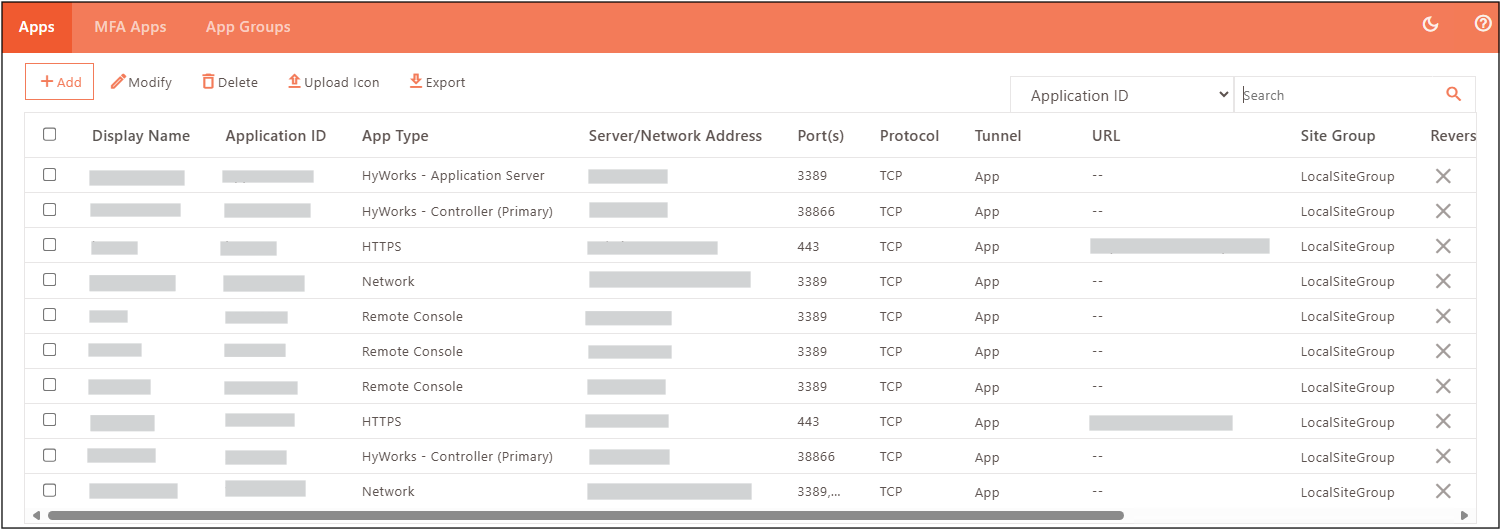
| Field | Description |
|---|---|
| Display Name | Displays the name of the application. |
| Application ID | Displays the unique identifier assigned to the application. |
| App Type | Displays Category/type (e.g., HTTP, HTTPS, SSH, FTP, VNC, etc.) |
| Server/Network Address | Displays the hostname or IP address of the application server. |
| Port(s) | Displays TCP/UDP port(s) on which the application listens. |
| Protocol | Displays Layer 4 protocol (TCP/UDP, etc.) on which the application runs. |
| Tunnel | Specifies whether traffic uses App Tunnel or Turbo Tunnel. |
| URL | Displays Web URL (for browser-based applications). |
| Site Group | Displays the associated site group (if configured). |
| Reverse Proxy | Indicates if reverse proxy is enabled. |
| Reserve Proxy Method | Displays the method used for reverse proxy configuration. |
| Download Metadata | Option/indicator for metadata download settings |
Add Applications
{!./common_pages/apps/add_applications.md!}
Modify Applications
- Log on to the Management console.
- Navigate to Apps > Apps.
- Select the checkbox next to the application you want to edit, then click Modify.
- The Modify Application screen appears. Update application details as required.
- Modify Application Groups by clicking the Add/Delete Application Group to Application.
- Click Submit to save changes.
Delete Applications
- Log on to the Management console.
- Navigate to Apps > Apps.
- Select the checkbox next to the applications you want to delete, then click Delete.
- Click OK to confirm.